How to View Your FameEX Assets and Transfer Funds? (Web)
2026-07-29 09:58:31You can check the FameEX Assets page to view your total asset value, each token balance, and asset details for each account. You can also transfer funds between your Funding, Spot, and Futures Accounts.
1. FameEX Account Types
Your assets on FameEX are divided into the following account types:
Funding Account: Used for deposits, withdrawals, and other fund management activities. Deposited assets will be credited to your Funding Account. Before trading, you need to transfer the required assets to the corresponding trading account. Prediction Market orders use assets directly from your Funding Account.
Spot Account: Used for spot trading. Before placing a spot order, you need to transfer the required assets to your Spot Account.
Futures Account: Used for USDT perpetual futures and copy trading. Before using these services, you need to transfer USDT to your Futures Account.
Prediction Market Account: Used to view assets related to your FameEX Prediction Market activity. Prediction Market orders use assets directly from your Funding Account, so no separate account transfer is required.
2. How Do I View My Assets?
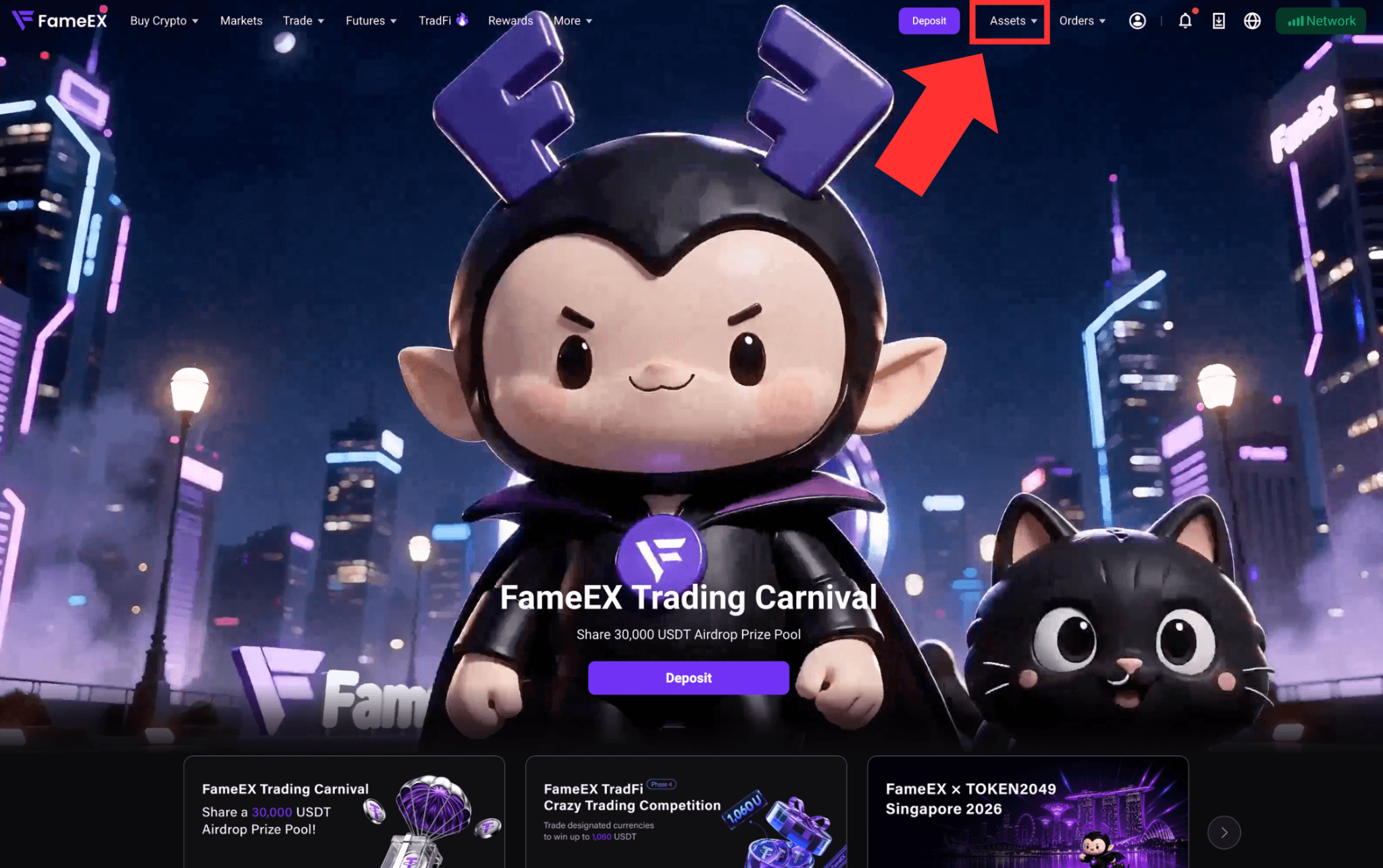
1) Visit the FameEX website and log in to your account. Click [Assets] in the upper-right corner to open the Assets page.
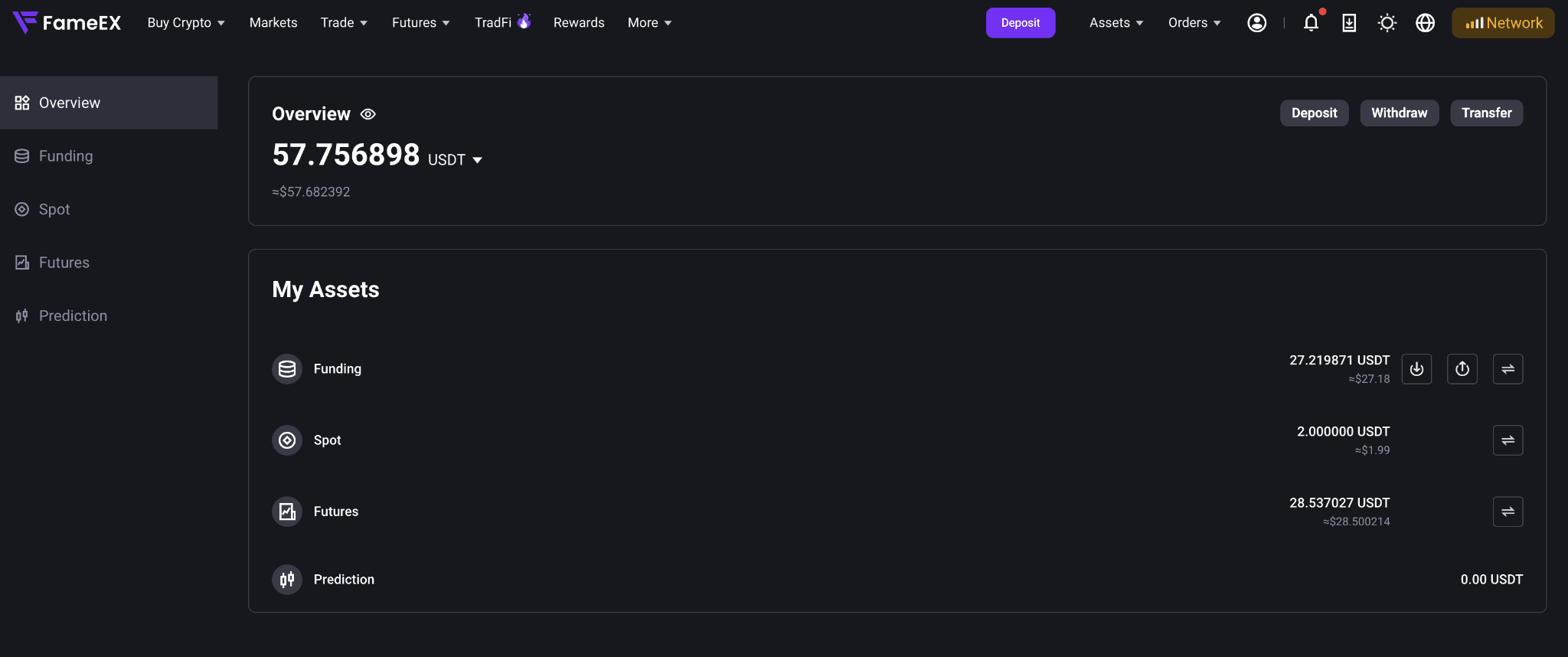
2) On the [Asset Overview] page, you can view your total asset value, each token balance, and available balances.
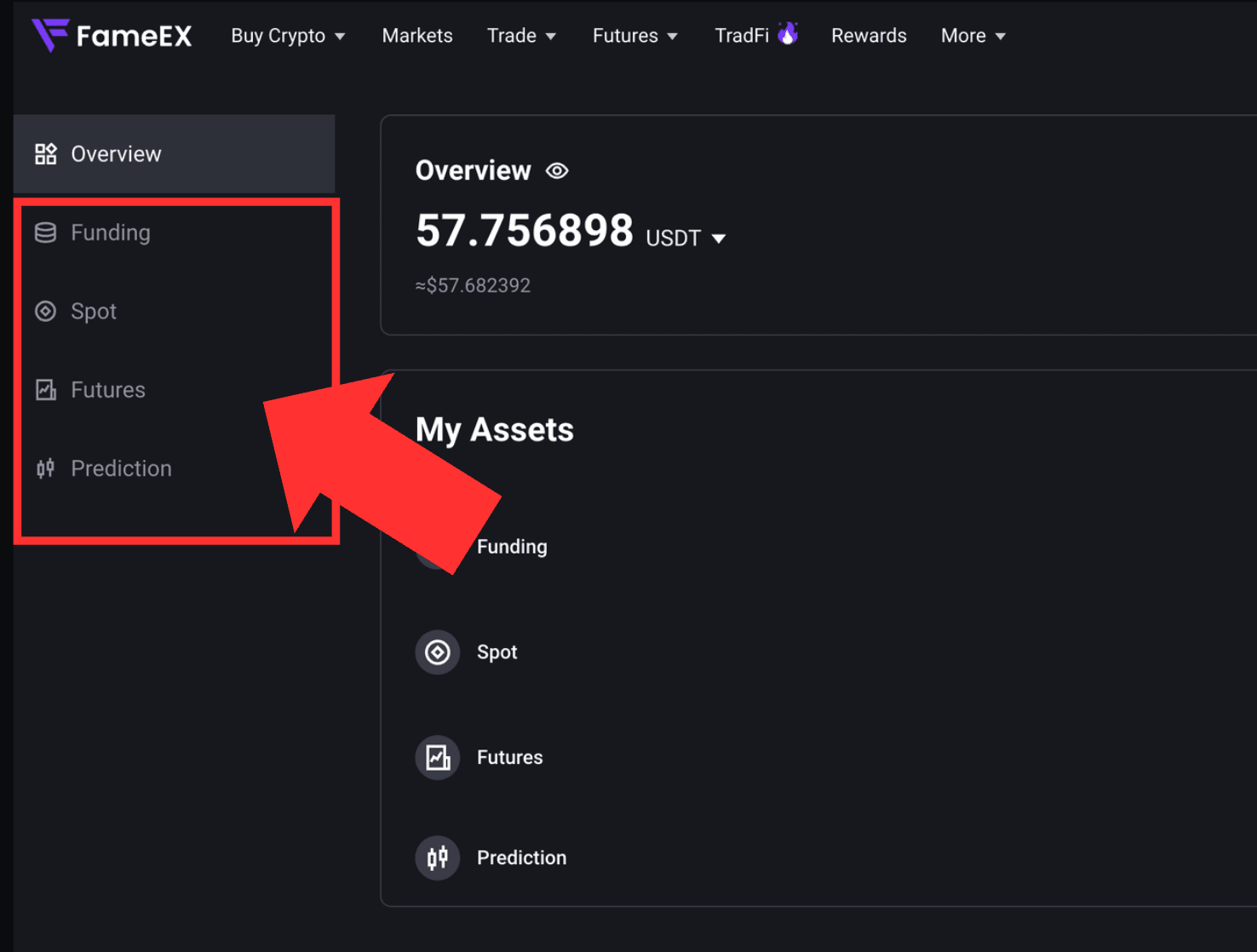
3) Switch between [Funding Account], [Spot Account], [Futures Account], or [Prediction Market Account] to view the asset details for each account.
3. How Do I Transfer Funds Between Different Accounts?
FameEX supports fund transfers between the Funding, Spot, and Futures Accounts. The following example shows how to transfer USDT from your Funding Account to your Spot Account:
1) Log in to the FameEX website and click [Assets] in the upper-right corner.
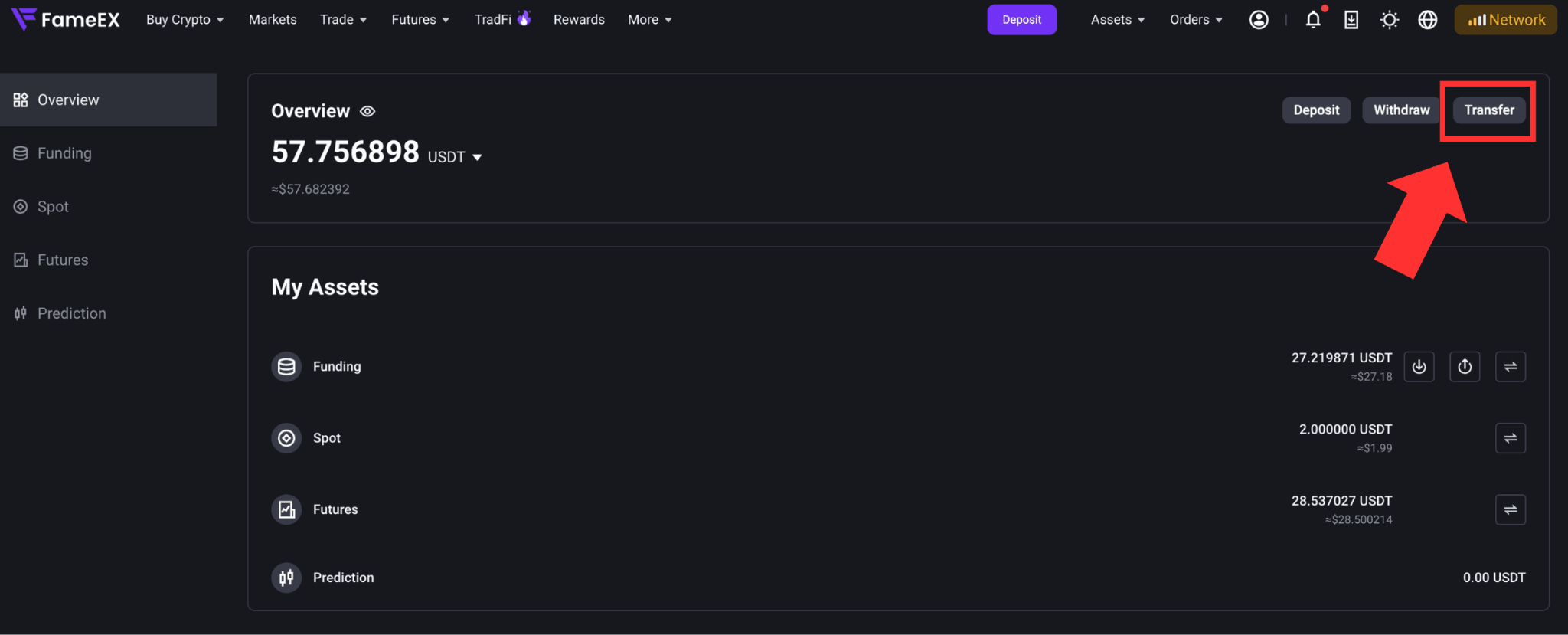
2) On the Assets Overview page, click [Transfer].
3) In the transfer pop-up window, select the accounts, token, and transfer amount from the relevant drop-down menus. Review the information and click [Confirm] to complete the transfer.
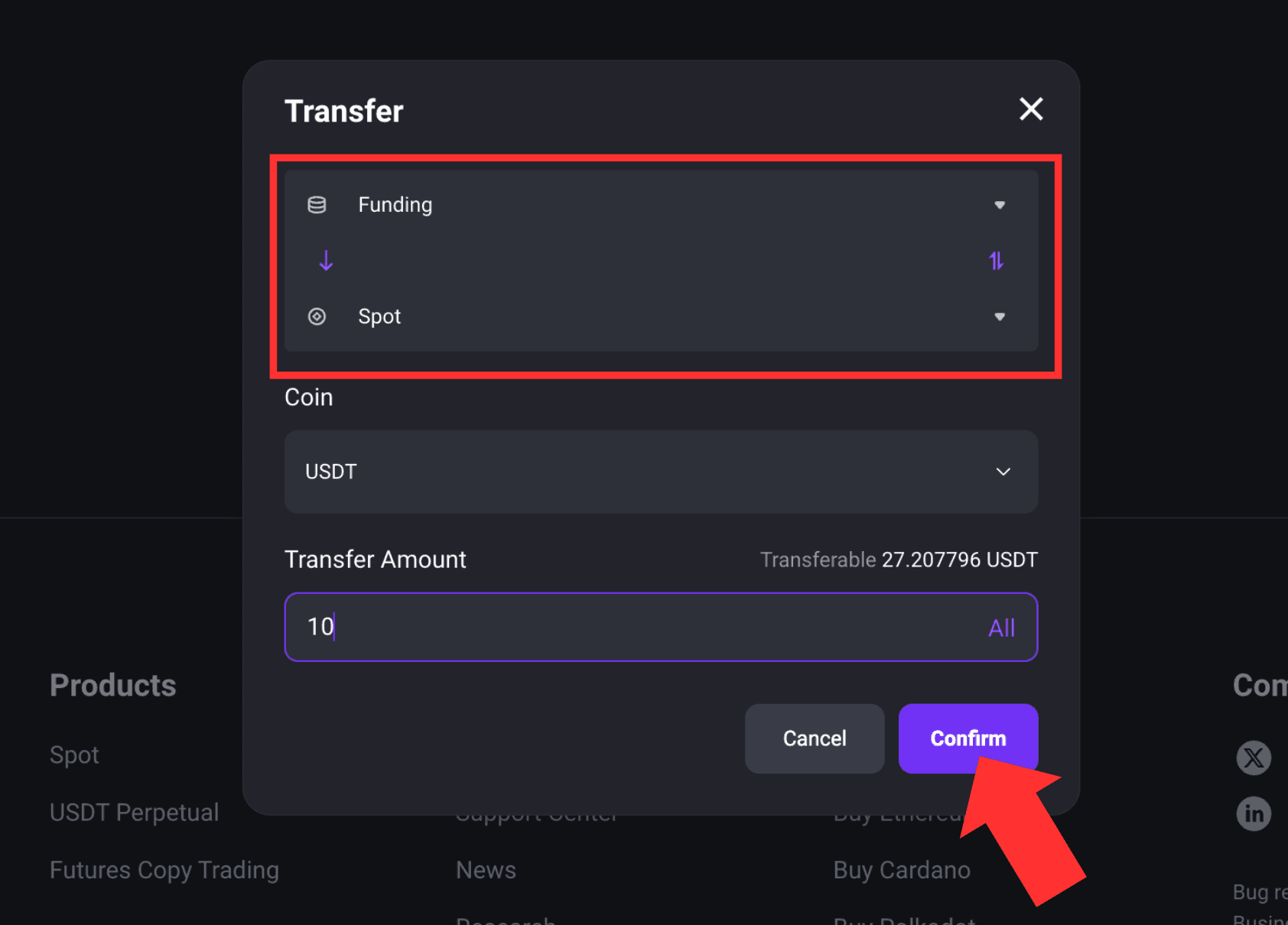
4) Once the transfer is complete, you can view the updated balance in your [Spot Account].
Notes
- FameEX only supports fund transfers between the Funding, Spot, and Futures Accounts.
- Transfers between accounts under the same FameEX account are free of charge.
- To trade on the spot market, transfer the required assets to your Spot Account first.
- USDT perpetual futures use USDT as margin. To trade futures, transfer USDT to your Futures Account first.
- First-time futures users must read and agree to the FameEX Futures Service Agreement before using Futures.
*Feature names and page locations may change following platform updates. Please refer to the latest interface for the most accurate information.