How to Enable, Disable, or Change Google Authenticator? (Web)
2026-10-19 07:12:03Google Authenticator is a two-factor authentication (2FA) app that generates a six-digit verification code every 30 seconds. These codes help protect your FameEX account when logging in, making withdrawals, or changing security settings. You can enable Google Authenticator through your FameEX account security settings.
1. How to Enable Google Authenticator?
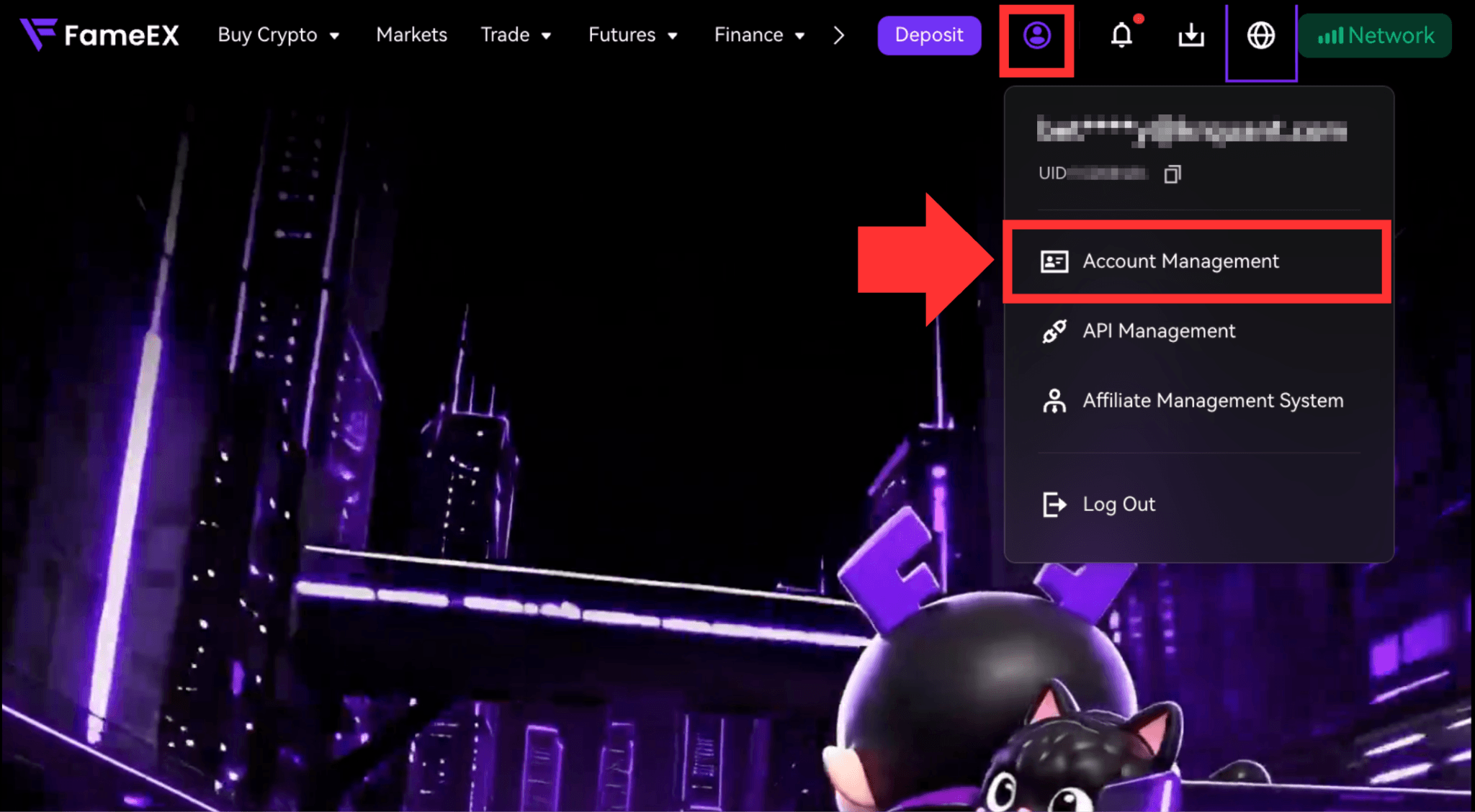
1) Go to the FameEX website and log in to your account. Click the [User Center] icon in the upper-right corner and go to [Account Management].
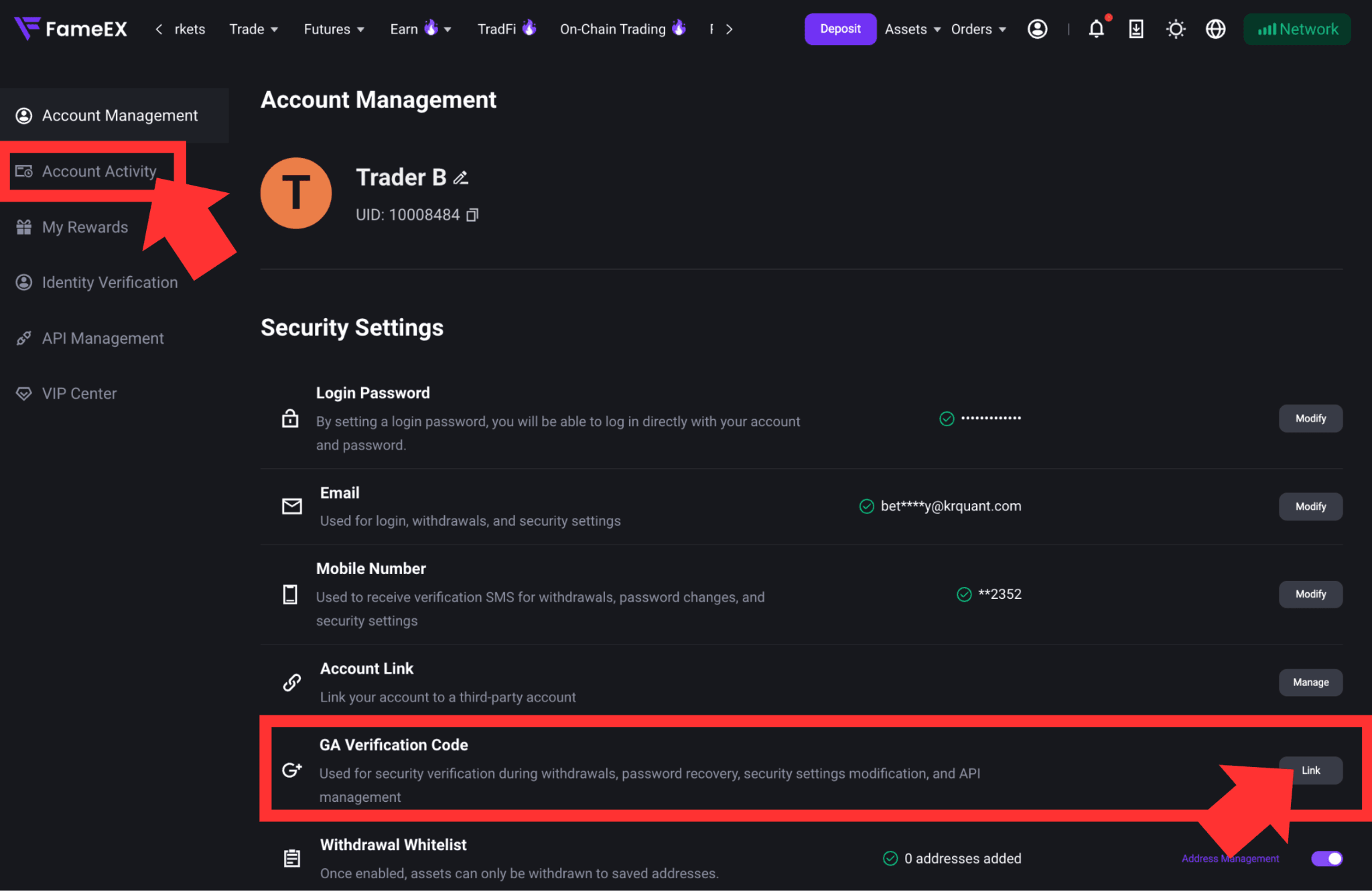
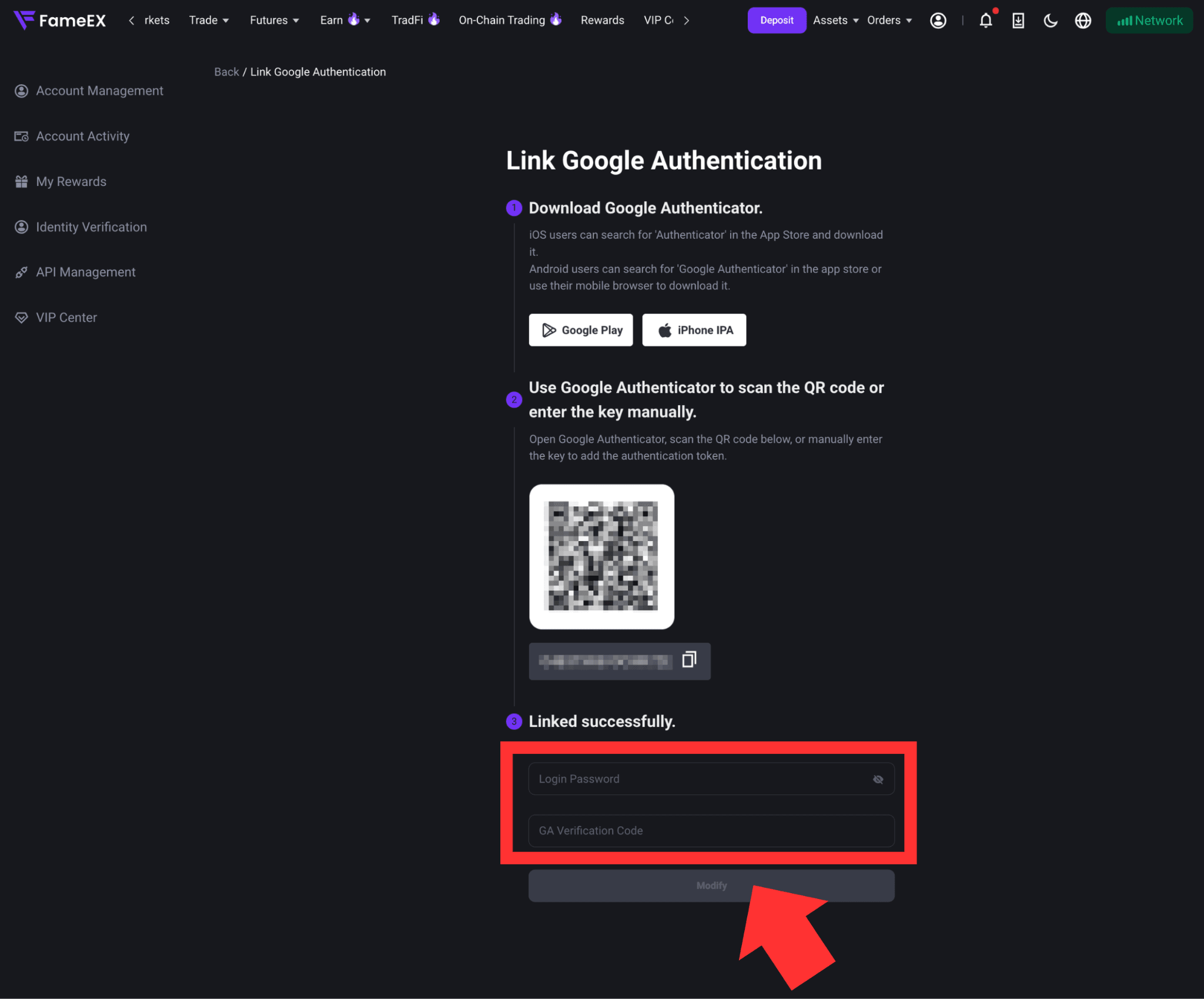
2) Under [Security Settings], find [GA Verification Code] and click [Link] on the right to open the Google Authenticator setup page.
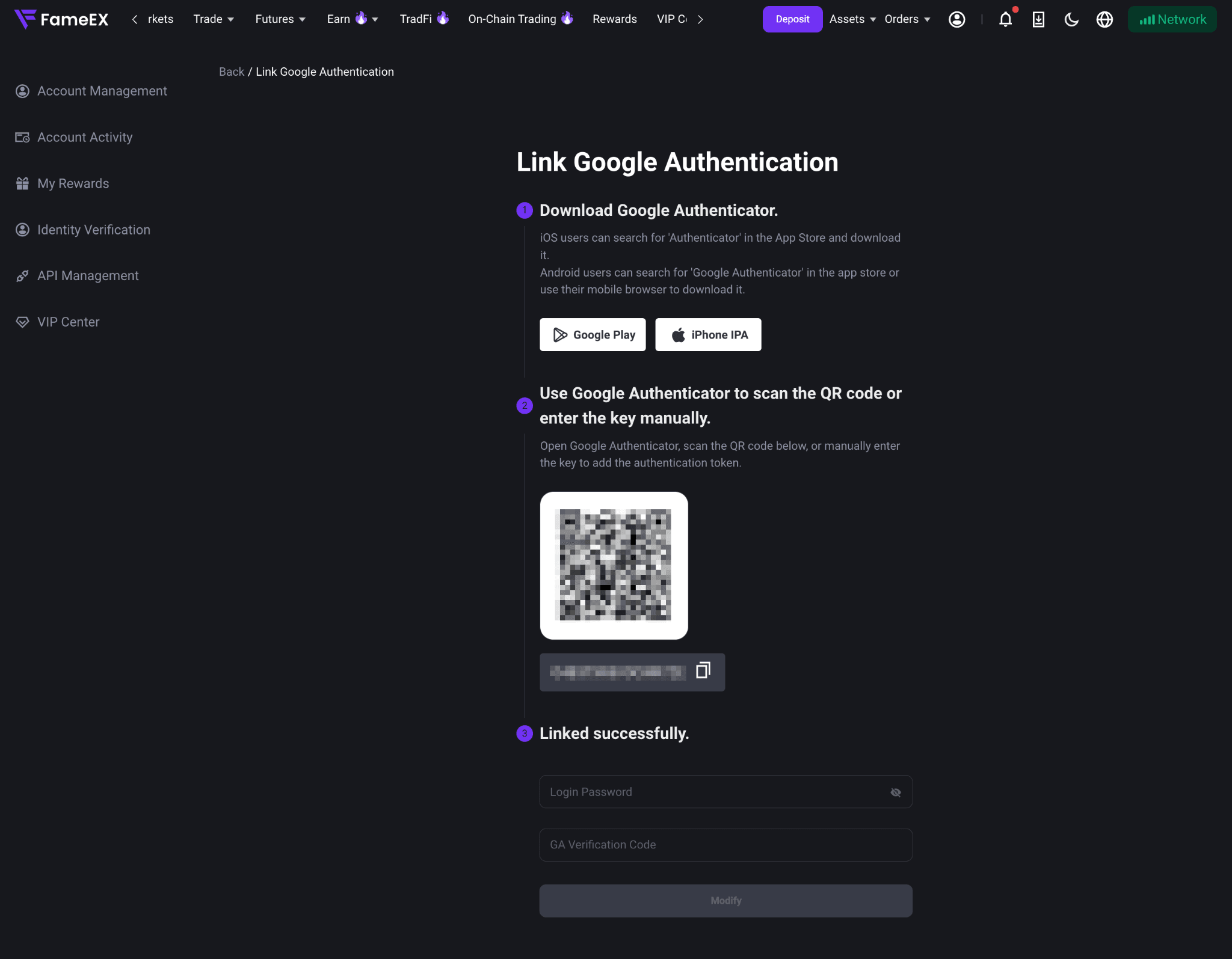
3) If you have not installed Google Authenticator, download and install it from the App Store or Google Play.
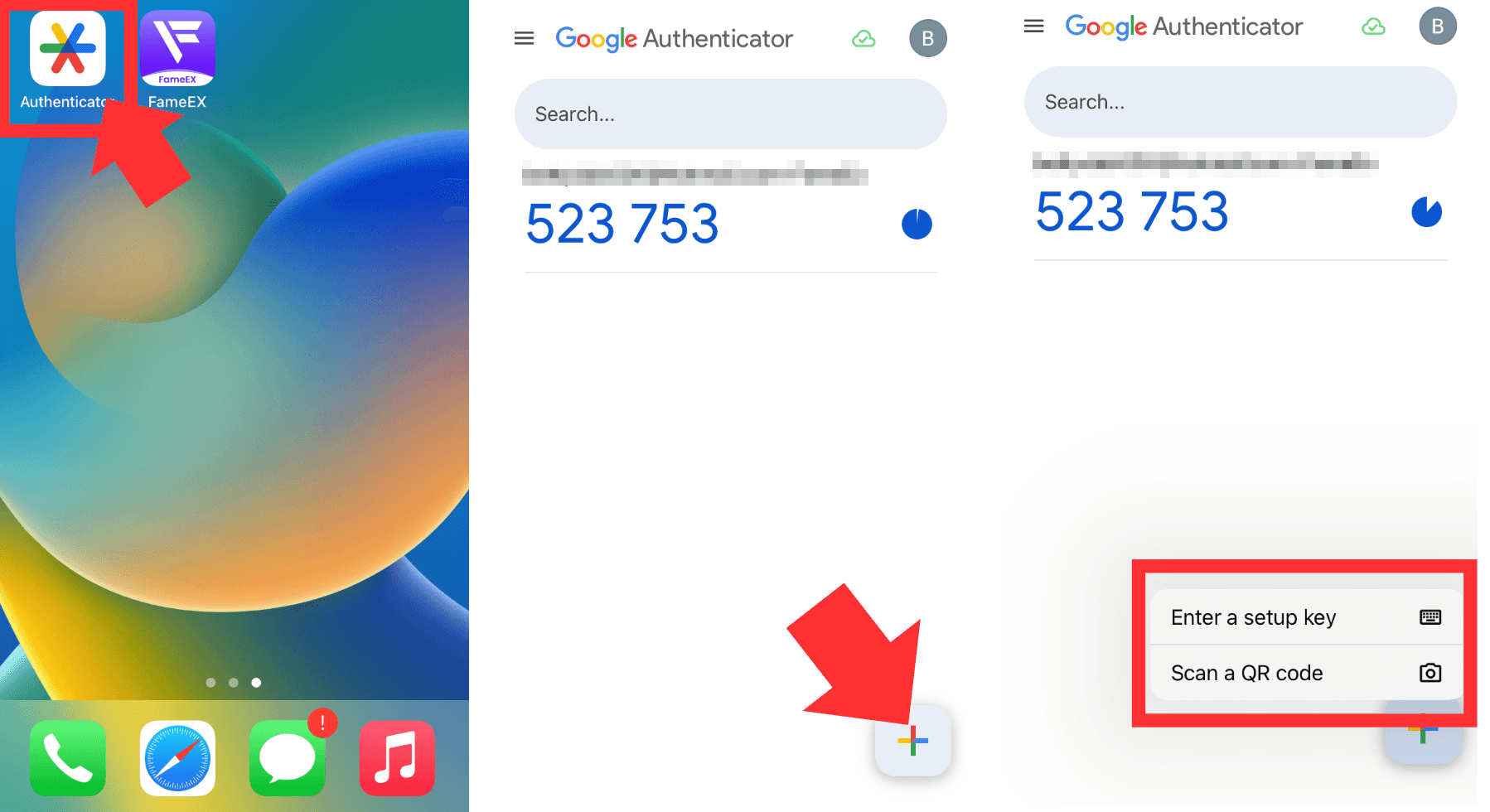
4) Open Google Authenticator and tap [+] to add an account. Select [Scan a QR code] to scan the QR code displayed on FameEX. Alternatively, select [Enter a setup key] and manually enter the key provided on the page. Once the account is added, Google Authenticator will generate a corresponding six-digit verification code.
5) Return to the FameEX setup page and enter the six-digit code generated by Google Authenticator. After confirming that the information is correct, click [Modify] to complete the setup.
2. How to Disable Google Authenticator?
Currently, the [Security Settings] page on the FameEX website does not provide an option to disable a linked Google Authenticator. If you need to disable Google Authenticator, please use the FameEX App. For detailed instructions, refer to “How to Enable or Disable Google Authenticator?”.
Note: If you cannot obtain your Google Authenticator code or complete the required security verification, please contact FameEX Online Support for assistance. Do not uninstall the Google Authenticator app, as this may prevent you from completing account security verification.
3. How to Change Google Authenticator?
If you need to switch to a new phone or change your Google Authenticator setup, follow the instructions below based on your situation:
1) Switch to a New Phone While Your Current Authenticator Is Still Available
If Google Authenticator is still working on your old phone, you can use the app's account transfer feature to move your existing verification account to your new phone. You do not need to change your Google Authenticator settings on FameEX. After the transfer, make sure your new phone can generate valid verification codes before removing the account from your old device.
2) Your Current Authenticator Is Unavailable or Needs to Be Replaced
If you have lost your phone, can no longer obtain Google Authenticator codes, or need to replace your existing setup key, please contact FameEX Online Support through the chat icon in the bottom-right corner of the website. Follow the instructions provided and complete any required security verification to request assistance.
4. Important Notes
- Security Verification: Before disabling or changing Google Authenticator, make sure your other linked security verification methods are available. Complete all required verification steps before the codes expire.
- Backup Key: Keep your Google Authenticator setup key in a secure location. Never share your QR code, setup key, verification codes, or login password with anyone.
- Withdrawal Restrictions: To protect your account and assets, withdrawals will be suspended for 24 hours after your Google Authenticator settings are successfully changed. Please refer to the actual restrictions displayed on the page.
- Lost Authenticator: If you cannot obtain your existing Google Authenticator code or complete the required security verification, please contact FameEX Online Support for assistance.
5. Frequently Asked Questions (FAQ)
Q1: Do I Need to Link Google Authenticator Again After Changing My Phone?
A: Not necessarily. If Google Authenticator is still working on your old phone, you can use the app's account transfer feature to move your existing verification account to your new phone. There is no need to change your Google Authenticator settings on FameEX. After the transfer, confirm that your new phone can generate valid verification codes before removing the account from your old device.
Q2: What Should I Do If I Lose My Phone or Cannot Use Google Authenticator?
A: If you have backed up your original setup key, you can manually enter it in Google Authenticator to restore your FameEX verification account. If you no longer have the verification code or setup key, please contact FameEX Online Support and complete the required identity verification for assistance.
Q3: Why Is My Google Authenticator Code Not Working?
A: First, make sure you are entering the correct six-digit code for your FameEX account before it expires. Check that your phone's date and time are set to update automatically. If the issue persists, please contact FameEX Online Support for assistance.
*Platform features and page locations may change with product updates. Please refer to the latest interface for the most accurate information.