How to Use FameEX Futures Copy Trading? Follower Guide (Web)
2026-10-01 07:35:22FameEX Futures Copy Trading allows you to choose a lead trader and automatically follow their futures trades based on your copy trading settings. After you start copy trading, you can view your copy trading assets, manage current positions, check historical positions and profit-sharing records, adjust your copy trading funds, or stop copying a trader when needed.
1. How to Get Started with Futures Copy Trading?
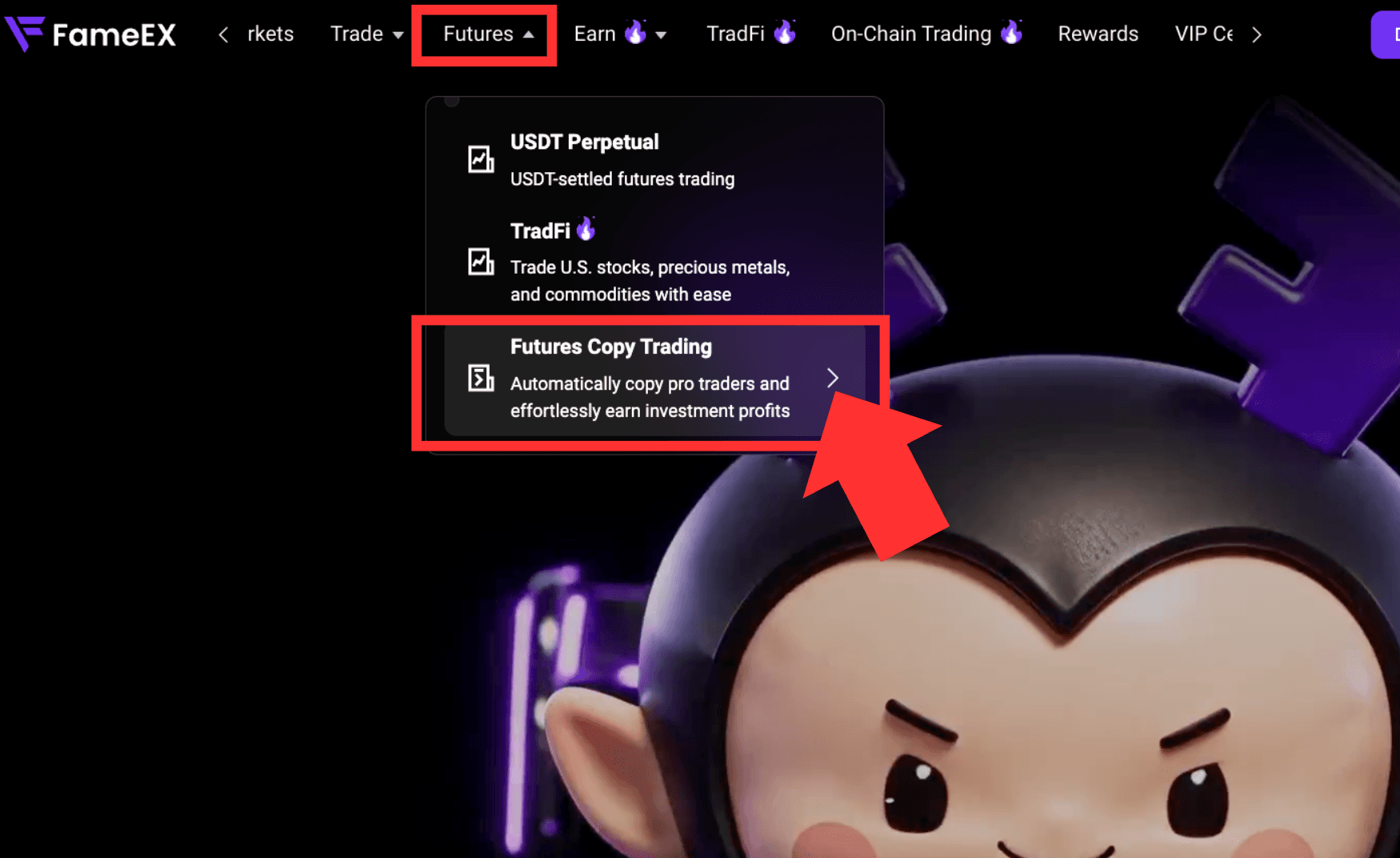
1) Log in to the FameEX official website. Click [Futures] at the top and select [Copy Trading].
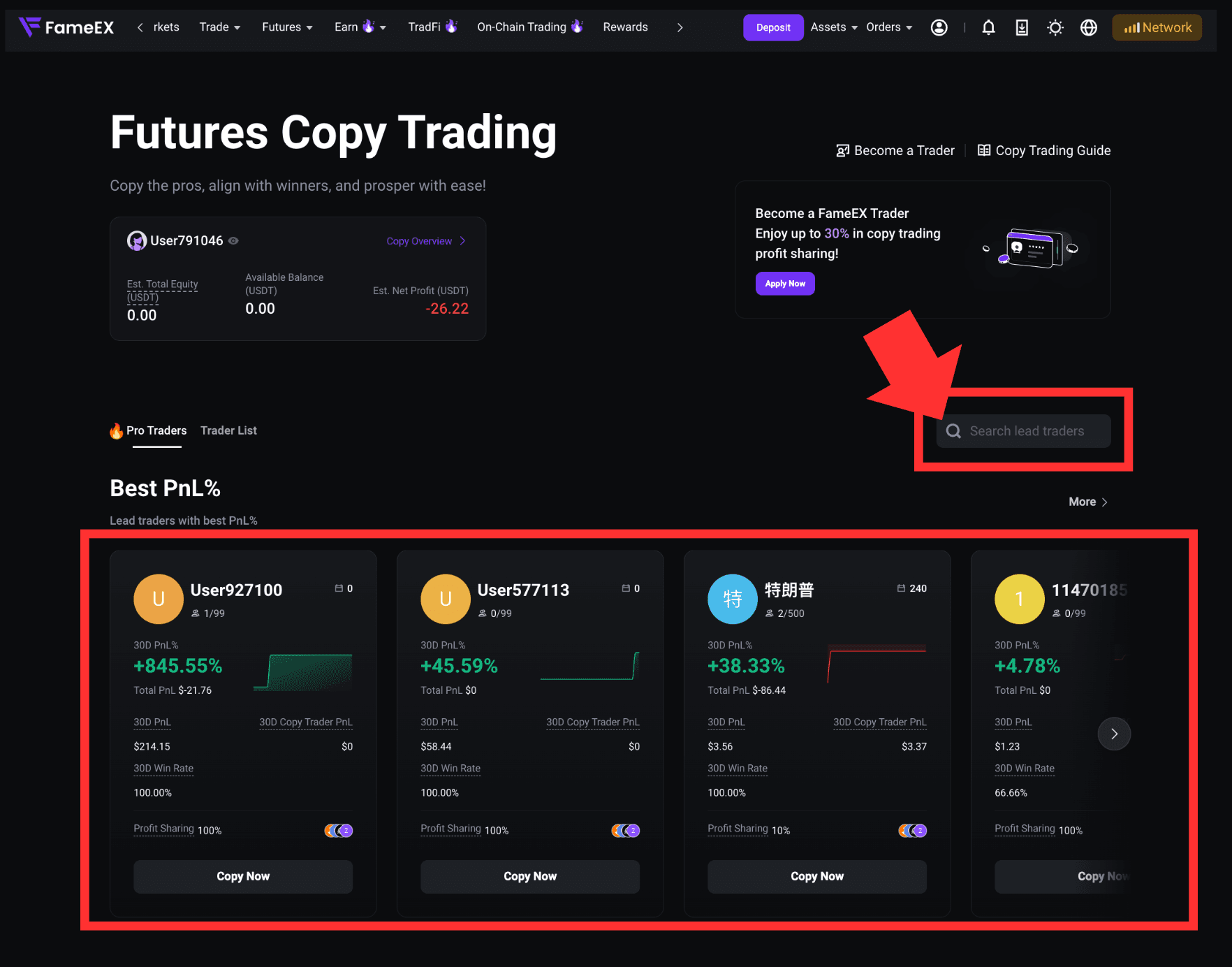
2) Select the lead trader you want to follow. You can also search to find a specific trader by UID or nickname.
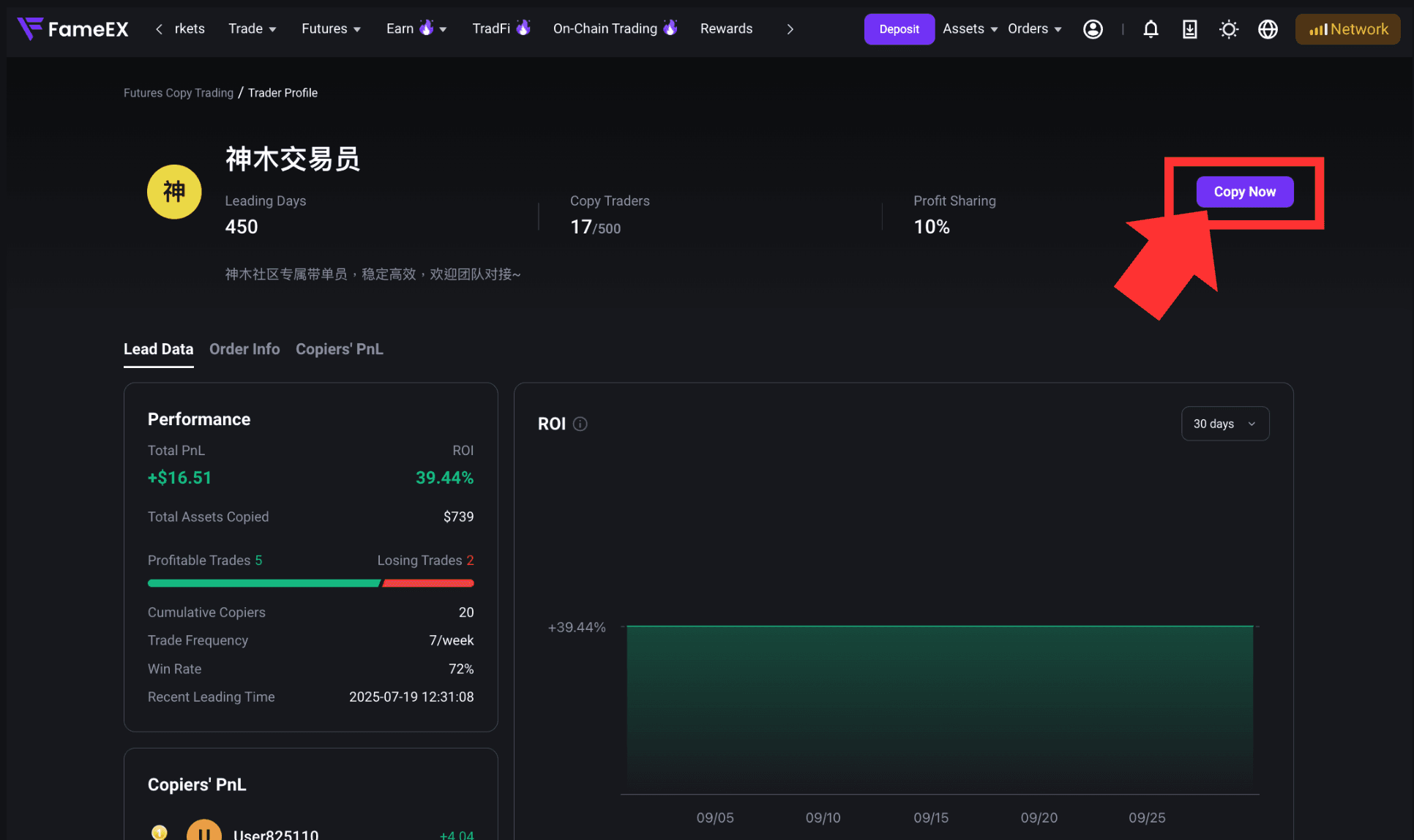
3) Click the lead trader to enter the Trader Profile page. Review the trader’s performance data and click [Copy Now] to set up your copy trading details.
2. Set Up Your Futures Copy Trading Parameters
After entering the copy trading settings page, select a copy trading mode and enter the copy trading amount and risk parameters based on your trading needs.
1) Select a Copy Trading Mode
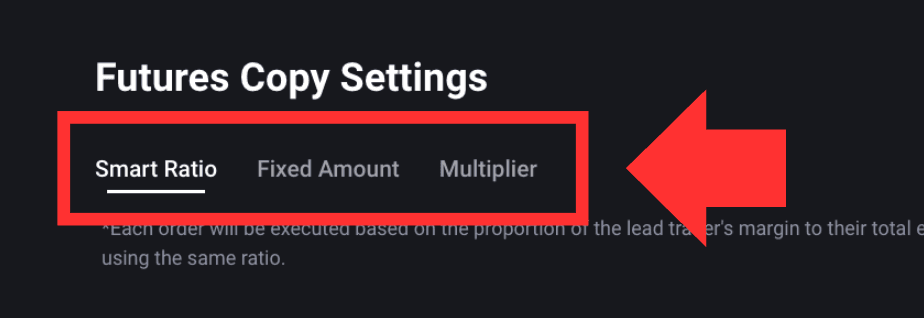
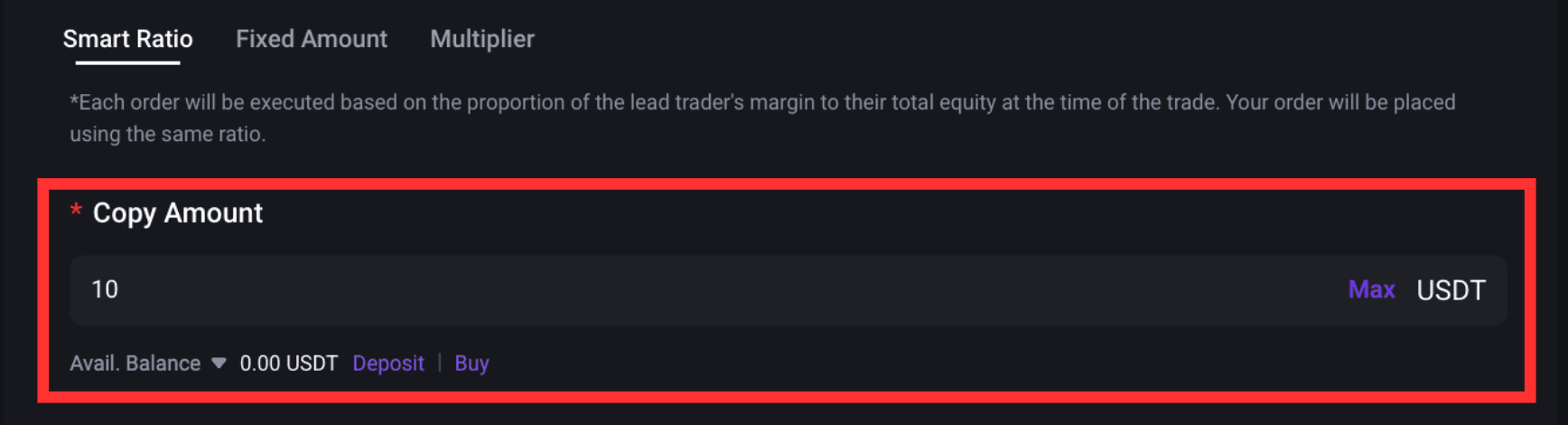
FameEX currently offers three copy trading modes: [Smart Ratio], [Fixed Amount], and [Multiplier]. Each mode uses a different method to calculate the margin for each copied trade. Choose the mode that best fits your fund allocation and trading needs.
2) Enter Your Copy Trading Amount
Enter the amount you want to allocate in [Copy Amount]. The page will also display your current [Available Balance]. If your available balance is insufficient, click [Deposit] or [Buy] to add funds before continuing.
3) Choose the Existing Position Copy Mode
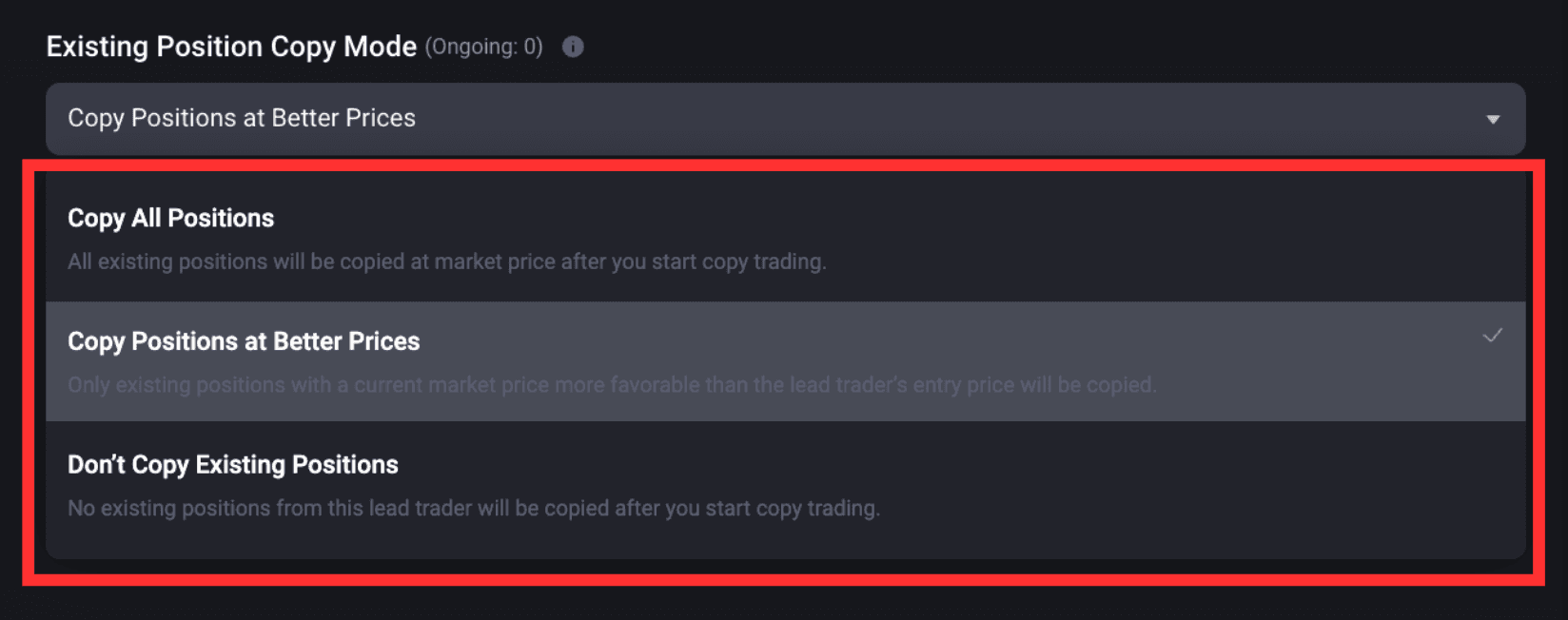
If the trader already has open positions, you can choose whether to enable [Copy Positions at Better Prices] under [Existing Position Copy Mode]. When enabled, the system will determine whether the trader’s existing positions meet the requirements based on the applicable rules.
4) Click [Advanced Settings] and Select Copy Trading Pairs
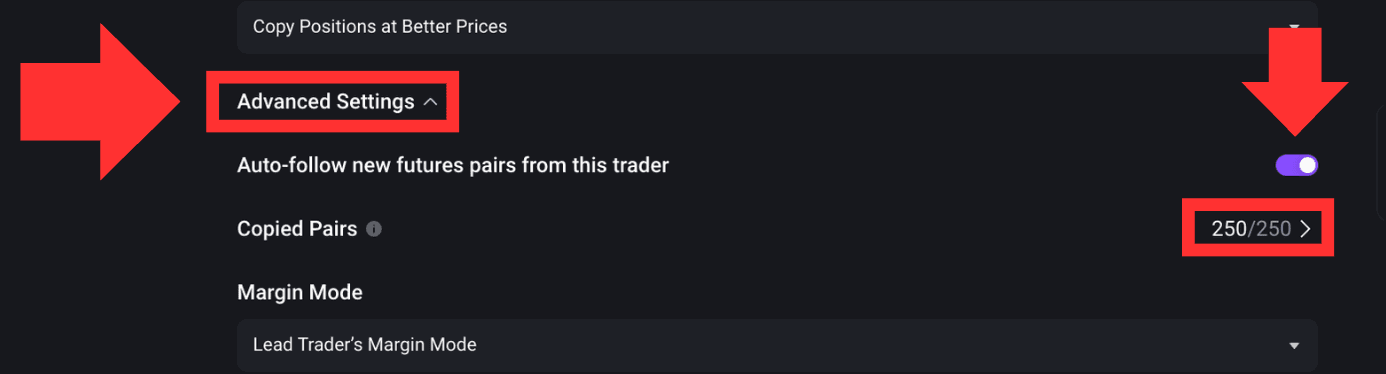
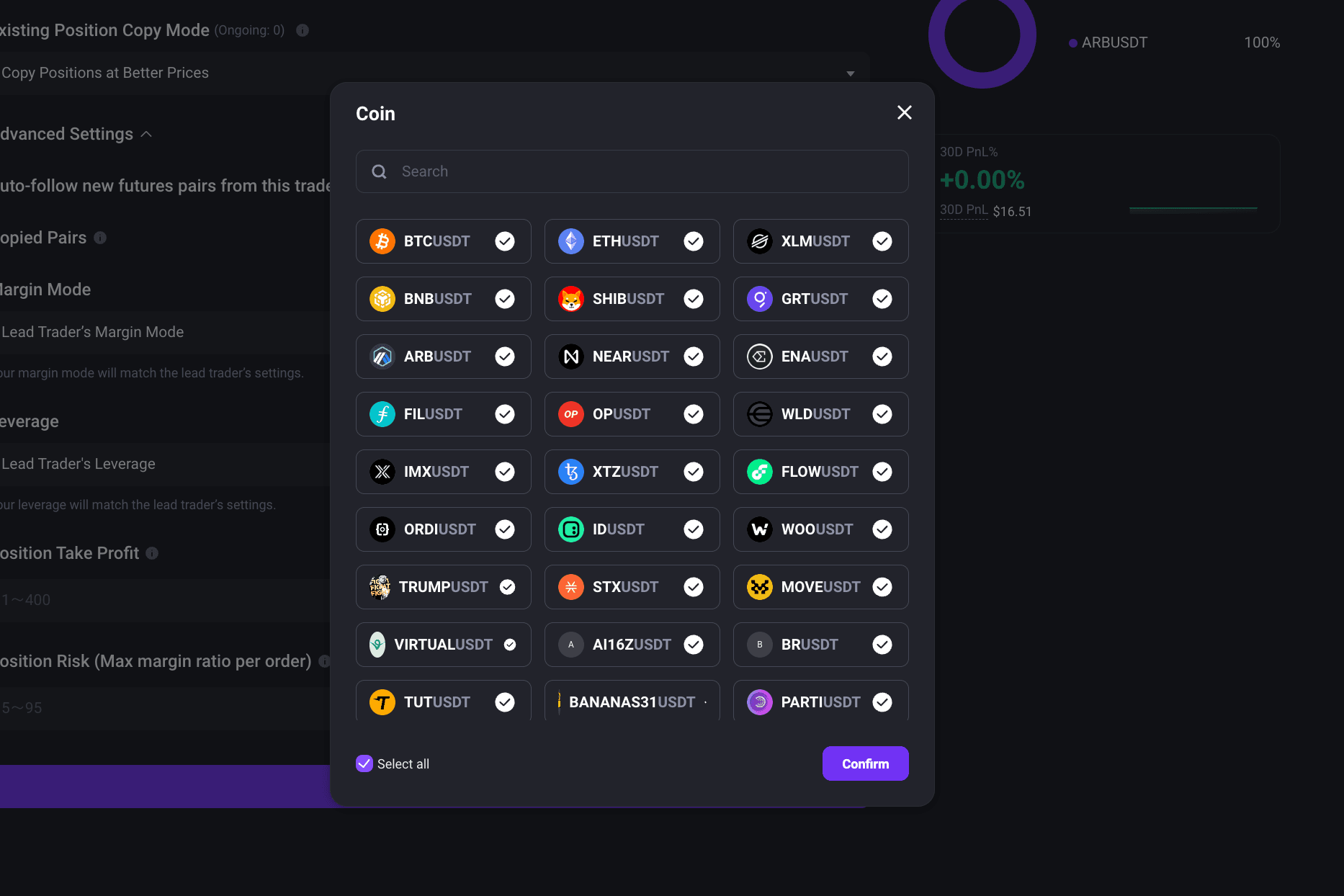
Click [Advanced Settings], then select the futures trading pairs you want to follow under [Copied Pairs]. You can also enable [Auto Follow New Futures Pairs From ThisTrader]. Once enabled, any eligible futures pairs added by the trader later will automatically be included in your copy trading scope.
5) Margin Mode
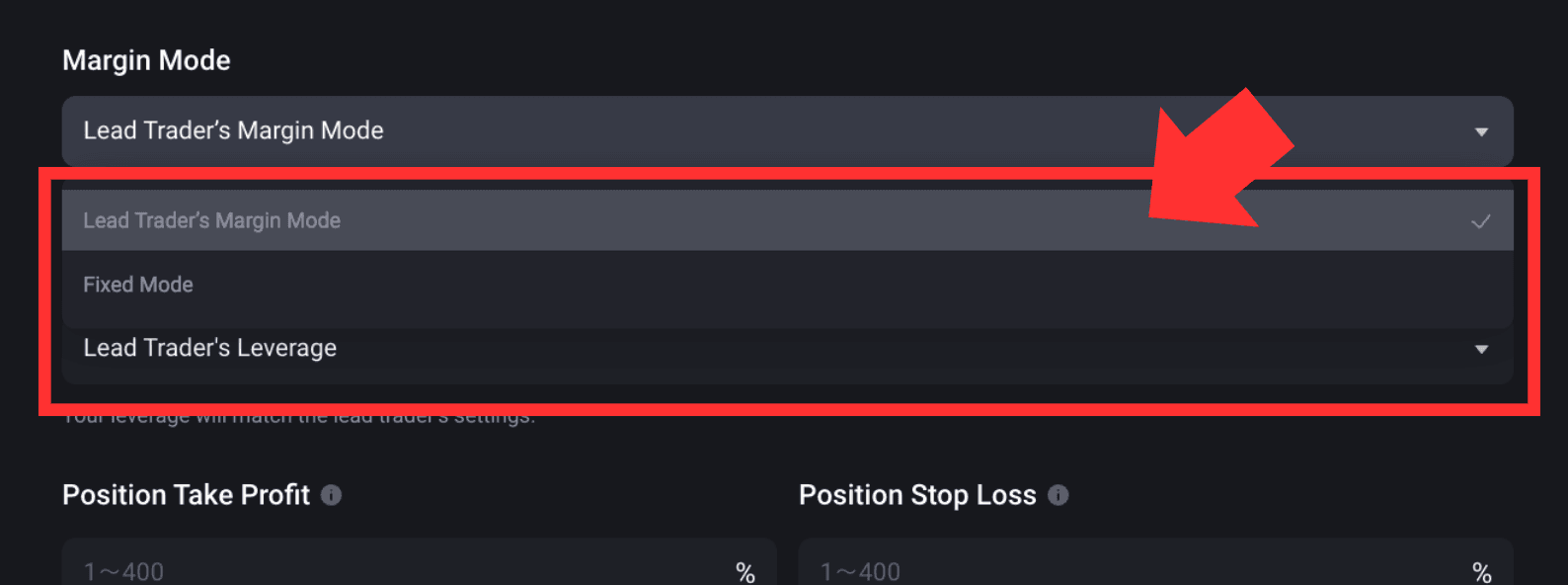
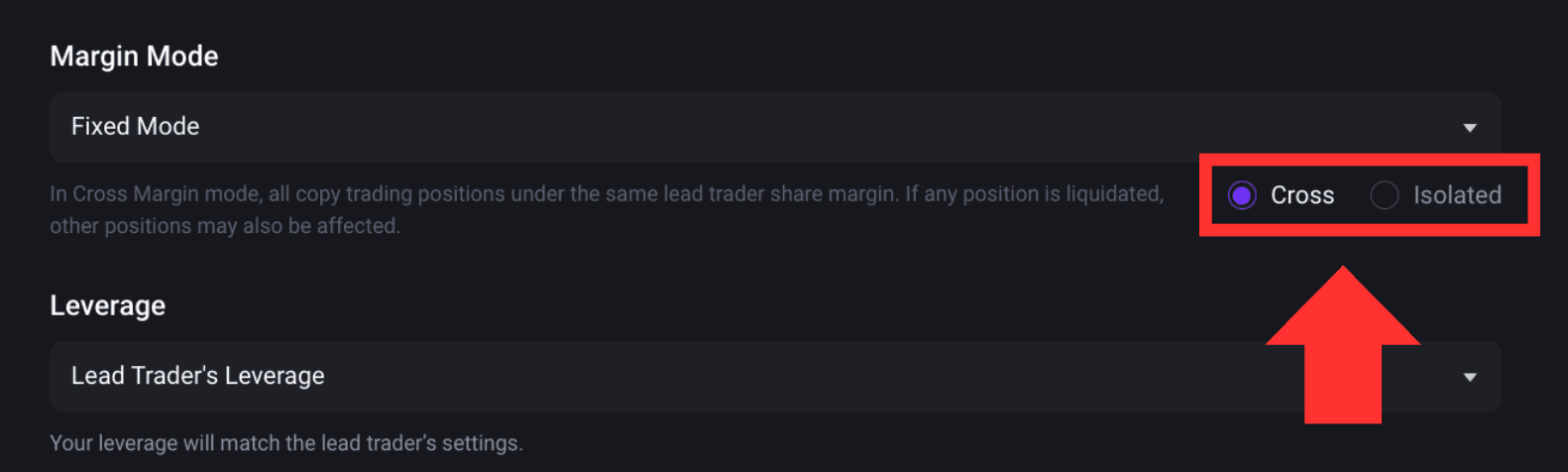
Under [Margin Mode], you can follow [Lead Trader’s Margin Mode] or [Fixed Mode]. If you select [Fixed Mode], you can choose either [Cross] or [Isolated]:
- Cross Mode: All copied positions under the same trader share margin. If one position is liquidated, other positions may also be affected.
- Isolated Mode: Margin is managed separately for each copied position. The profit, loss, or liquidation of one position will not directly use the margin assigned to other positions.
6) Leverage
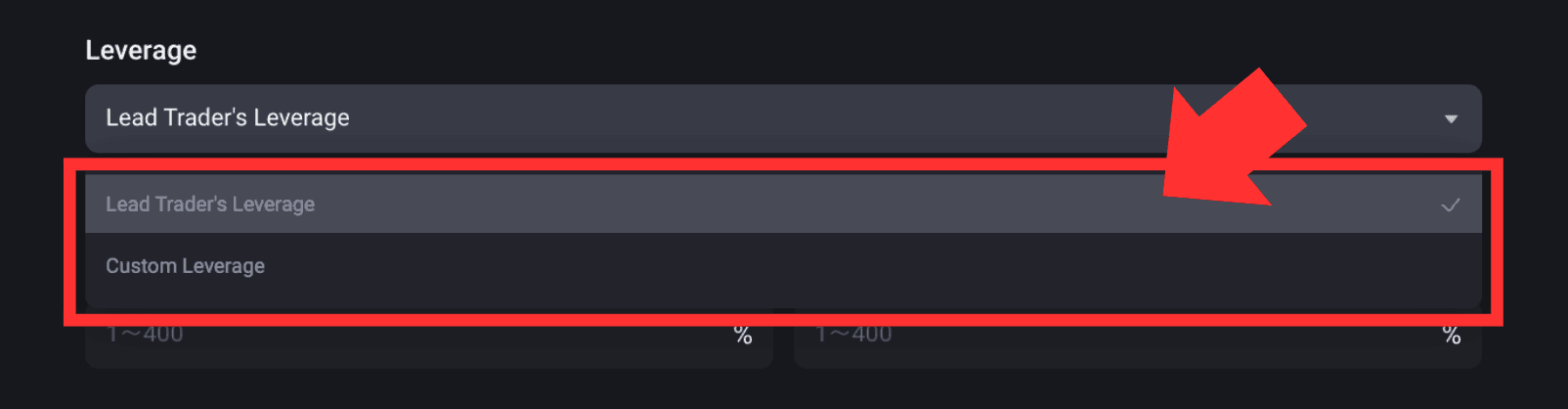
Under [Leverage], you can follow [Lead Trader’s Leverage] or [Custom Leverage].
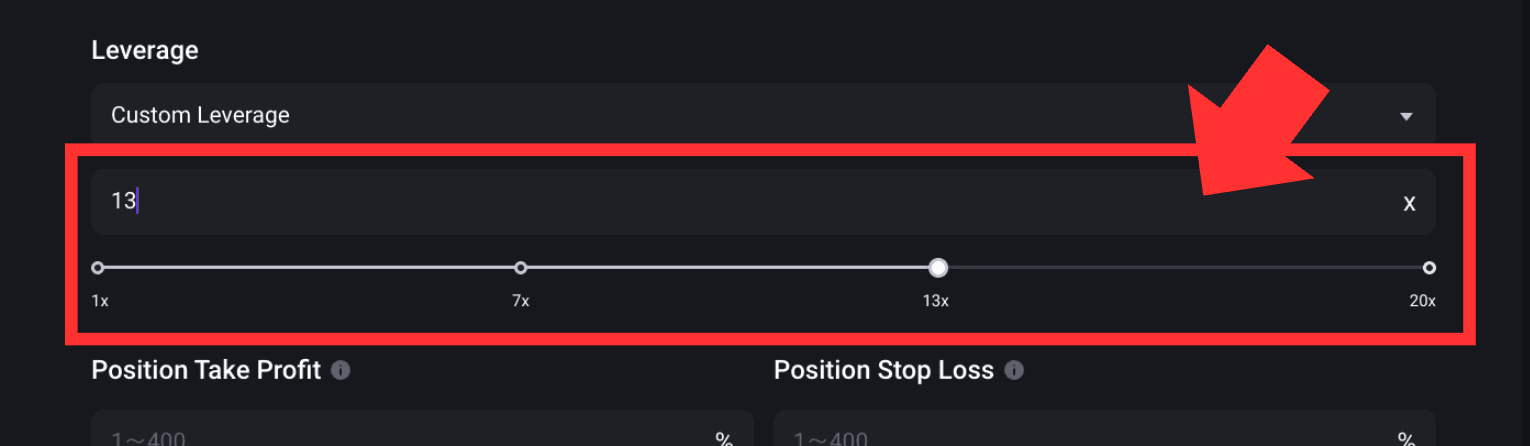
If you select [Custom Leverage], enter the leverage manually or choose one of the preset options shown on the page, such as 1x, 7x, 13x, or 20x. Once done, eligible copied trades will use your selected leverage.
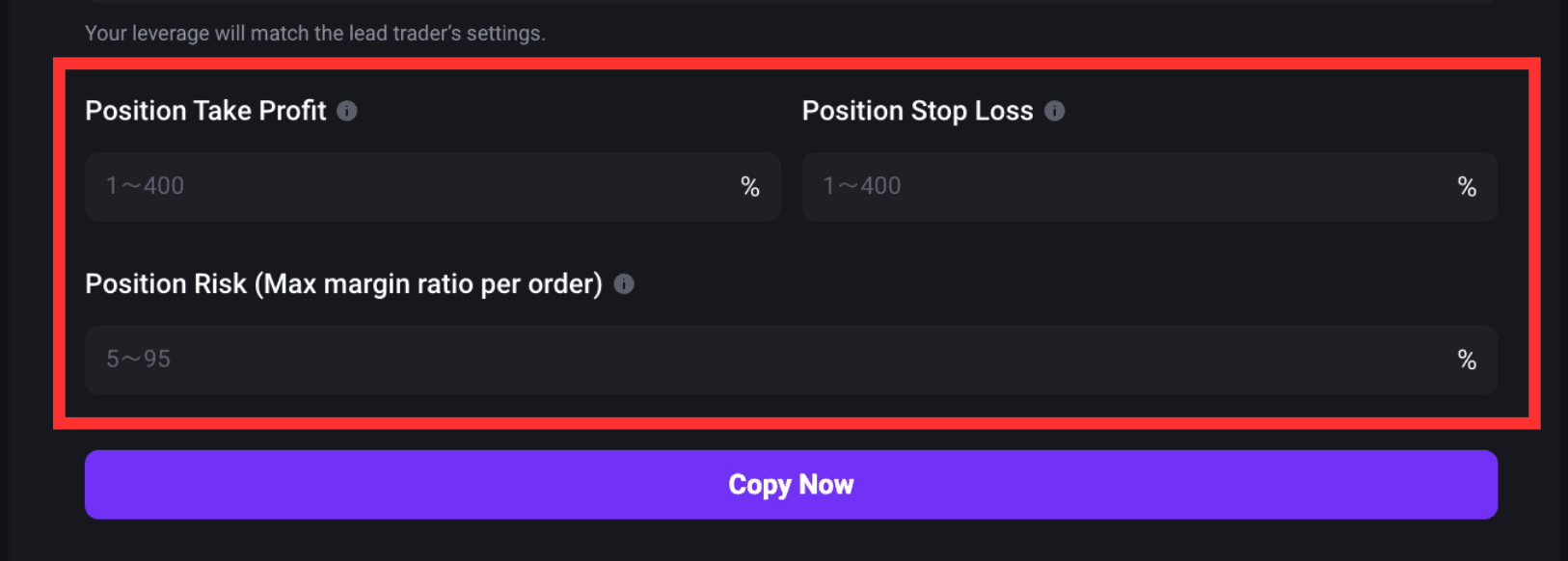
7) Position Take Profit, Stop Loss, and Position Risk
You can set up the following parameters based on your risk tolerance:
- Position Take Profit: 1% to 400%
- Position Stop Loss: 1% to 400%
- Position Risk (Max. Margin Ratio per Order): The maximum margin ratio for a single copied order from 5% to 95%.
The Position Risk limits the maximum percentage of copy trading funds that can be used as margin for a single copied order. This helps control how much a single trade can affect your overall copy trading funds.
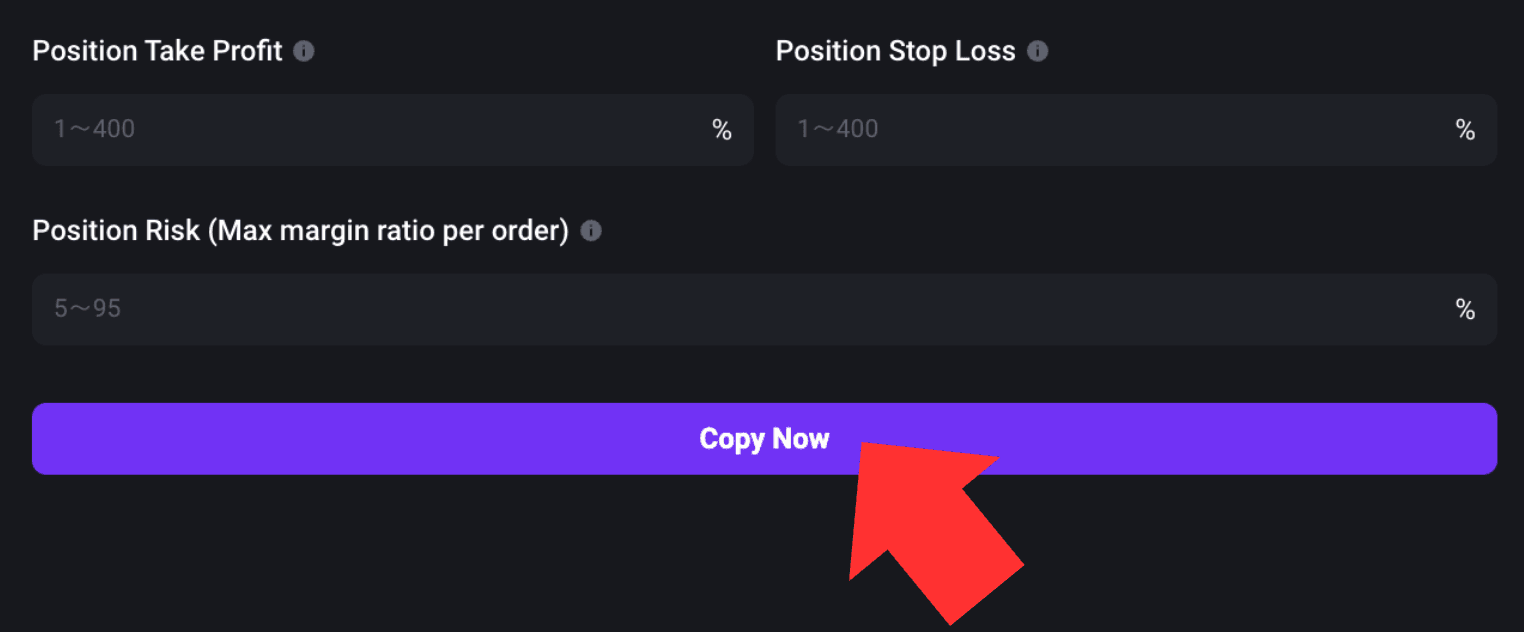
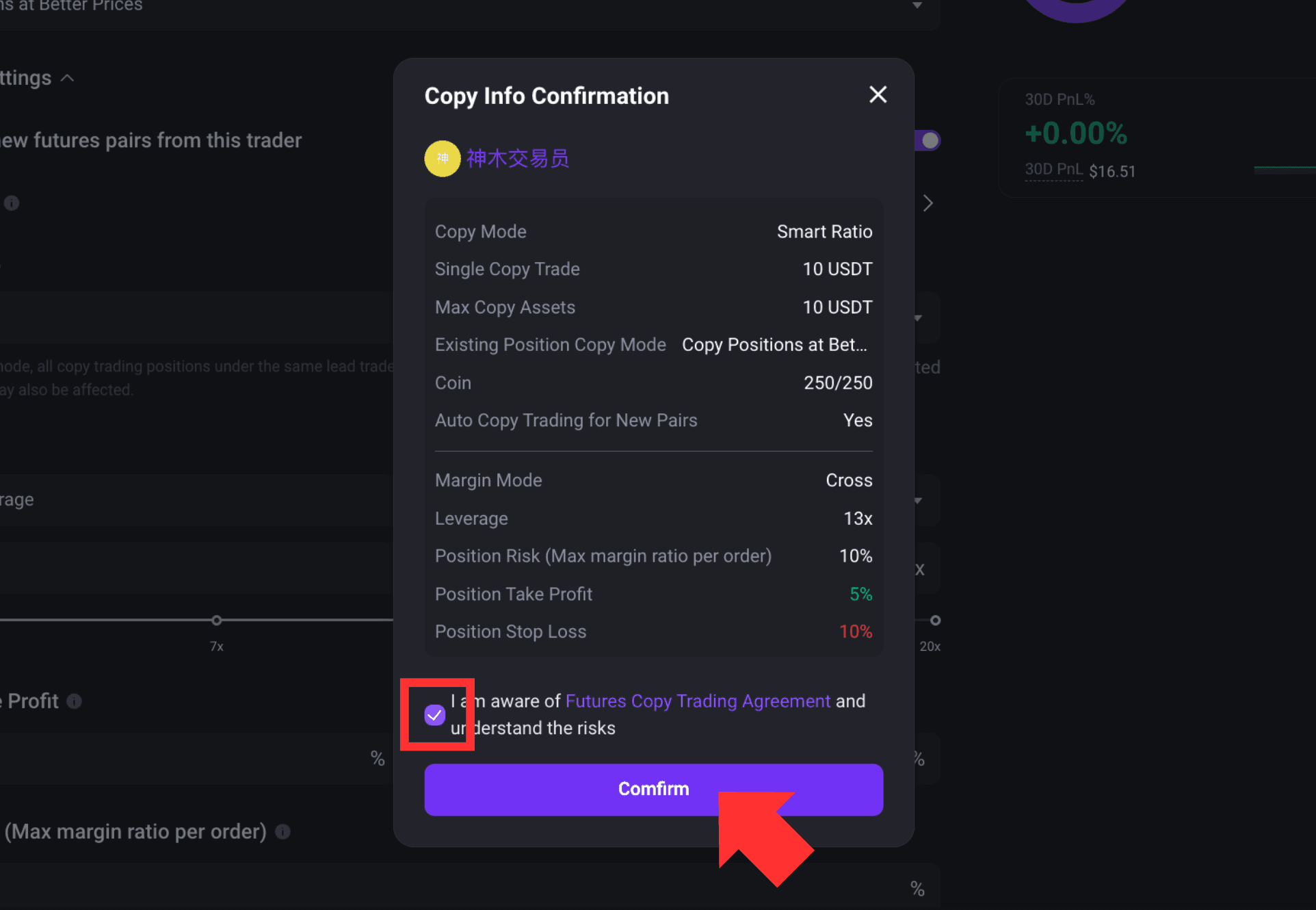
8) After completing the settings above, click [Copy Now]. Review the copy trading information and make sure all settings are correct. Check the box to confirm that you have read and agreed to the [Futures Copy Trading Agreement], then click [Confirm] to start copy trading.
3. View and Manage Copy Trading
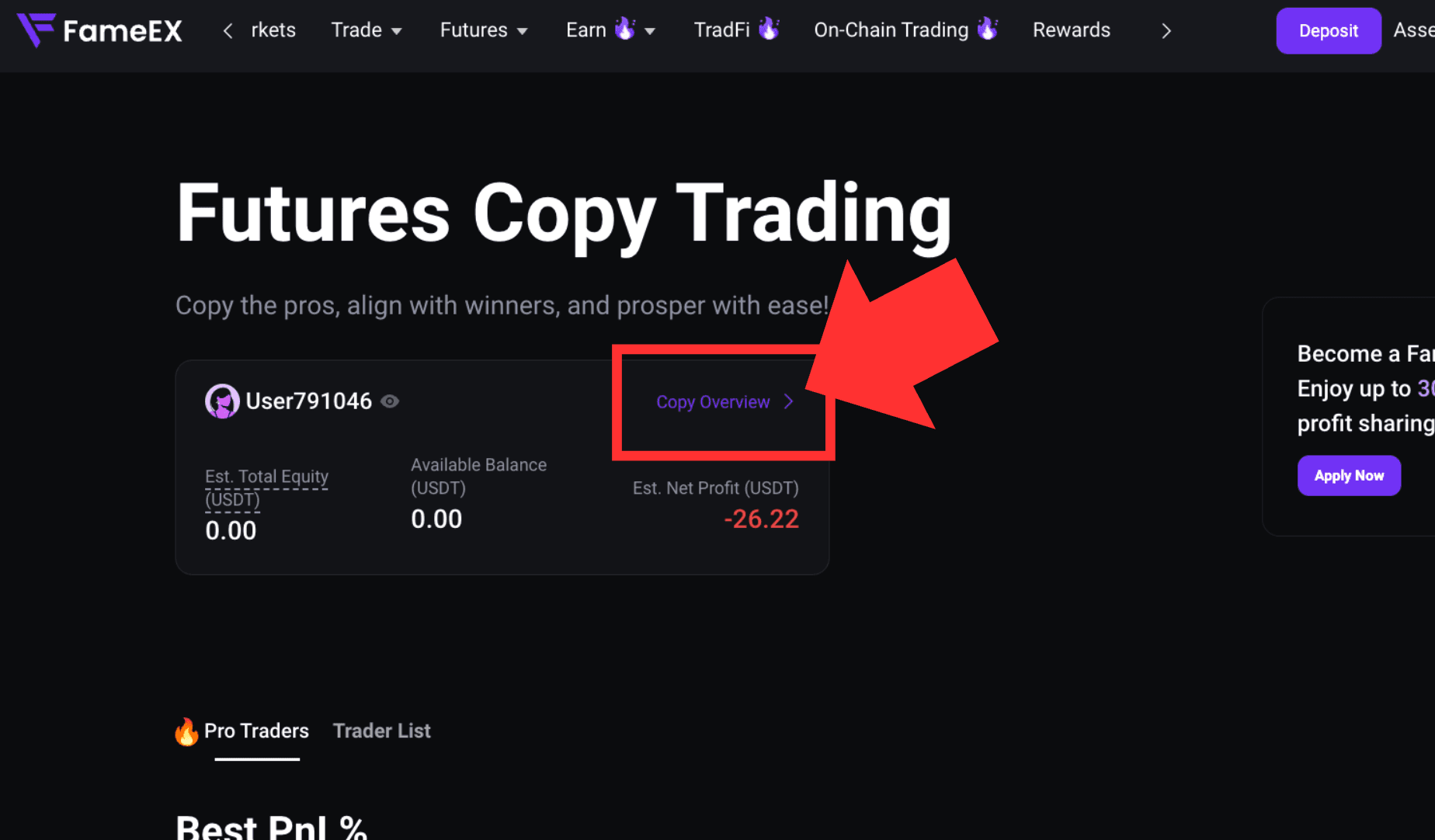
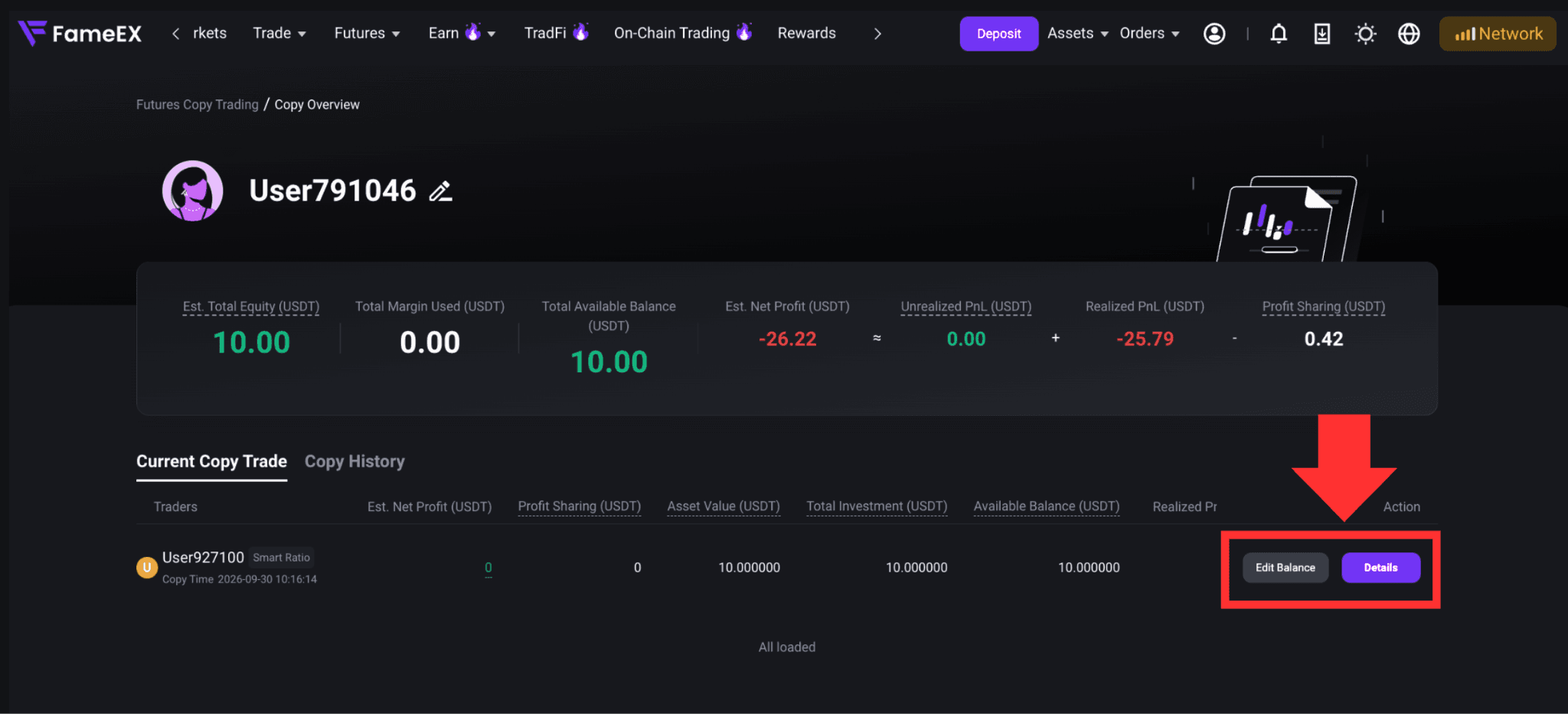
After successfully starting copy trading, return to the Futures Copy Trading page and click [Copy Overview]. You can view your current copy trading assets and the traders you are following.
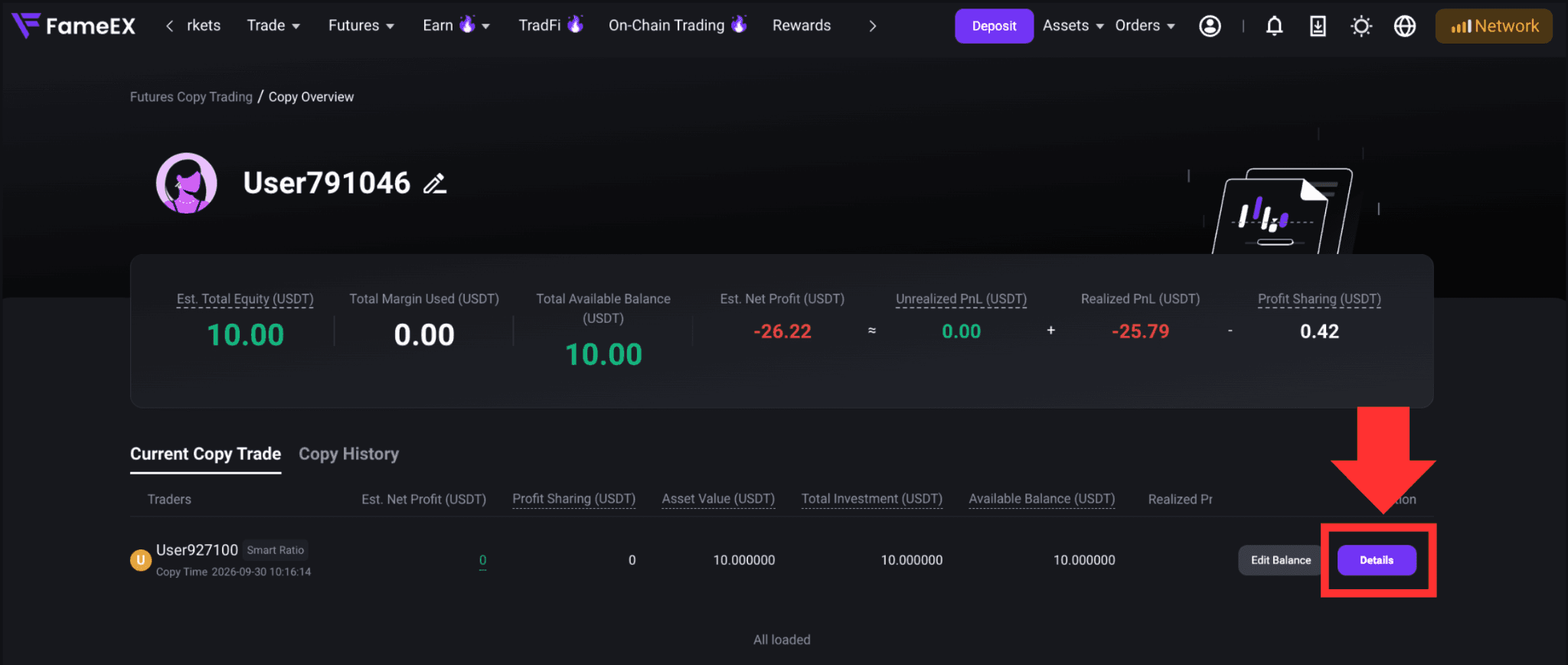
Under [Current Copy Trade], find the trader you want to manage and click [Details] to enter the Copy Trading Details page. From this page, you can view and manage your copy trading settings. Click [Edit Balance] on the right to quickly add or reduce your copy trading funds.
4. How to Stop Copy Trading?
1) Under [Current Copy Trade], find the trader you want to stop following. Click [Details] to enter the Copy Trading Details page.
2) Click [Stop Copy] in the upper-right corner. Review the relevant notice, then click [Confirm] to complete the process.
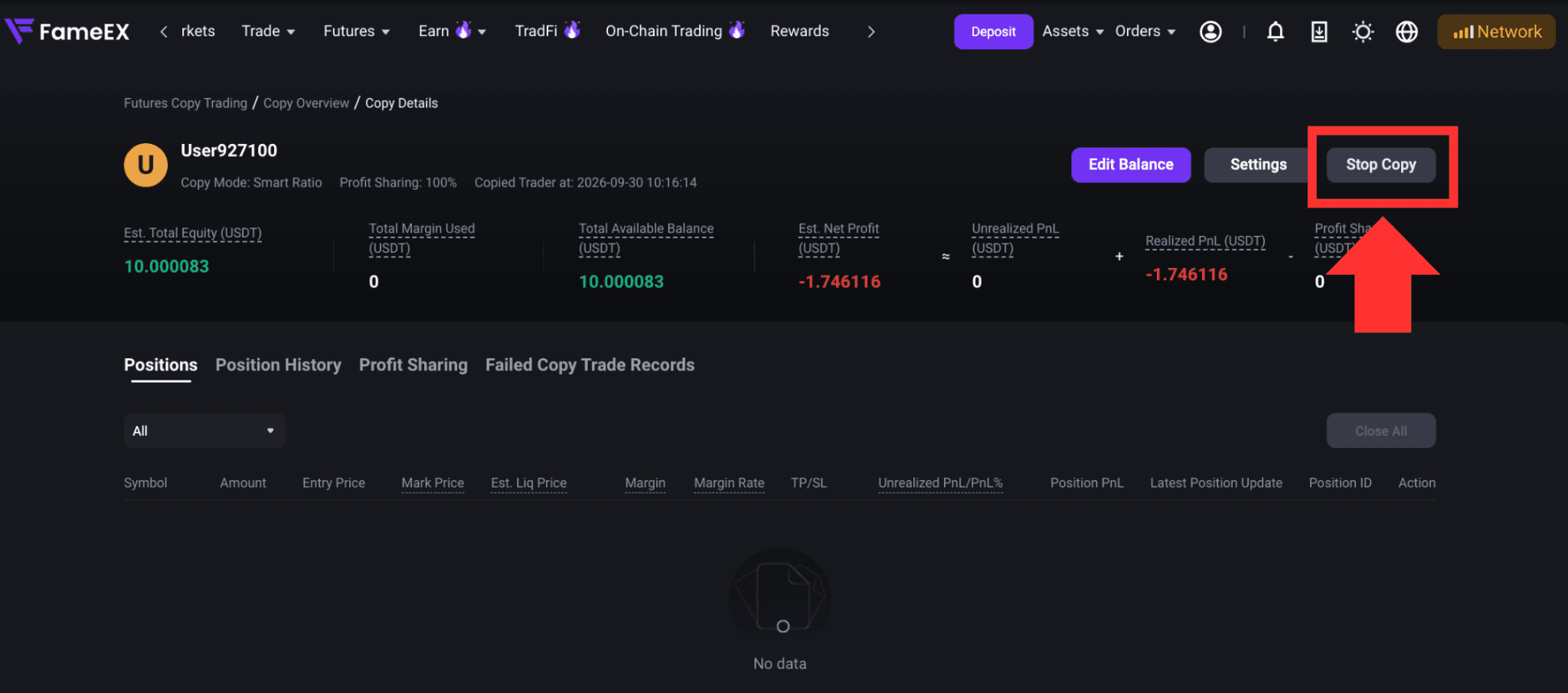
After you stop copy trading, the system will no longer follow new trades opened by that trader. Market prices may continue to fluctuate. If market-price closing is involved, the final execution price may differ from the price shown when you submit the request.
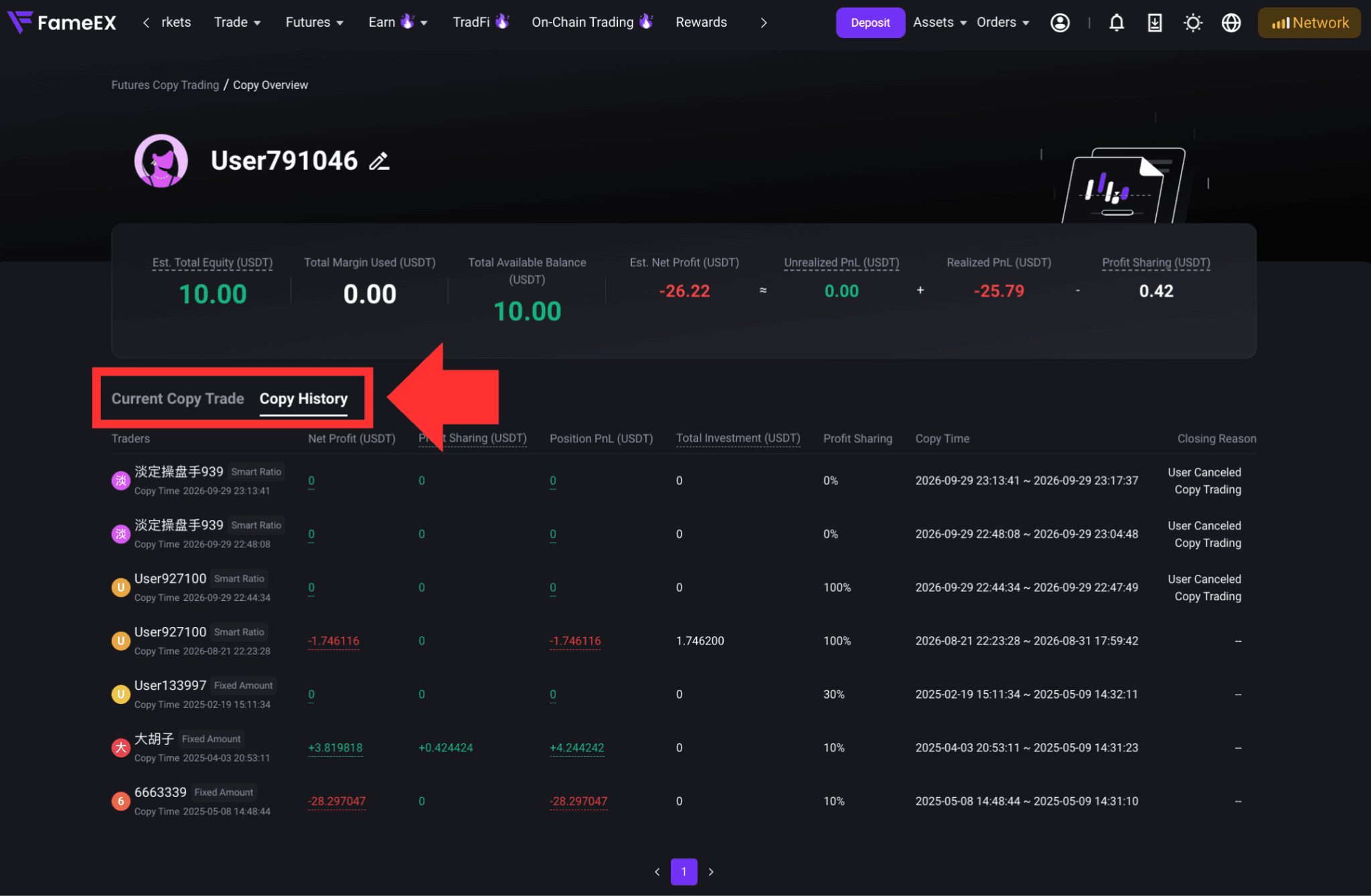
After the copy trading relationship ends, you can view the related records under [Copy History].
5. Important Notes
1) Your actual execution price may differ from the trader’s price after copy trading begins. Market volatility, liquidity, and order execution conditions may all result in price differences.
2) If your copy trading account has insufficient available funds, some trades may fail to copy. Check your available balance and failed copy trading records regularly.
3) A trader’s historical returns and trading performance only reflect past results. They do not guarantee future returns.
4) Futures trading involves leverage risk. Significant market movements may result in substantial losses or liquidation. Set your copy trading funds and risk parameters according to your own risk tolerance.
*Feature names and page locations may change as the platform is updated. Please refer to the latest information shown on the actual page.