How to Trade Spot on FameEX? (Web)
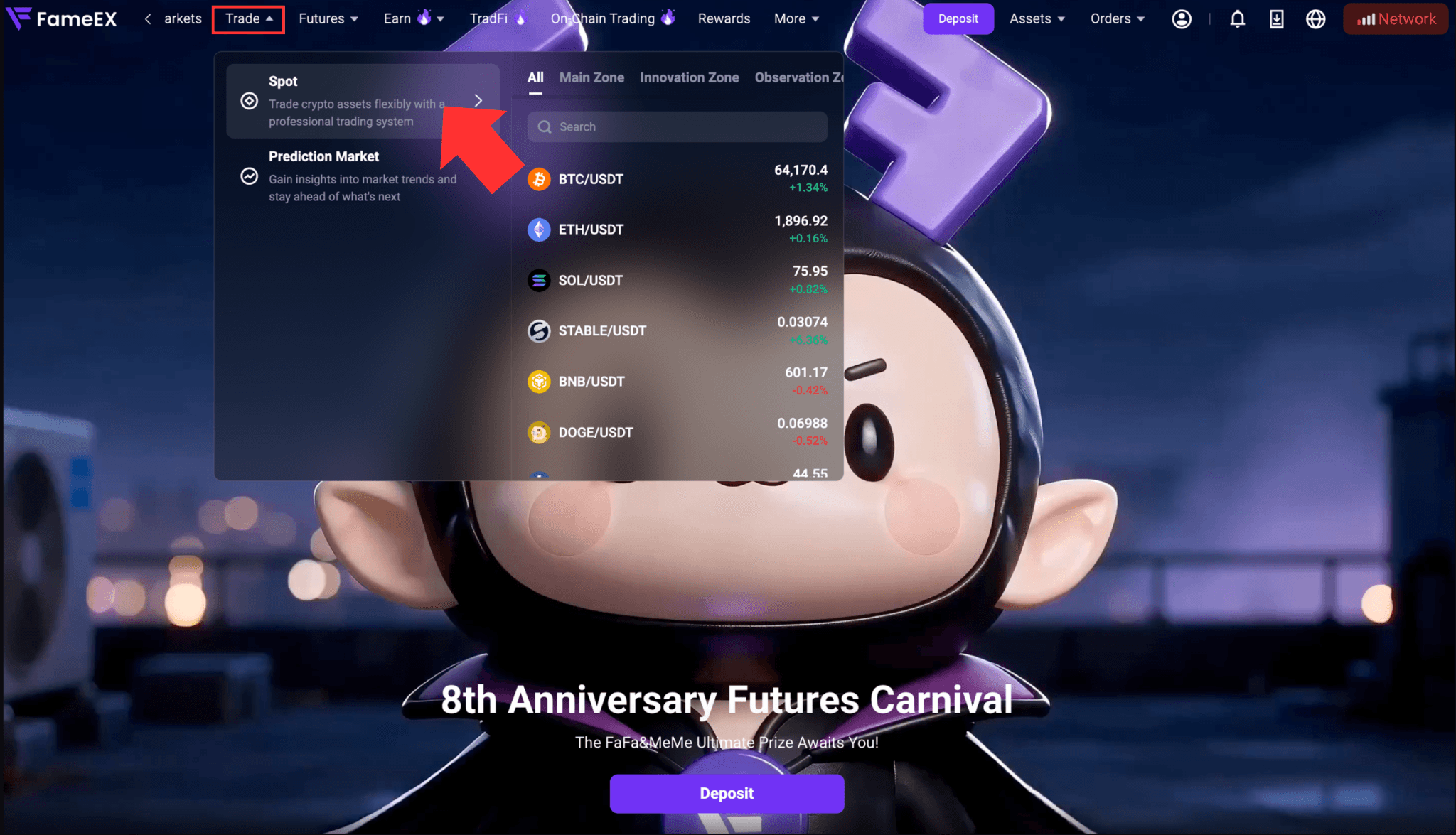
2026-08-21 02:11:541. Go to the FameEX website and log in to your account. Click [Trade] at the top, then click [Spot] from the drop-down menu to enter the spot trading page.
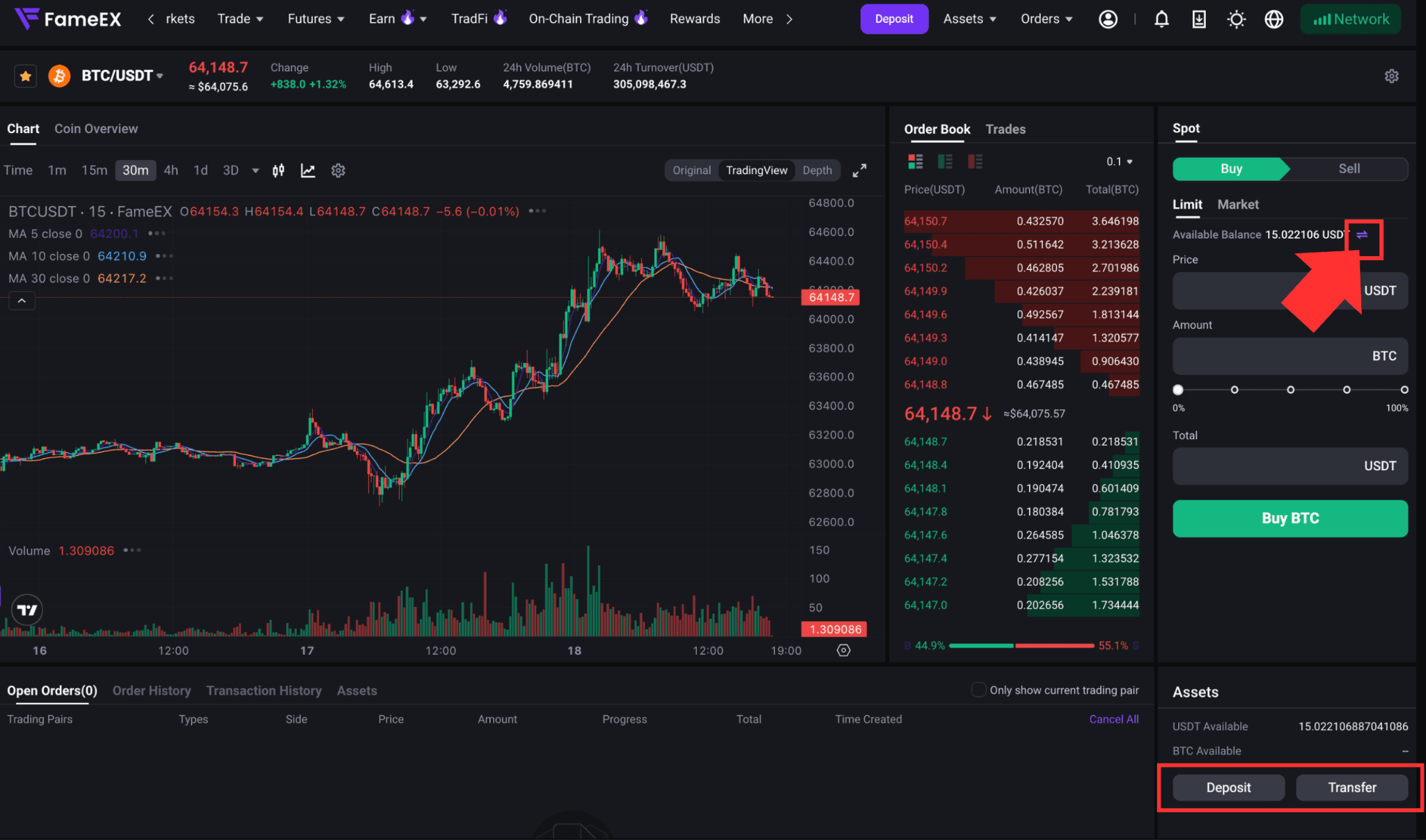
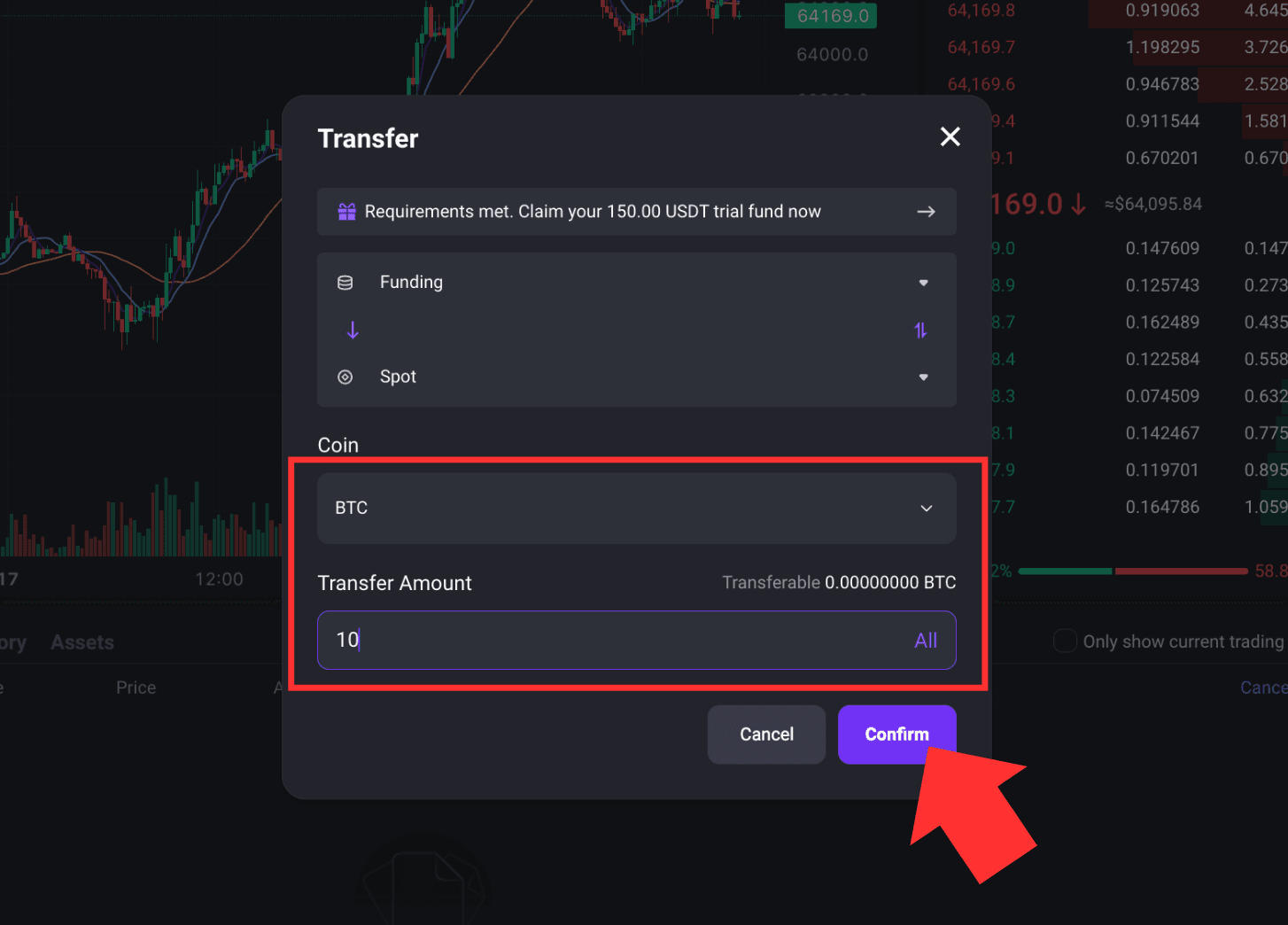
2. Before placing a spot order, make sure your Spot Account has sufficient available assets. To transfer funds, click the [Transfer] icon next to [Available Balance] at the top of the trading page. You can also transfer funds from the [Assets] section at the bottom of the page.
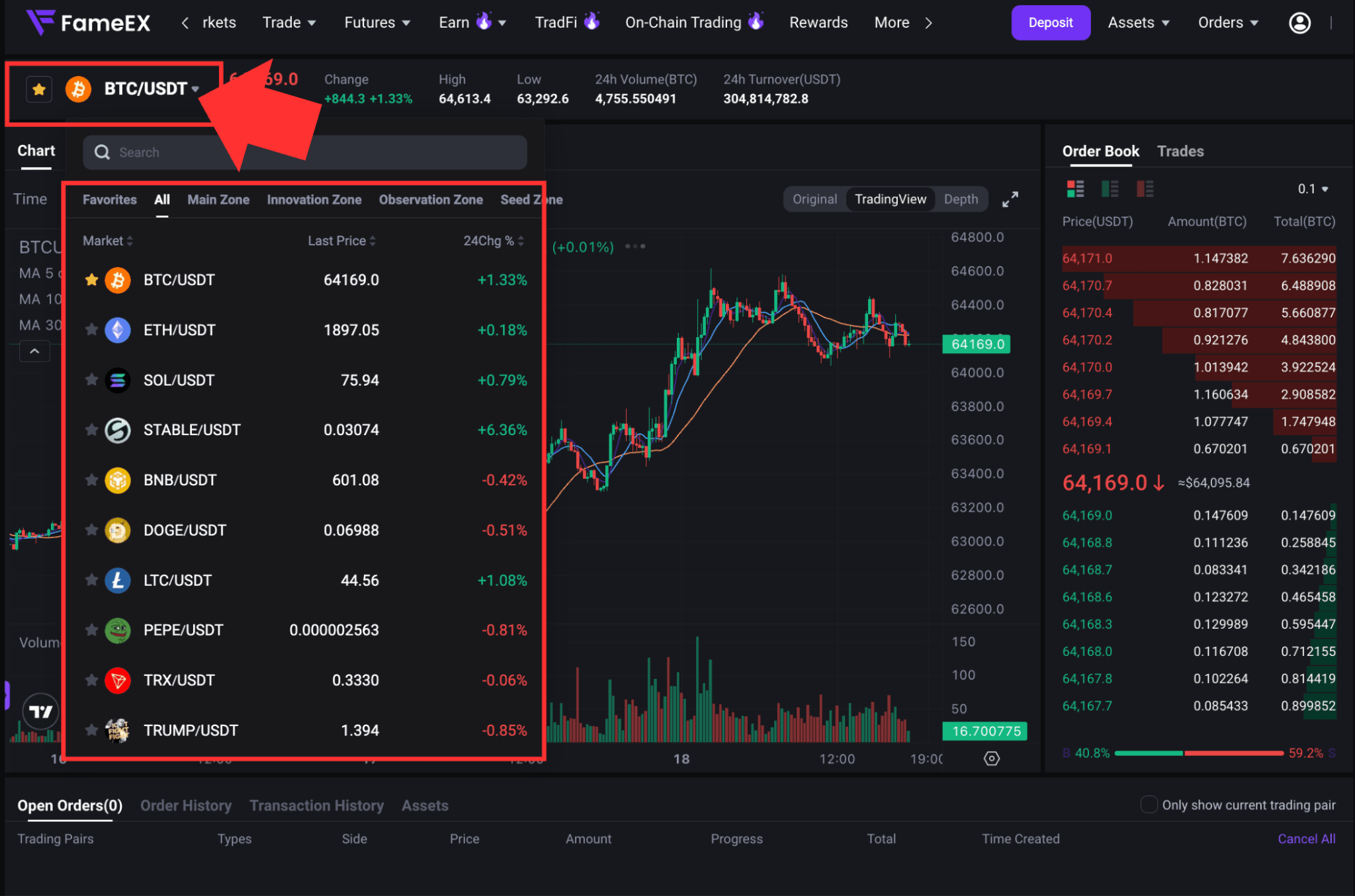
3. Select the trading pair you wish to trade. Using BTC/USDT as an example, if you want to buy BTC with USDT, select [BTC/USDT] to enter the corresponding trading page. On the trading page, you can view the latest price, 24-hour high and low, trading volume, order book, and recent trades.
4. Place a Limit Order: Select [Limit] to set the price at which you want to buy or sell.
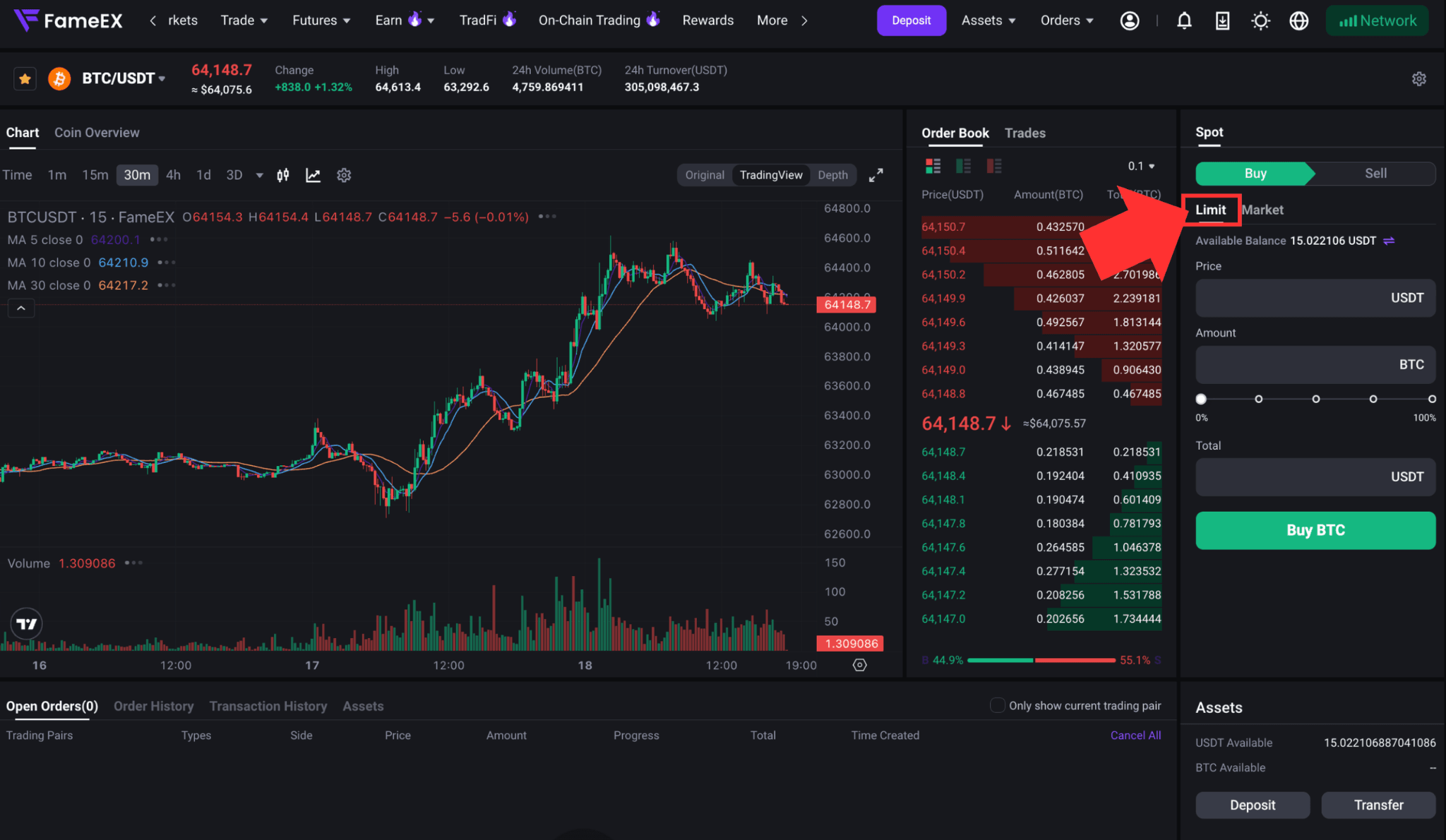
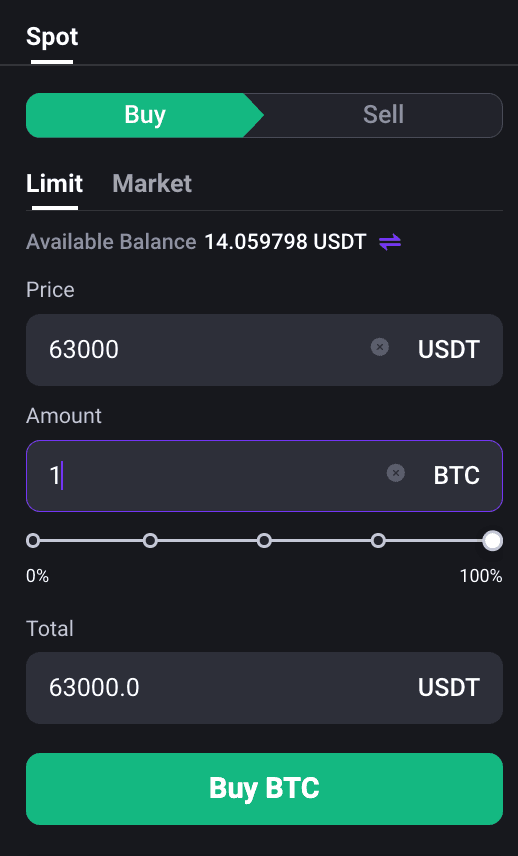
1) Buy BTC: Enter the buy price and the amount of BTC you want to buy. Review the order details and click [Buy BTC].
2) Sell BTC: Enter the sell price and the amount of BTC you want to sell. Review the order details and click [Sell BTC].
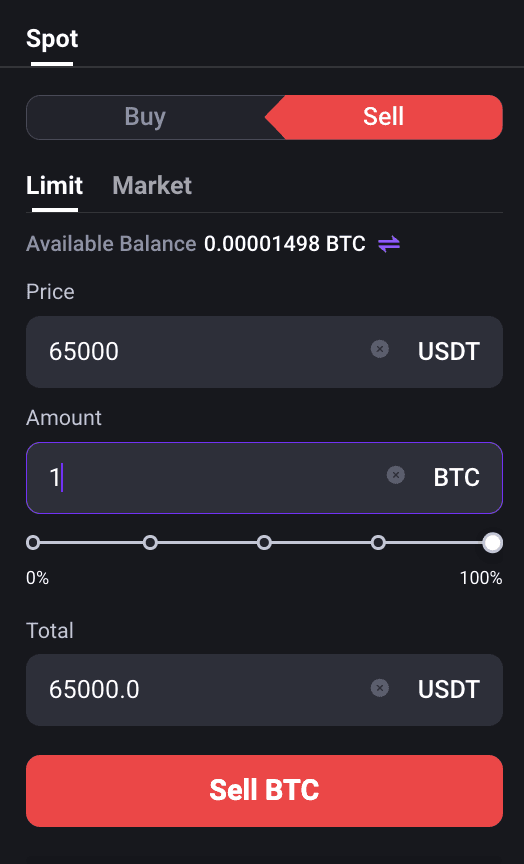
After the limit order is submitted, it will be matched when the market reaches your specified price conditions. If your limit price can be matched immediately with an existing order in the order book, the order may be filled immediately. The final execution price and filled amount are subject to the actual matching results.
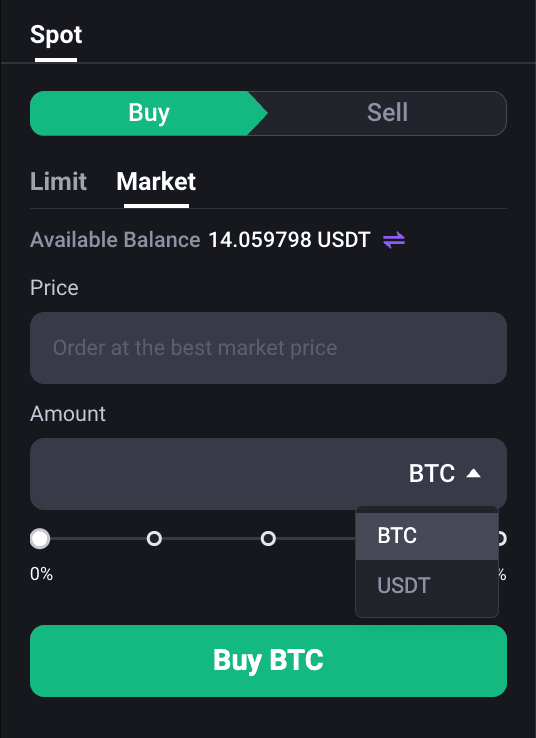
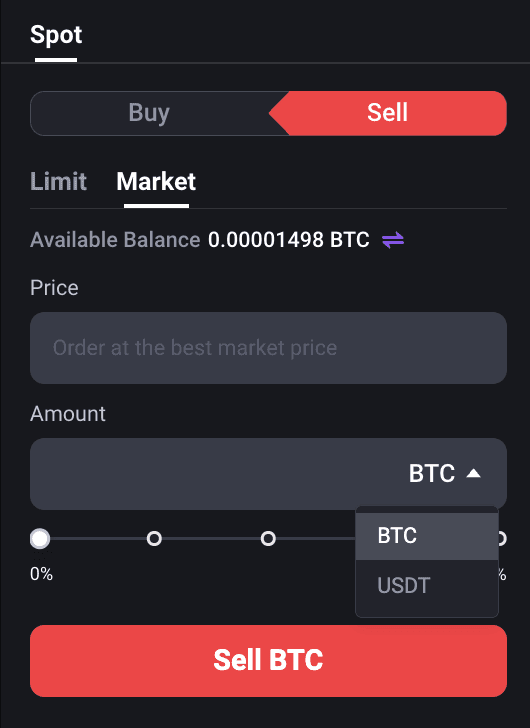
5. Place a Market Order: Select [Market] if you want to buy or sell as quickly as possible at the best available market prices.
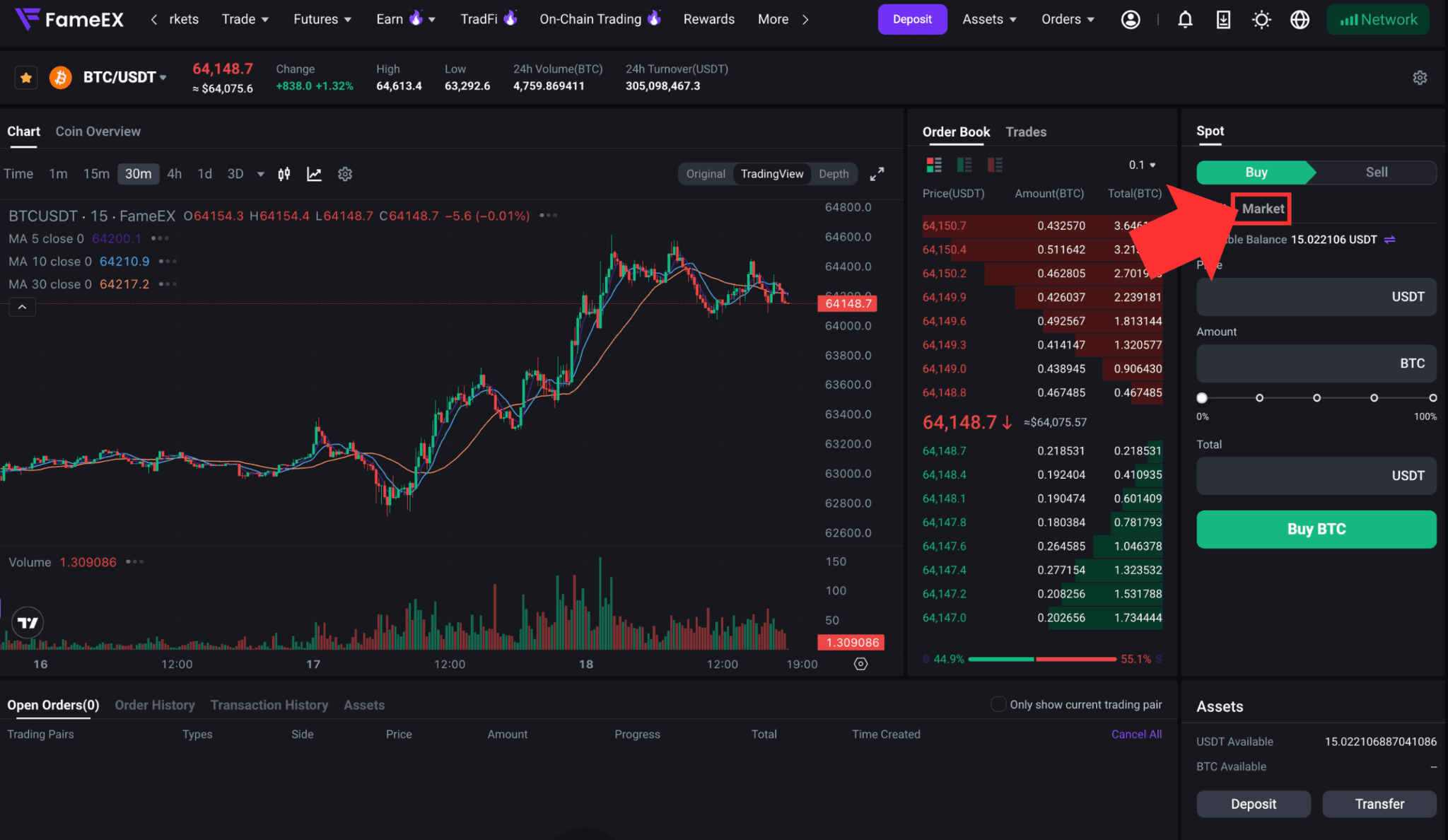
1) Buy BTC: Enter either the order value in USDT or the amount of BTC you want to buy. Review the order details and click [Buy BTC].
2) Sell BTC: Enter either the order value in USDT or the amount of BTC you want to sell. Review the order details and click [Sell BTC].
Market orders are matched against available orders in the order book at the time of execution. During periods of rapid market movement or limited liquidity, the average execution price may differ from the latest price displayed when the order was placed.
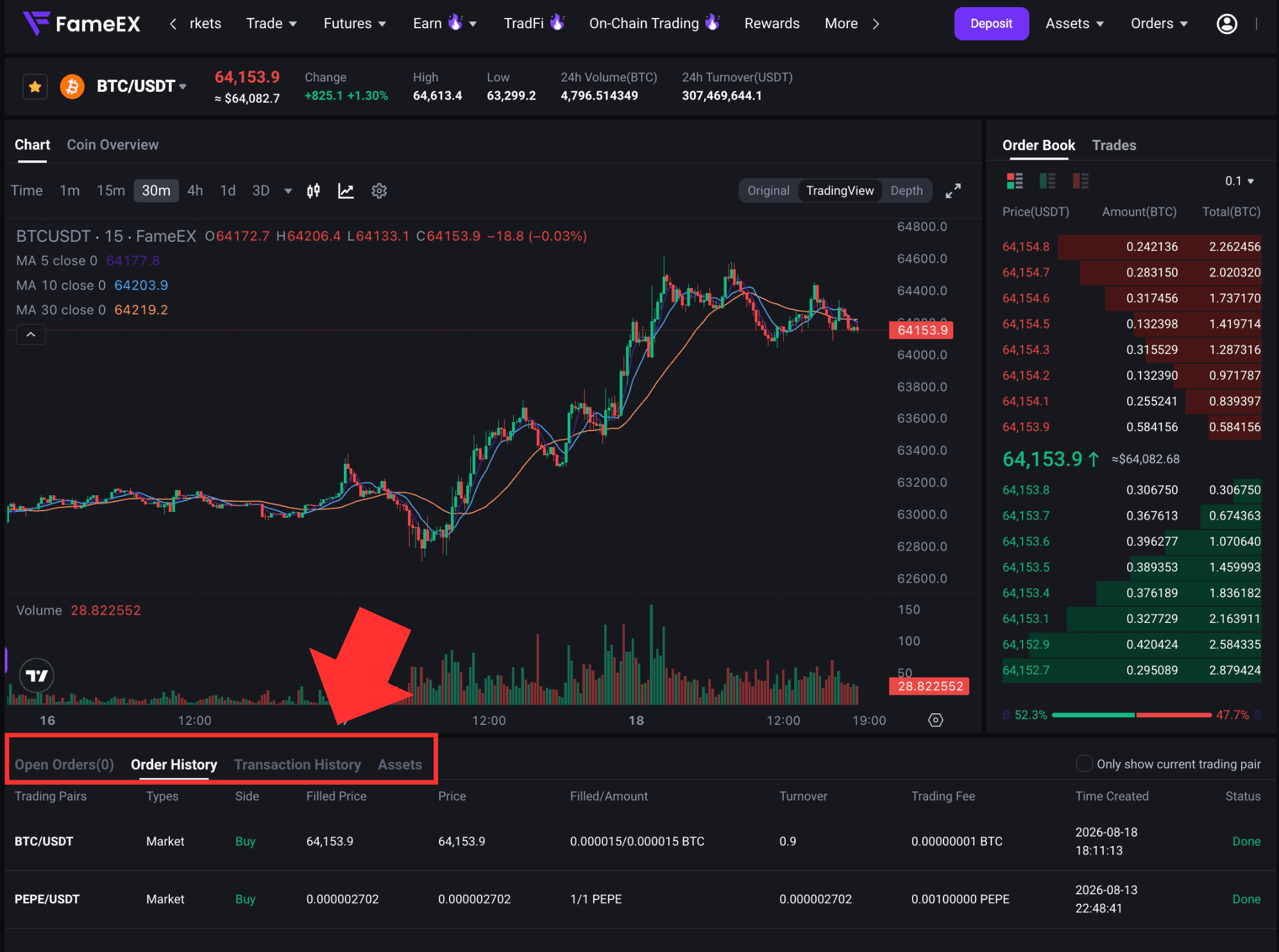
6. Check and View Your Orders and Trade History: After placing an order, you can view [Open Orders], [Order History], [Transaction History], and [Assets] management at the bottom of the trading page. Under [Open Orders], you can view or cancel orders that have not yet been filled. You can also check previous orders and completed trades under [Order History] and [Transaction History].
*Feature names and page locations may change following platform updates. Please refer to the latest interface for the most accurate information.