FameEX Perpetual Futures Trading Guide (Web)
2026-07-30 13:53:19What is the Perpetual Future?
Perpetual futures are derivative products with no fixed expiration date. Users can take long or short positions based on expected market movements without owning the underlying asset. They can also use leverage to improve capital efficiency. Perpetual futures generally use a funding rate mechanism to keep the contract price close to the spot price of the underlying asset. Leverage can magnify both profits and losses. Positions may be liquidated when the market moves sharply or when available margin becomes insufficient.
FameEX currently offers the following futures trading products:
- USDT Perpetual Futures: Use USDT as the margin and settlement asset to open long or short positions.
- Copy Trading: Select a trader and automatically copy their futures trading strategies.
- TradFi Trading: Use USDT to trade price movements across U.S. stocks, forex, precious metals, and other traditional financial markets.
How to Trade USDT Perpetual Futures on FameEX?
Before trading, users must activate their futures account and complete the required fund transfer and trading settings. The following guide explains how to select a trading pair, set the margin and position modes, adjust leverage, place orders, and manage position records on the FameEX Web platform.
1. Activate Futures Trading
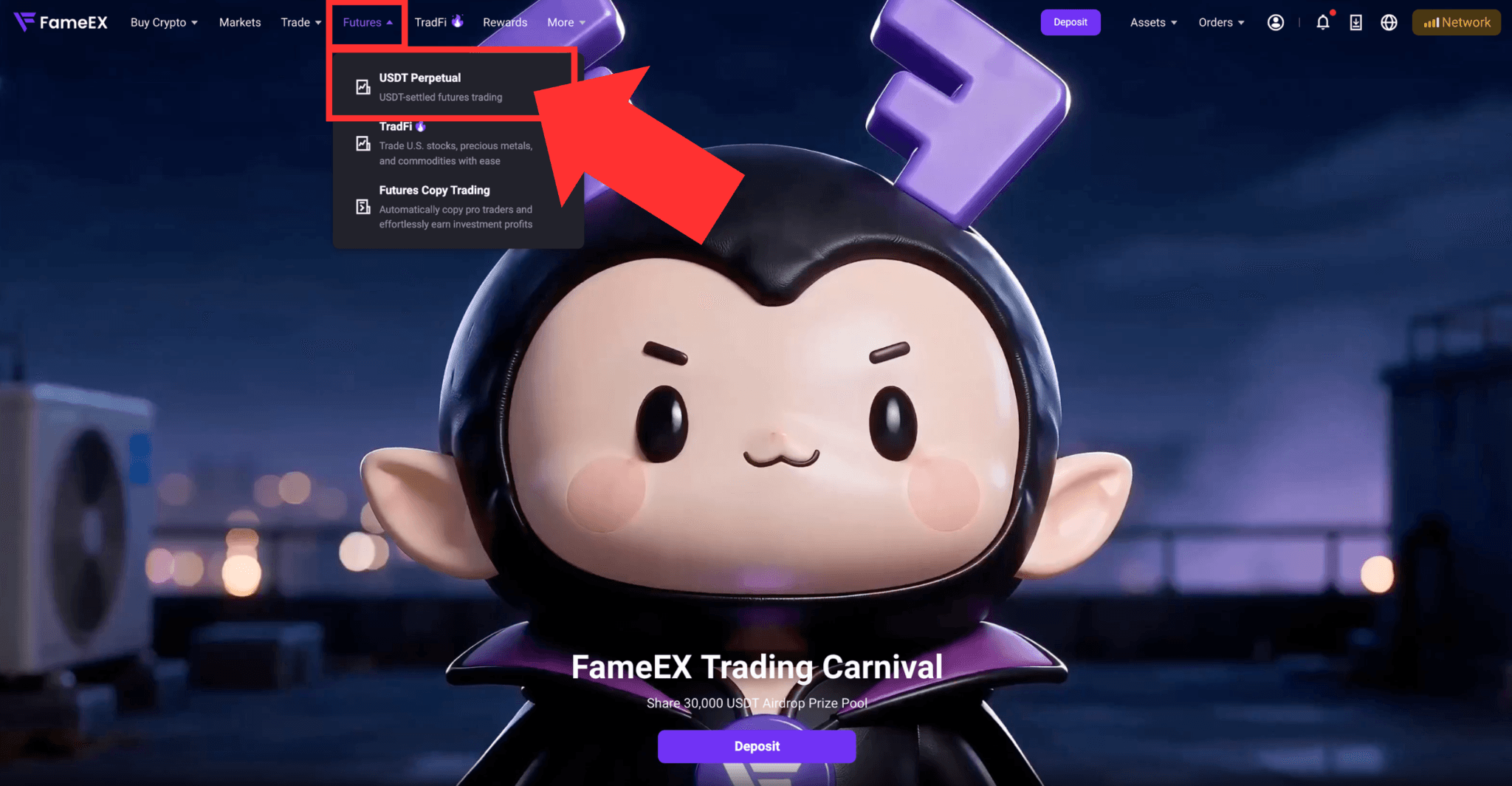
1) Log in to your FameEX account. Click [Futures] at the top of the page to enter the USDT perpetual futures trading page.
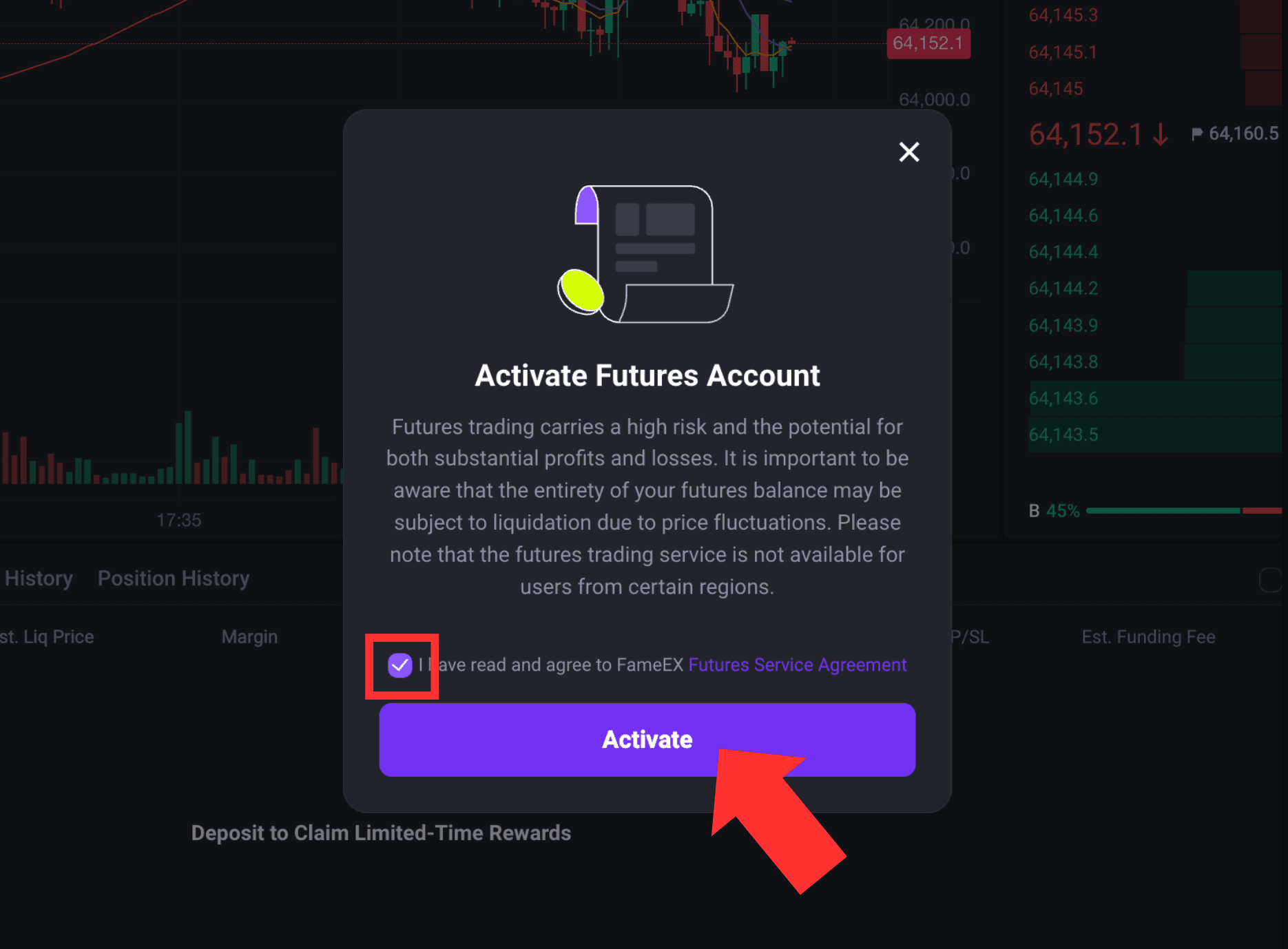
2) If futures trading has not yet been activated, read and agree to the FameEX Futures Service Agreement, then click [Activate] to proceed.
2. Complete Futures Trading Settings
1) Select a Futures Trading Pair
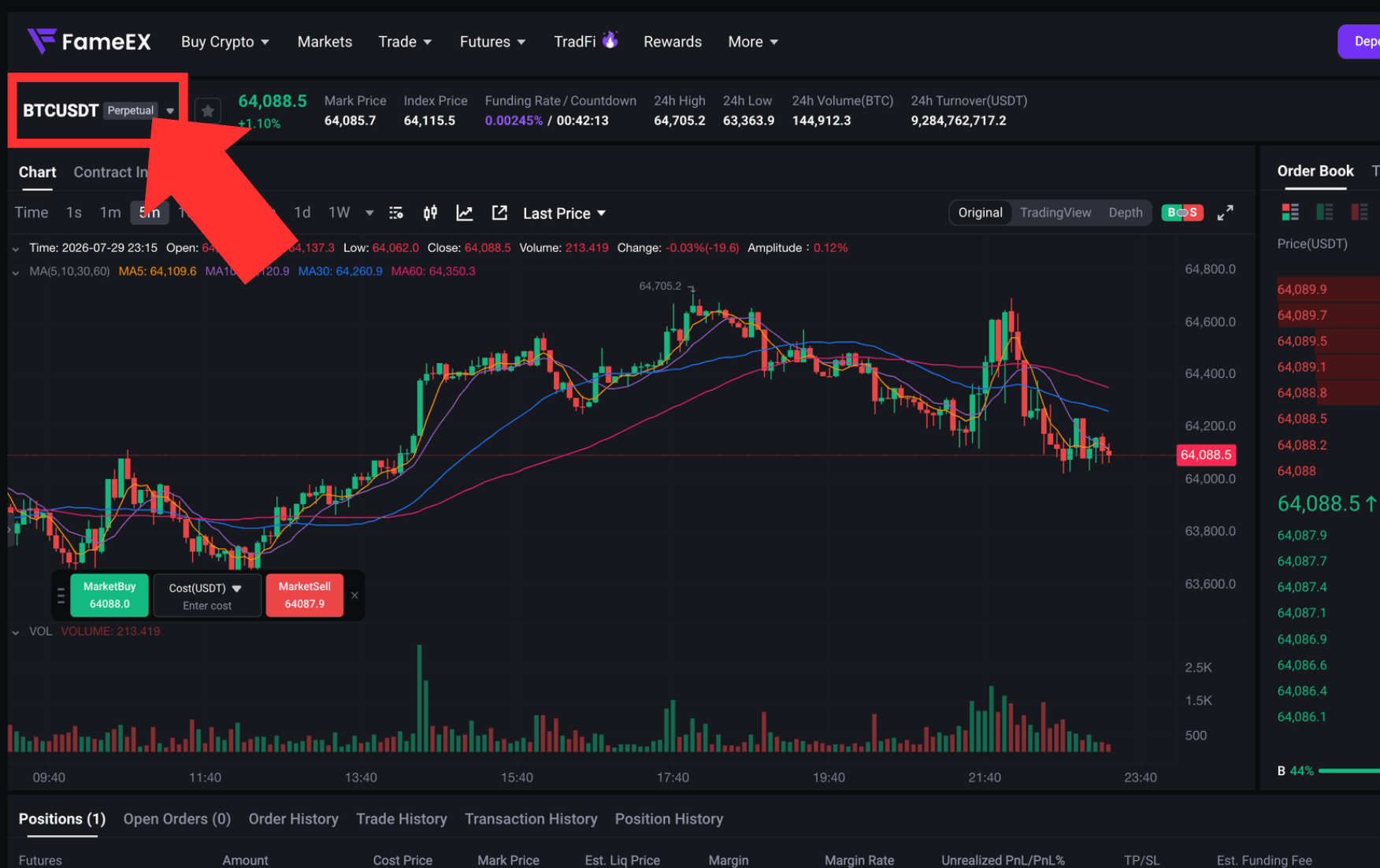
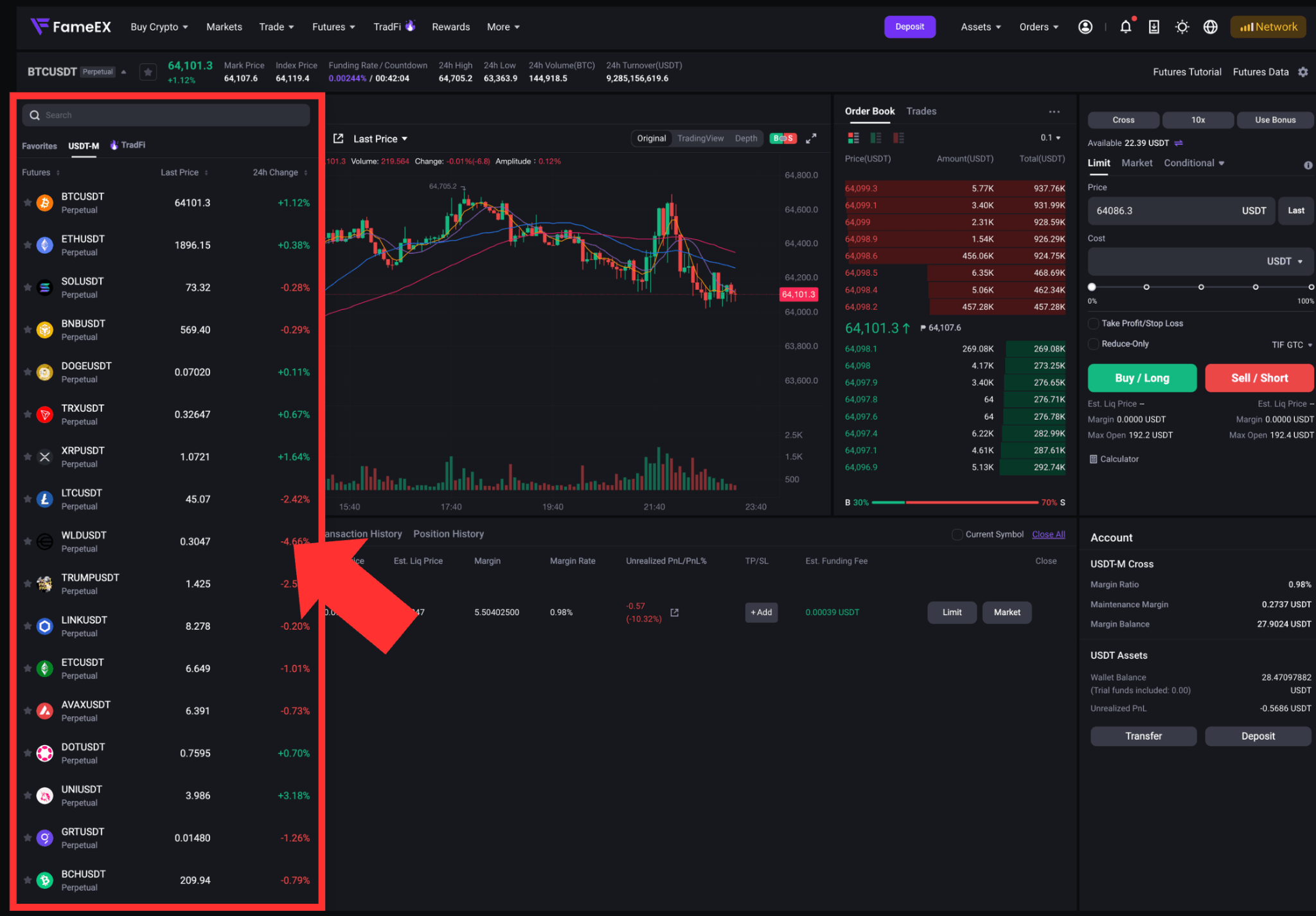
FameEX currently supports USDT perpetual futures under single-asset margin mode. You can select the futures trading pair you wish to trade from the upper-left corner of the trading page.
2) Select a Margin Mode
FameEX supports two margin modes:
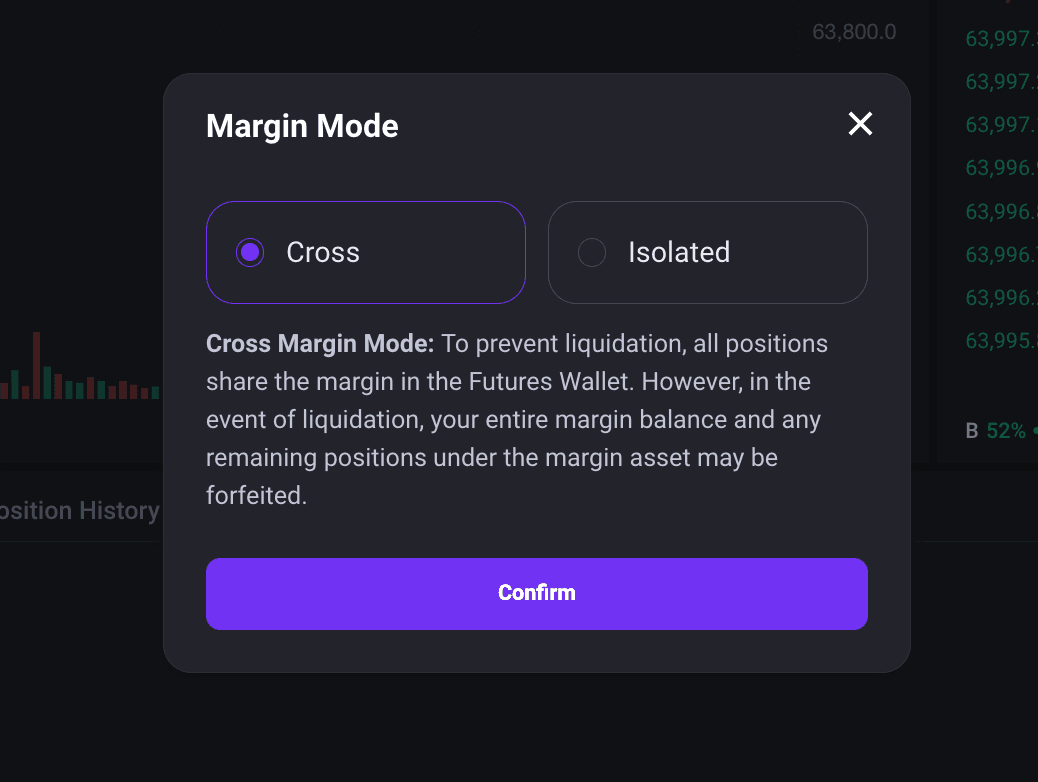
- Cross: Available margin in the futures account is shared across positions under cross margin.
- Isolated: Margin is calculated separately for each position. The risk is not shared with other positions.
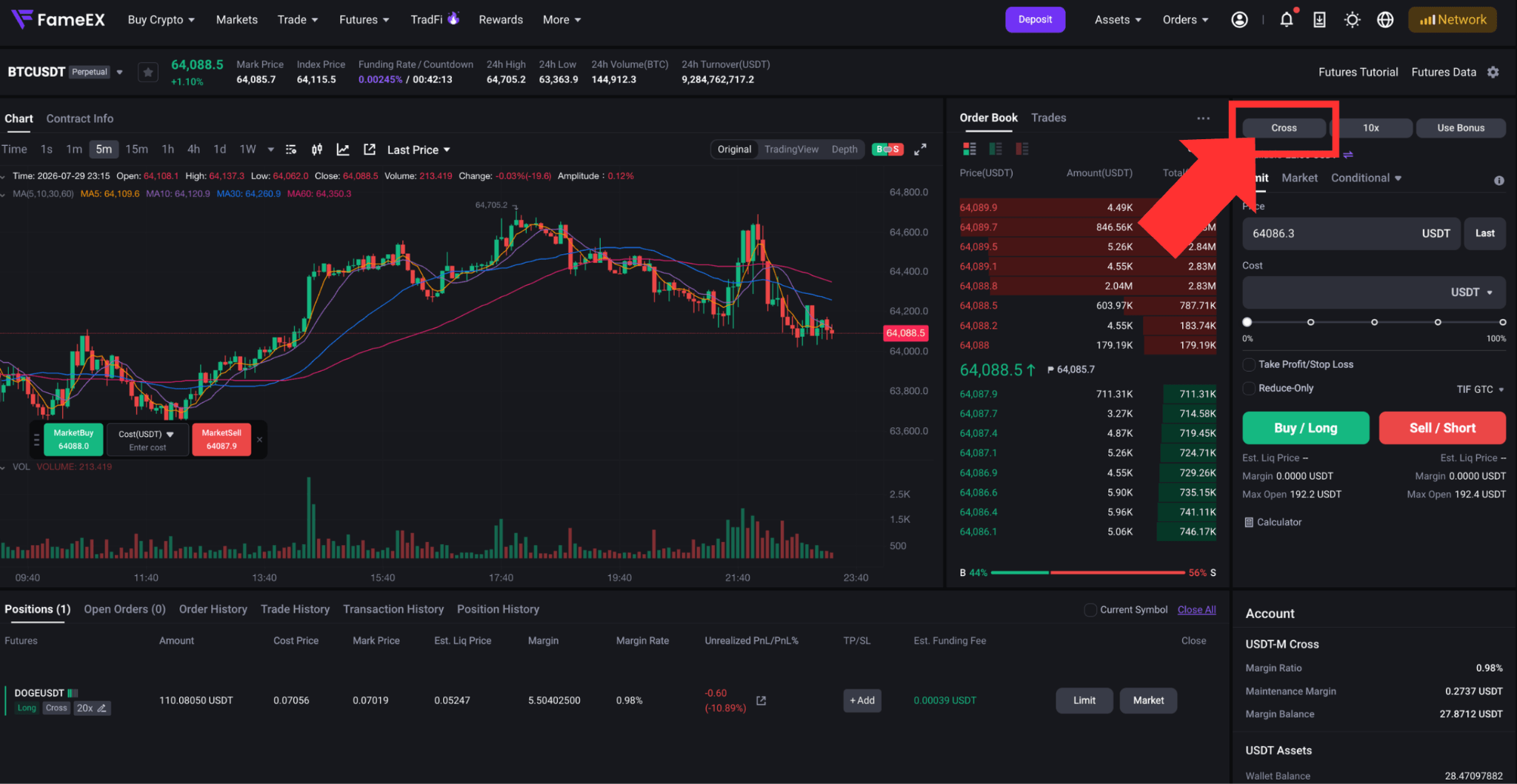
Click [Cross] or [Isolated] on the pop-up window of the trading page to switch the margin mode. Some settings may not be changed while you have open positions or unfilled orders. Please follow the instructions shown on the page.
3) Adjust Leverage
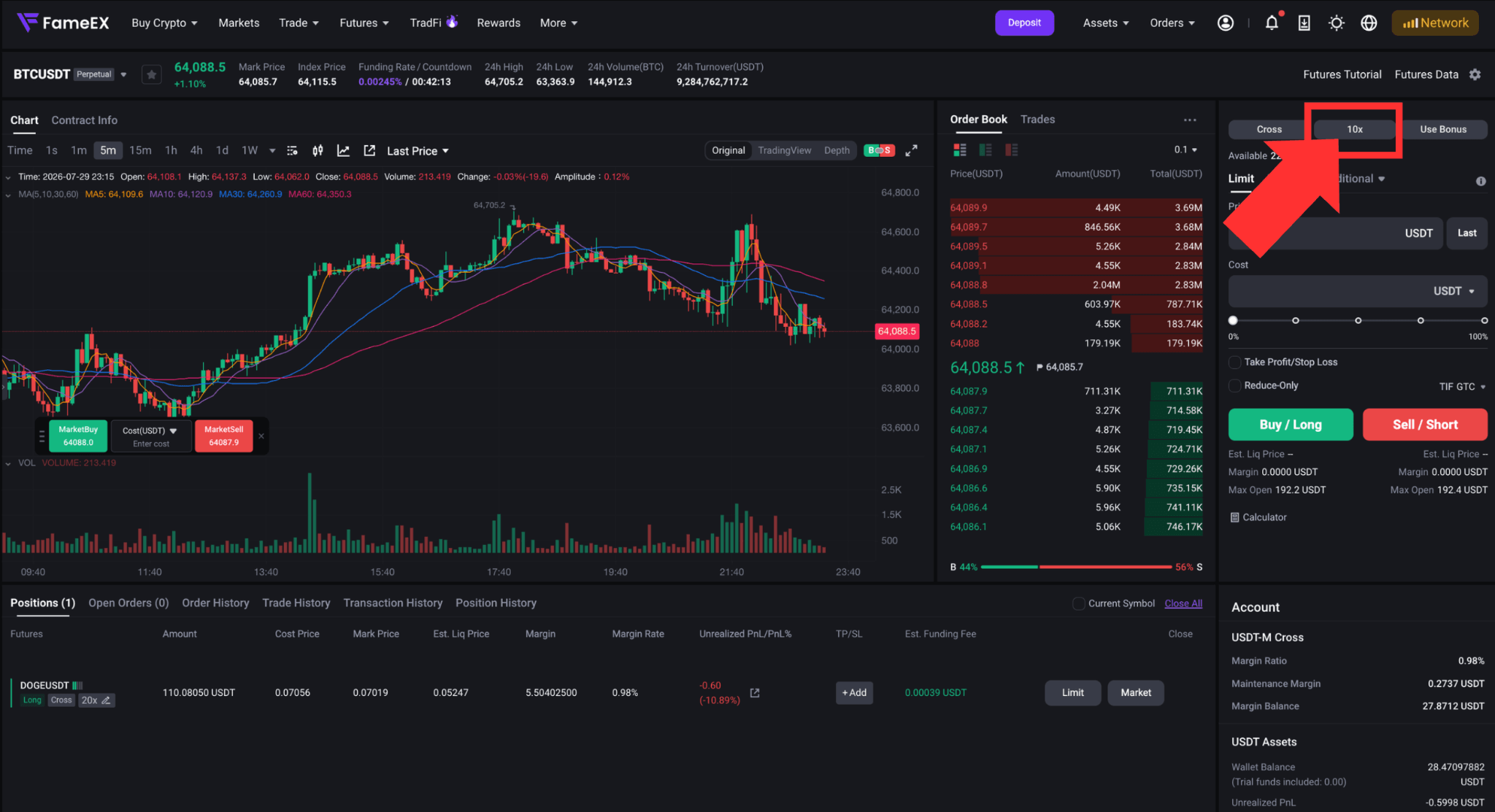
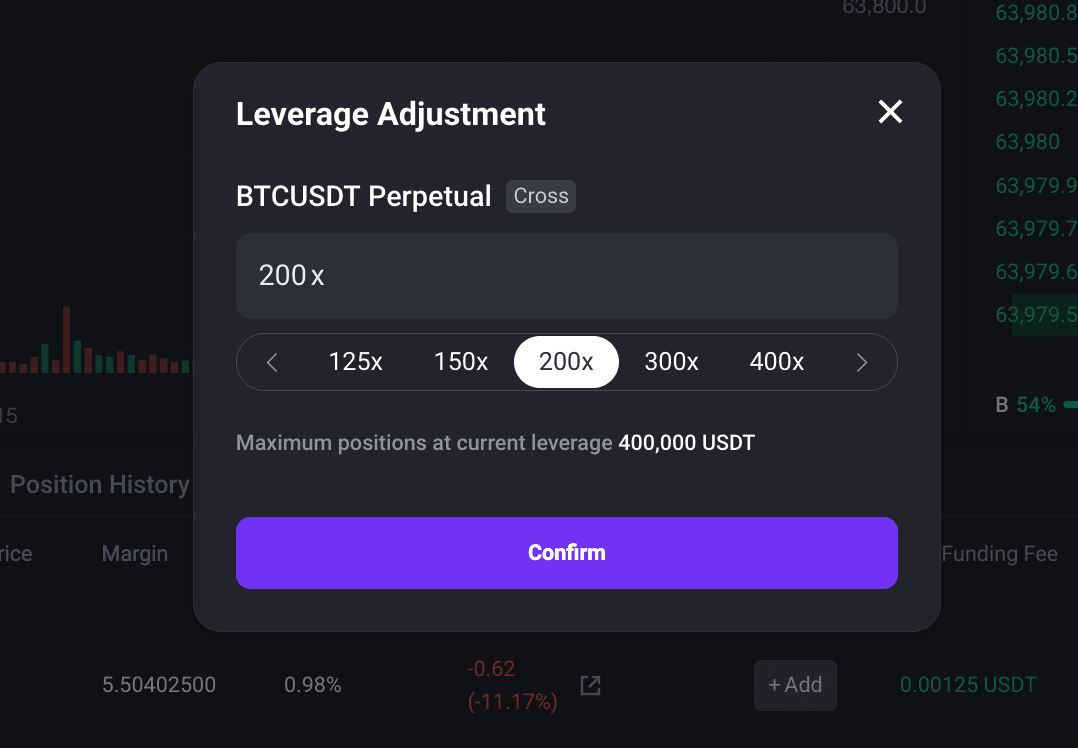
Click the leverage on the right side of the trading page, such as the [1x] icon. Select the required leverage and confirm the setting. Higher leverage increases the impact of price movements on your position and raises the risk of liquidation. Set your leverage carefully based on your risk tolerance.
4) Transfer Funds
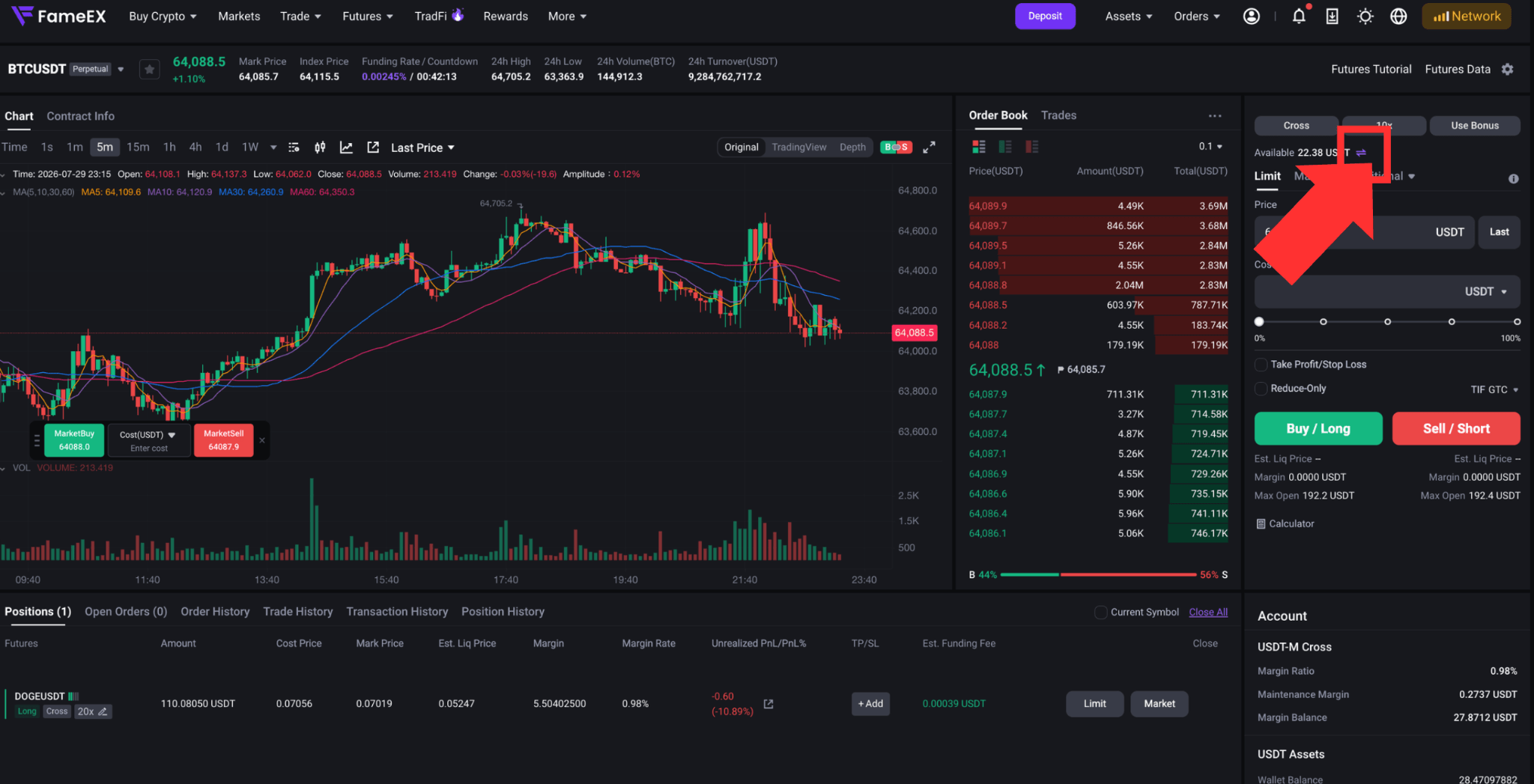
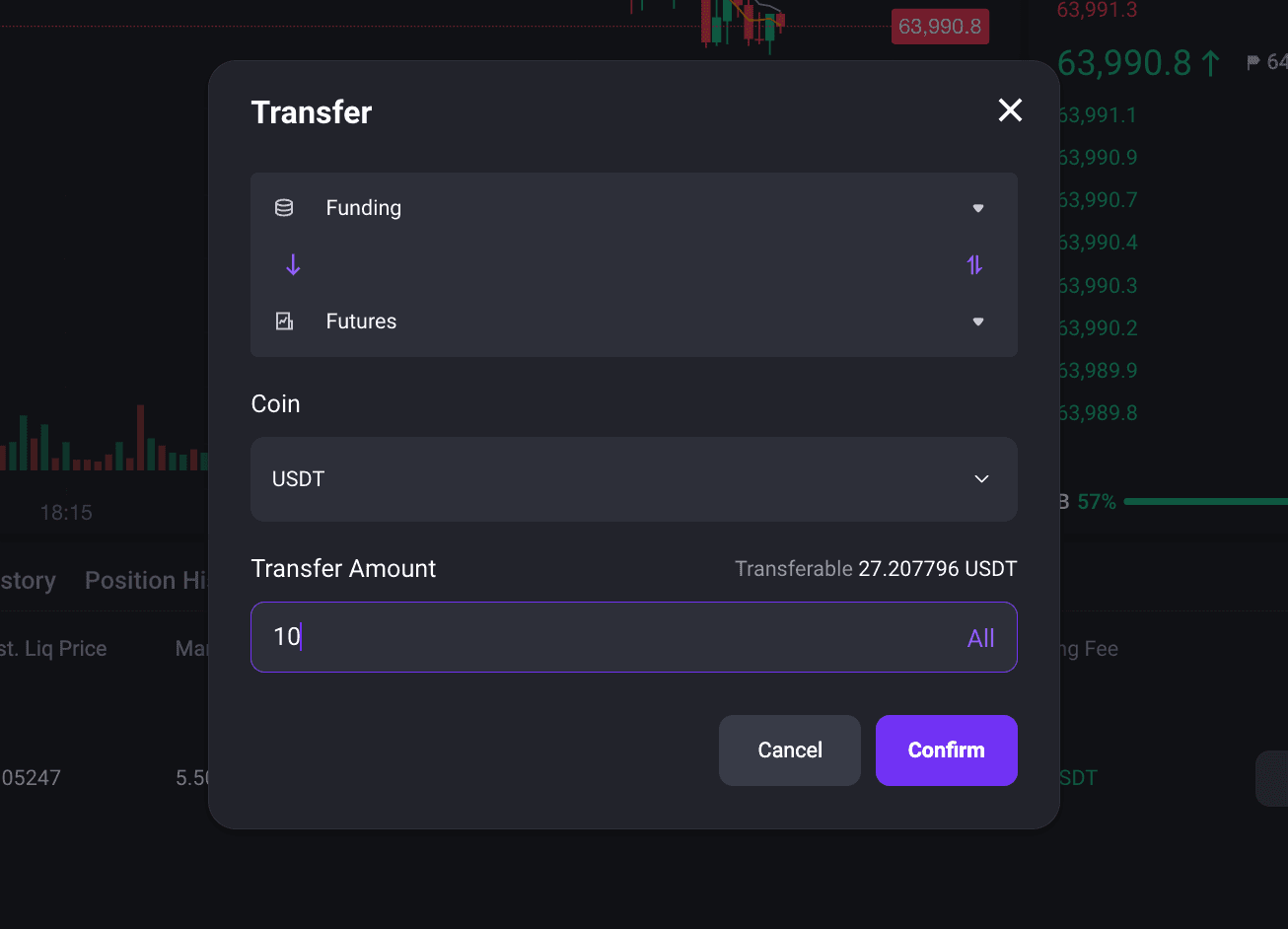
Click the [Transfer] icon on the futures trading page. Select the source account, destination account, and transfer amount. Review the details and click [Confirm]. Once the transfer is complete, the USDT in your futures account can be used as margin.
3. Select Your Position Mode
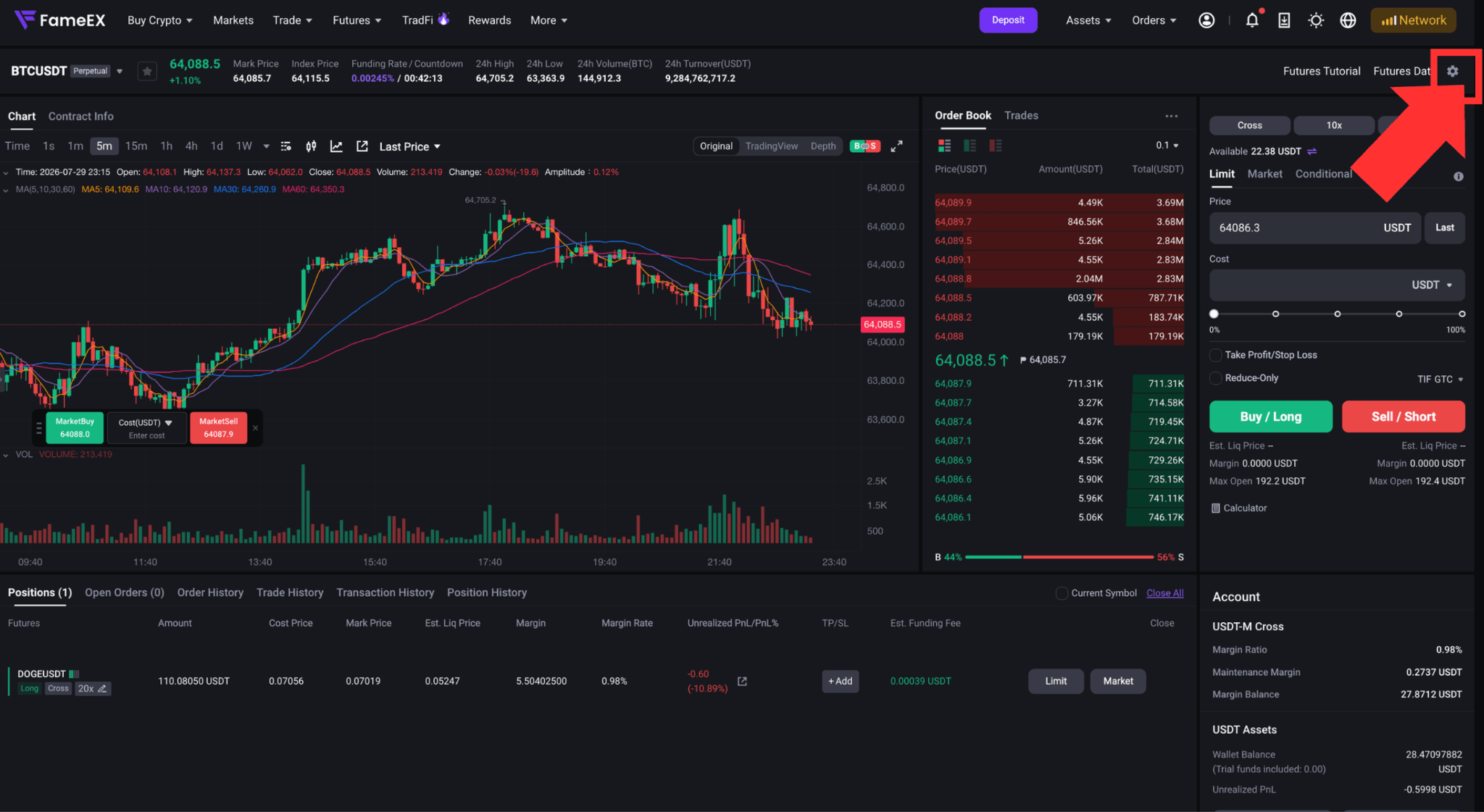
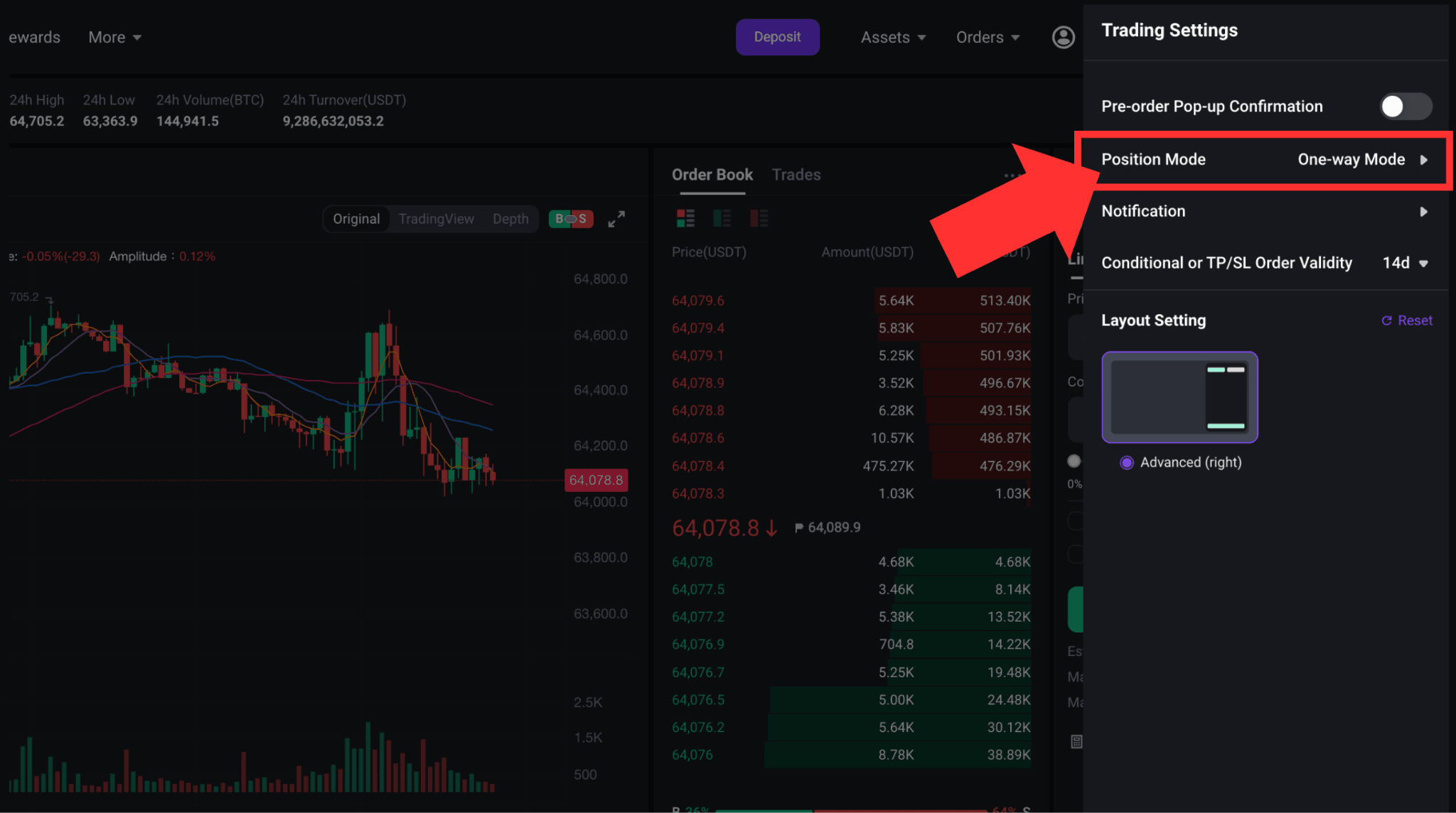
FameEX supports Hedge Mode and One-Way Mode. Click the [Settings] icon in the upper-right corner of the futures trading page. Click Position Mode to switch between the two modes.
1) Hedge Mode
Hedge Mode allows users to hold both long and short positions in the same futures trading pair. The two positions are calculated separately. Select “Open Long” when you expect the market to rise. Select “Open Short” when you expect the market to fall. To close a position, select “Close Long” or “Close Short” for the corresponding position.
2) One-Way Mode
One-Way Mode allows only one net position direction for the same futures trading pair. Select “Buy/Long” when you expect the market to rise. Select “Sell/Short” when you expect the market to fall.
When an order is placed in the opposite direction of an existing position, the system will first reduce or close the current position. Any amount that exceeds the existing position size may open a new position in the opposite direction.
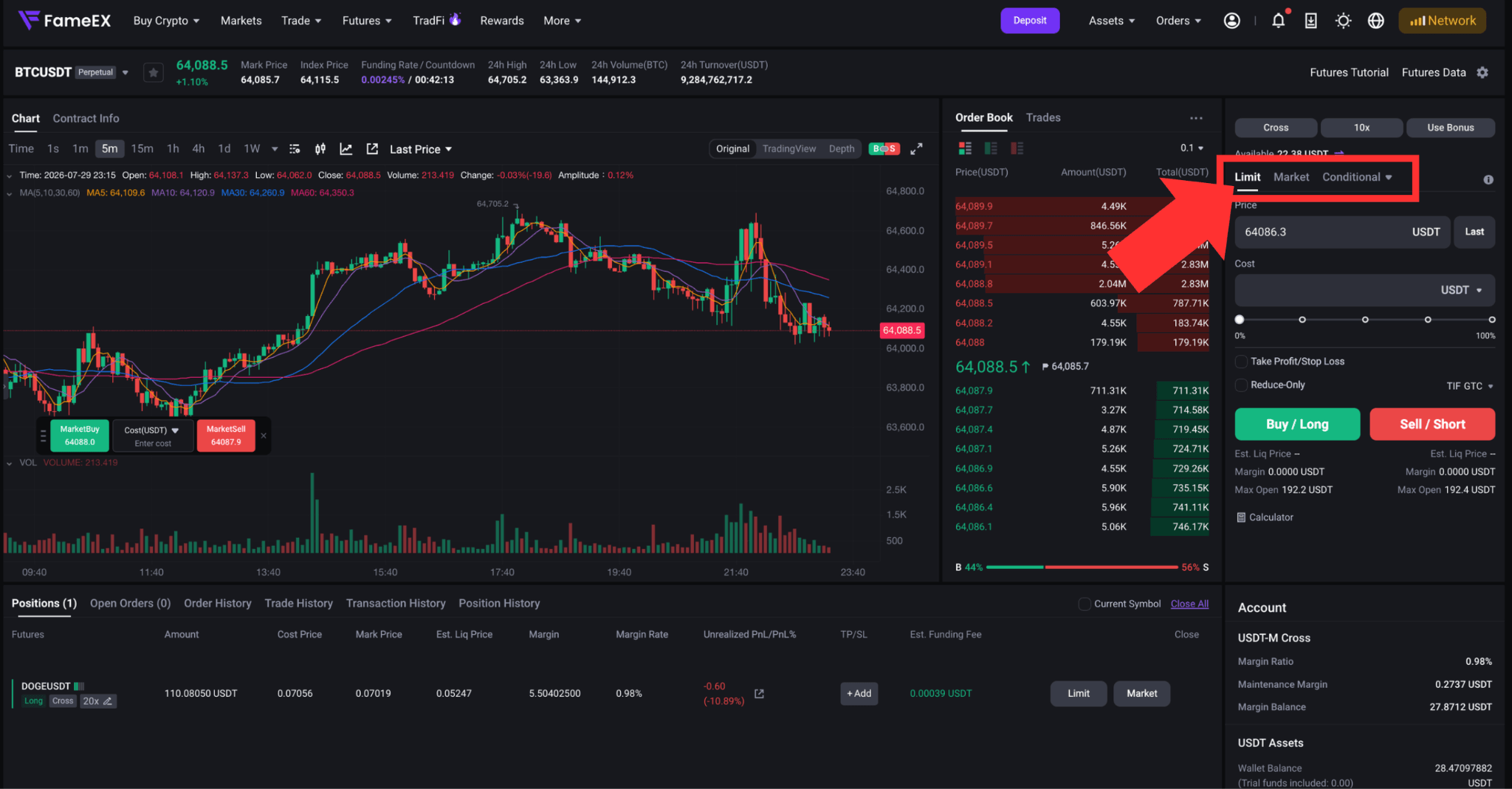
4. Select Futures Order Type
FameEX supports the following commonly used order types:
1) Limit Order: Users can set the order price and quantity.
The order will only be filled when the market reaches the specified price conditions and a matching order is available. A limit order is not guaranteed to be filled.
2) Market Order: Enter the order quantity and submit the order. The system will execute it as quickly as possible at the best available market prices.
During periods of rapid market movement or limited liquidity, the average execution price may differ from the price displayed when the order was placed.
3) Conditional Order: A conditional order requires a trigger price to be set in advance.
Once the market reaches the trigger price, the system will submit the corresponding limit or market order. Triggering a conditional order does not guarantee that it will be filled.
4) Post Only: A Post Only order will only be added to the order book as a Maker order. If the order would execute immediately after submission, the system will automatically cancel it.
5. Place Your Futures Order
After selecting the margin mode, leverage, and position mode, choose an order type and enter the required information:
- Order price or trigger price
- Order quantity
- Time in force
- Take-profit and stop-loss conditions
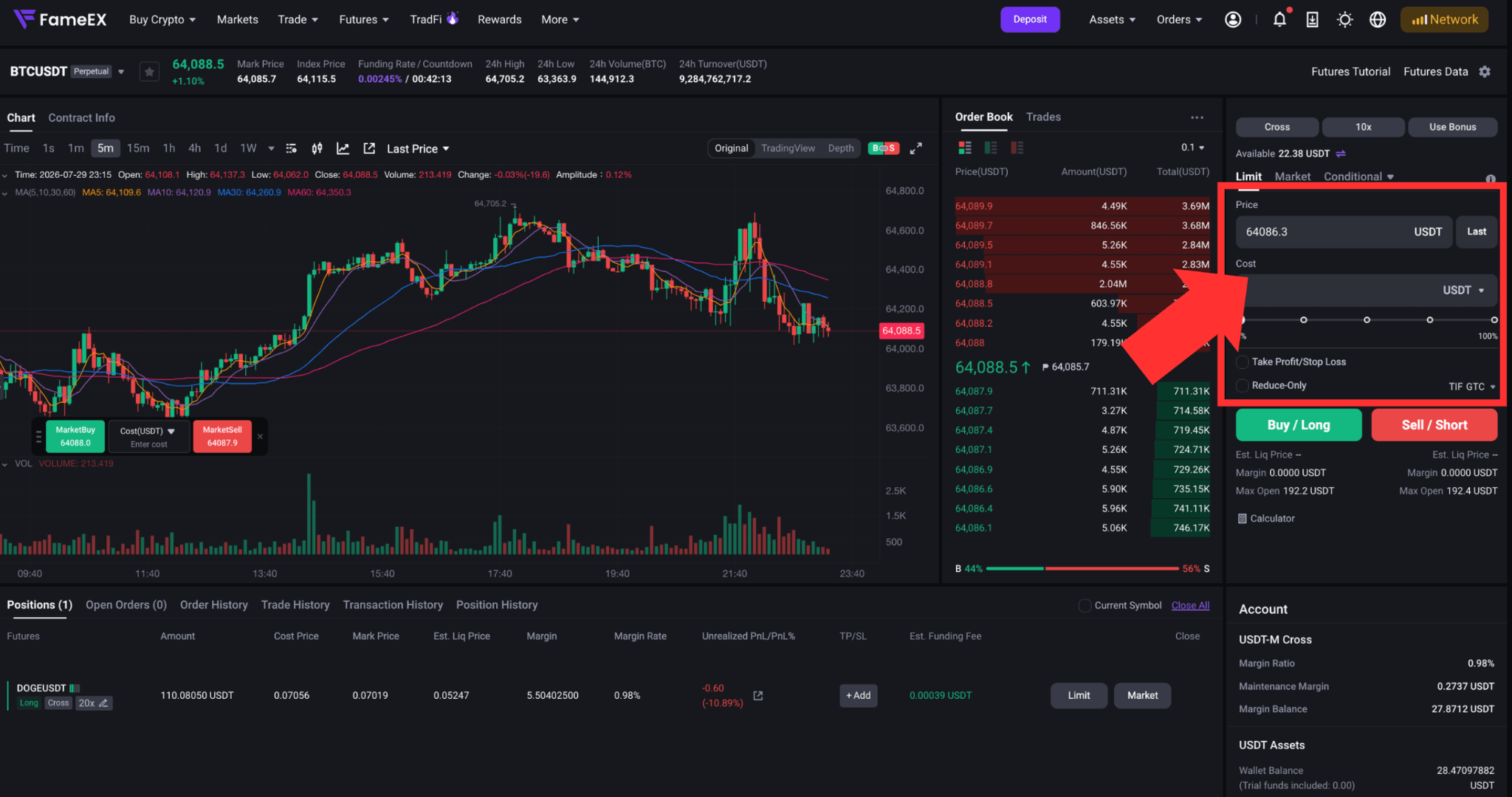
Review the order details and select the appropriate direction based on the current position mode:
- Hedge Mode: Open Long, Open Short, Close Long, or Close Short
- One-Way Mode: Buy/Long or Sell/Short
Once an order is filled, it will create or update a position. Any unfilled portion will appear under [Open Orders].
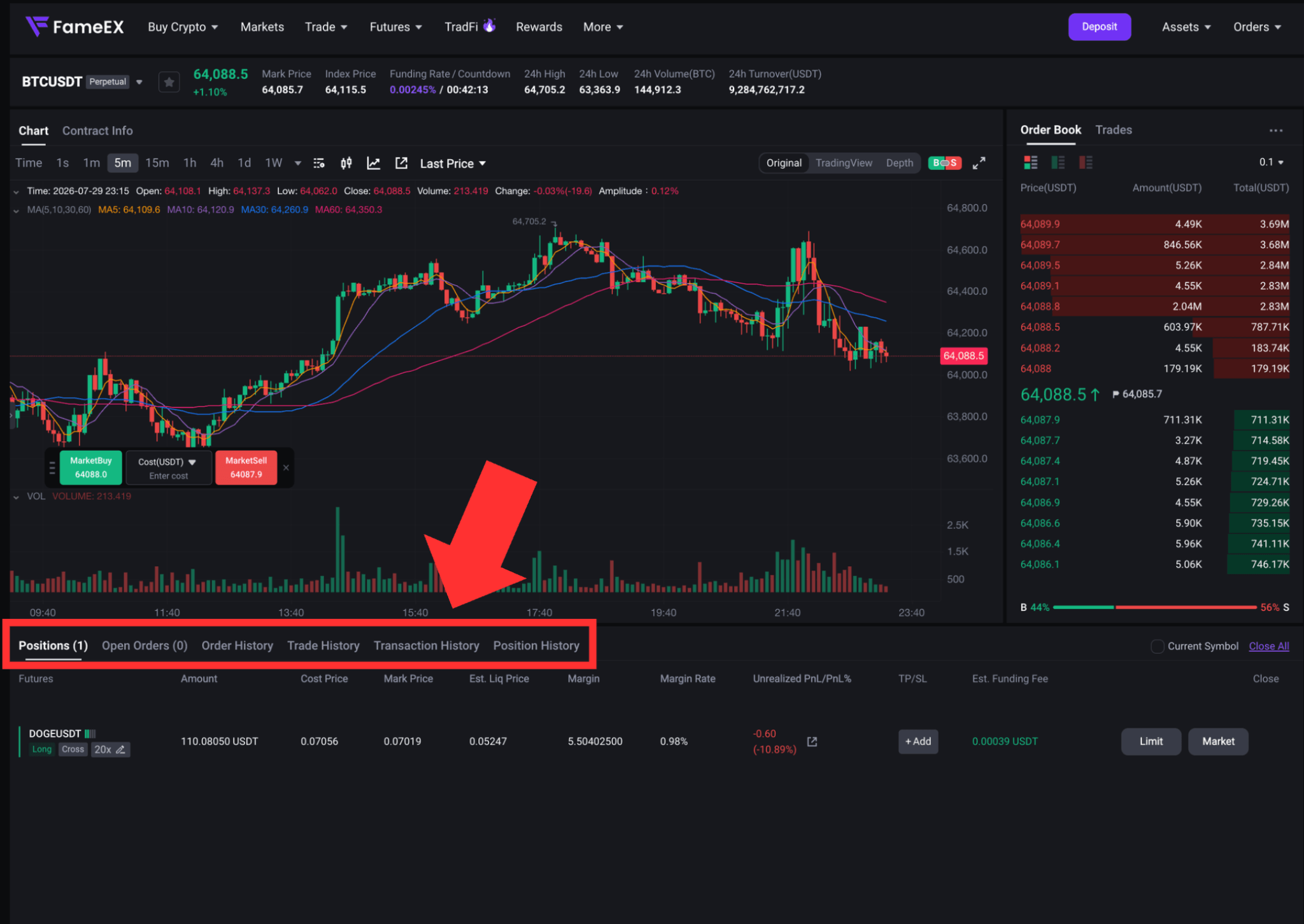
6. View and Manage Futures Positions
After placing an order, users can view the following sections at the bottom of the trading page:
- Positions: View current positions, margin, and unrealized profit and loss.
- Open Orders: View or cancel orders that have not yet been filled.
- Order History: View previously submitted orders.
- Trade History: View completed trade records.
- Transaction History: View changes to funds in the futures account.
- Position History: View complete records of closed positions. The available information includes closing profit and loss, realized return, average entry price, average closing price, maximum position size, closed quantity, opening and closing fees, opening time, and final closing time.
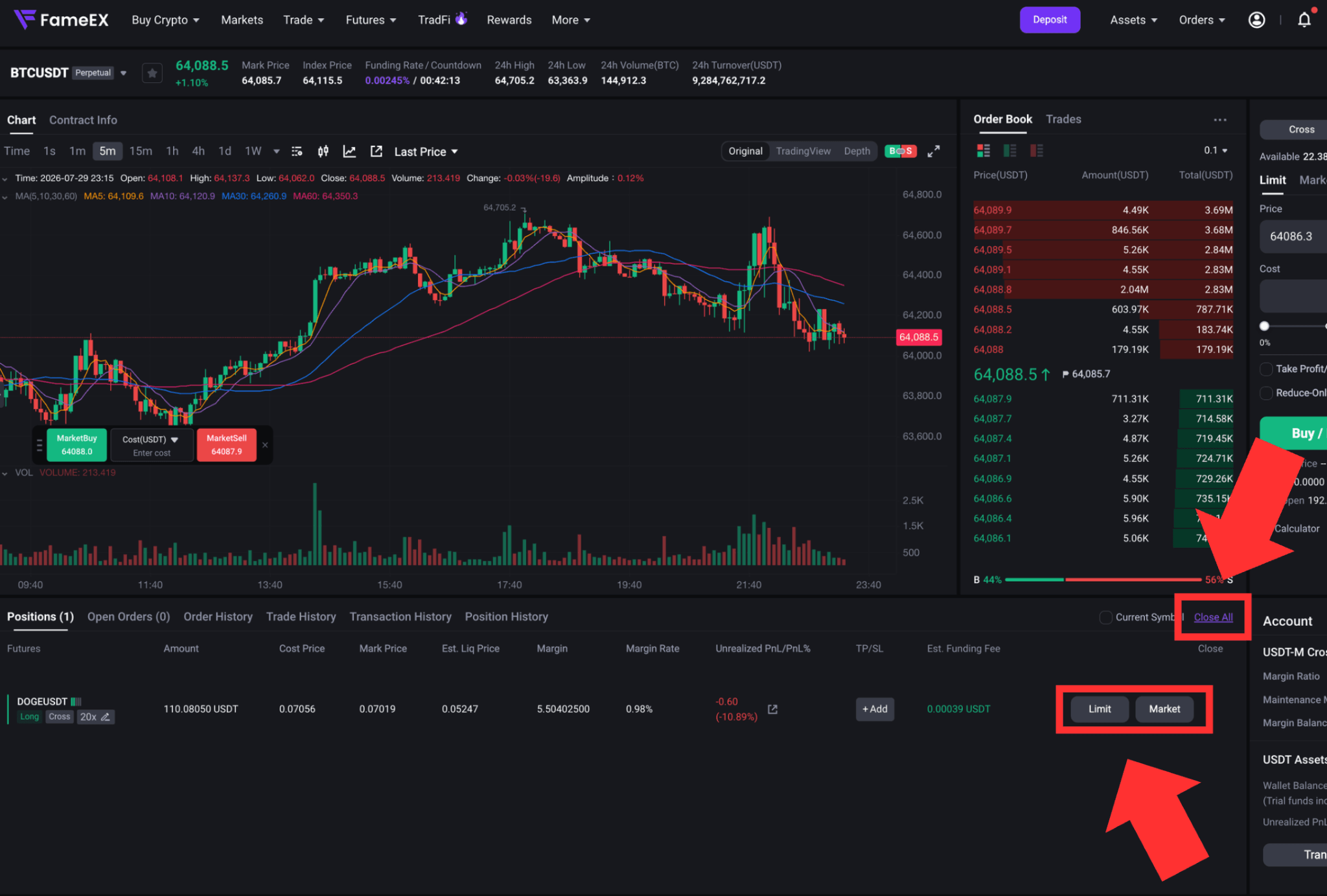
To close a position manually, go to the [Positions] section and click either [Limit] or [Market]. To close all positions quickly, click [Close All].
Risk Warning
Perpetual futures are high-risk derivative products. Leverage can magnify both profits and losses. Positions may be liquidated during periods of sharp market volatility or when available margin becomes insufficient. Before trading, make sure you understand the relevant product rules. Trade carefully based on your experience and risk tolerance.
*Feature names and page locations may change following platform updates. Please refer to the latest interface for the most accurate information.