How to Use FameEX Simple Earn? (App)
2026-08-27 09:32:36FameEX Simple Earn offers Flexible and Fixed Products. You can subscribe using available assets in your Spot Account and Funding Account. You can also view your holdings and earnings in your Earn Account. Flexible Products have no fixed term. Interest is distributed hourly by default, and redemption is available at any time. Fixed Products have a specified term. Interest is distributed daily by default, and the principal is returned at maturity.
1. How to Subscribe to FameEX Simple Earn?
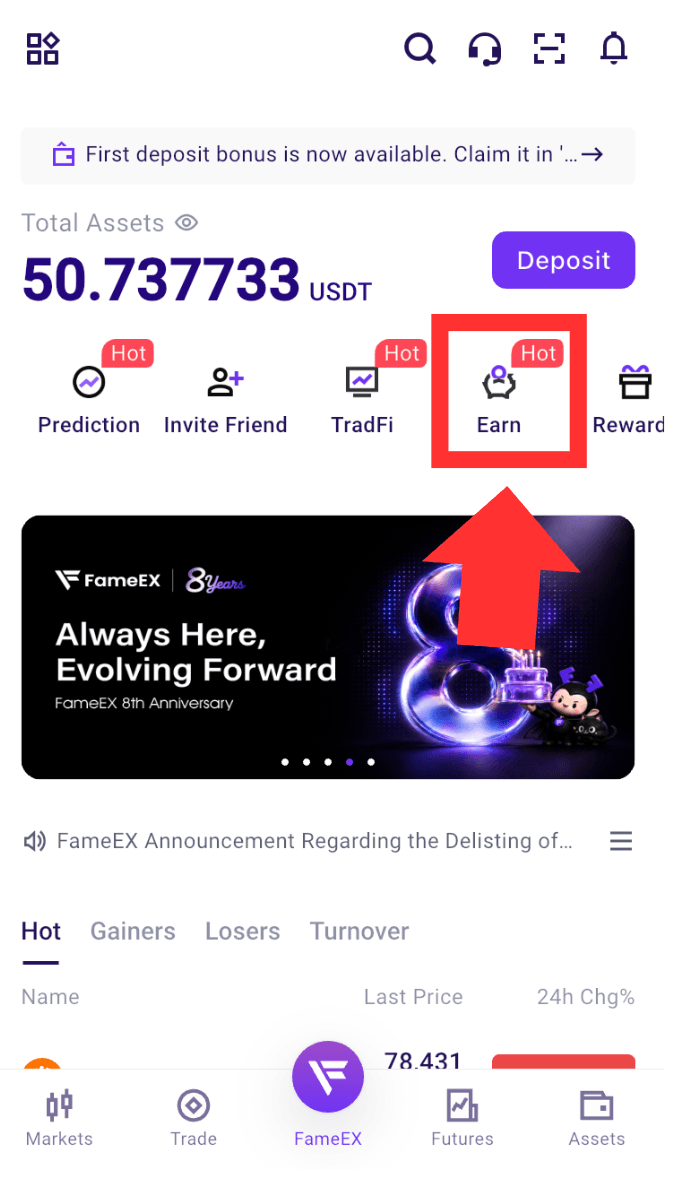
1) Open the FameEX App and log in to your account. Tap [Earn] on the homepage to enter the FameEX Earn page.
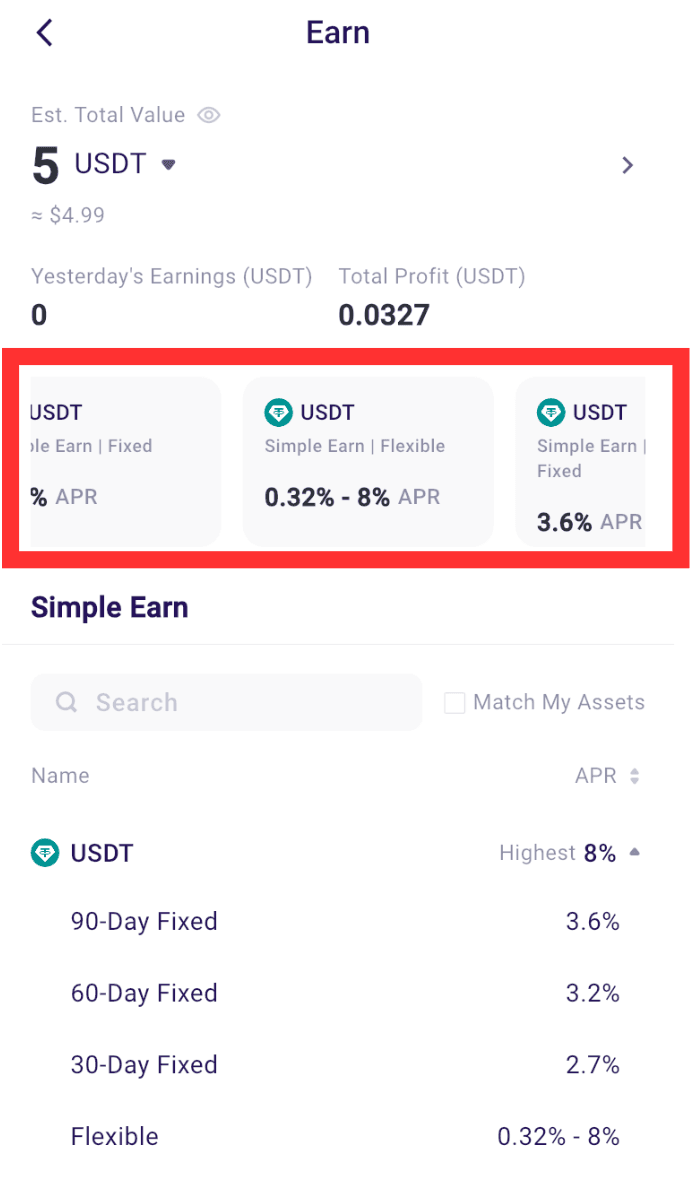
2) On the [Earn] page, browse the available product types, including supported assets, APRs, and terms. Tap the product you want to subscribe to.
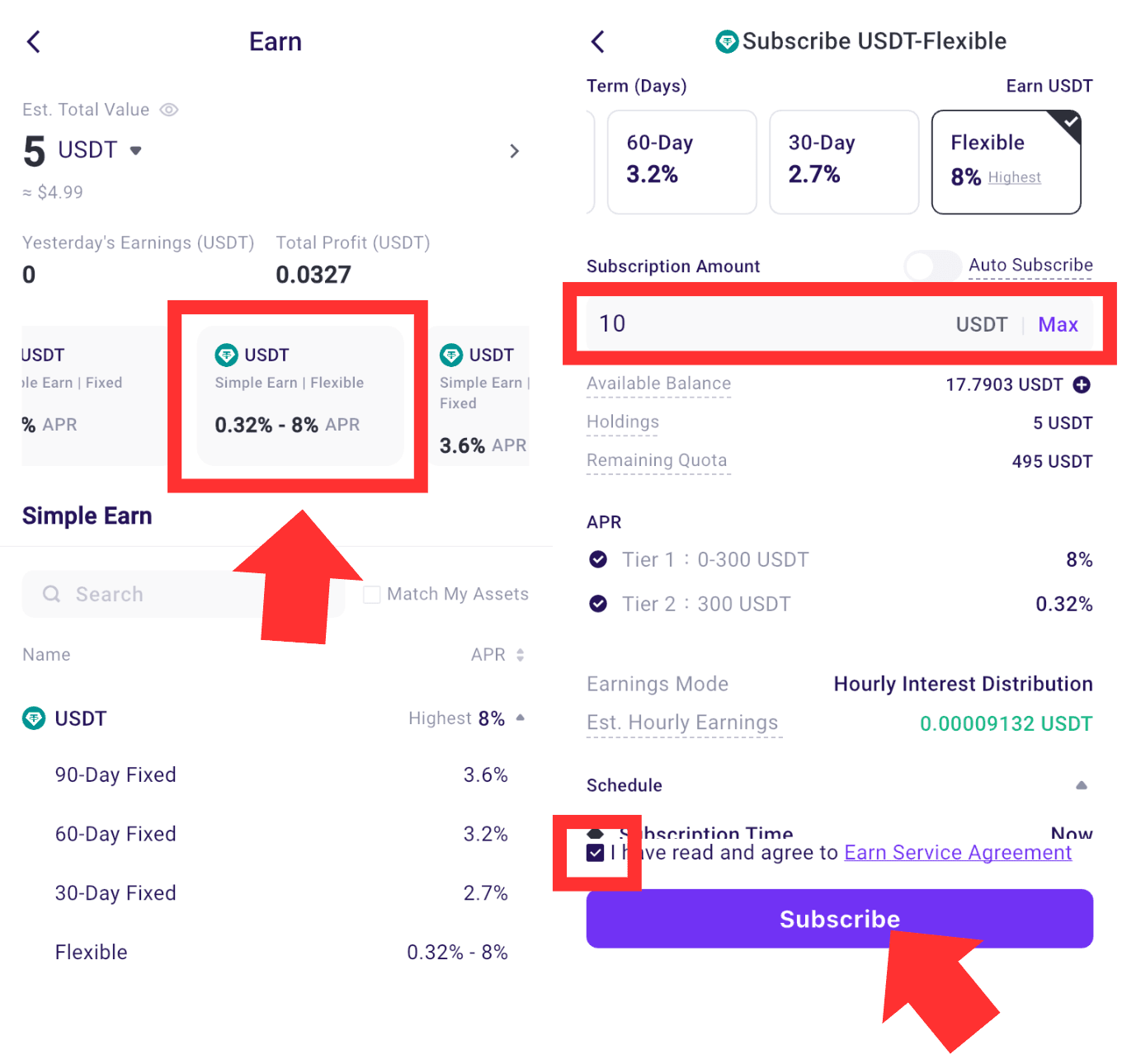
3) On the subscription page, select Flexible or any available Fixed terms under Term (Days), then enter the subscription amount. Review the available balance, current holdings, remaining subscription limit, APR, estimated earnings, and earnings distribution method. If tiered APR applies to a Flexible Product, the APR for each amount tier will also be displayed. Read and check [I have read and agree to the Earn Service Agreement]. Confirm the subscription details and tap [Subscribe].
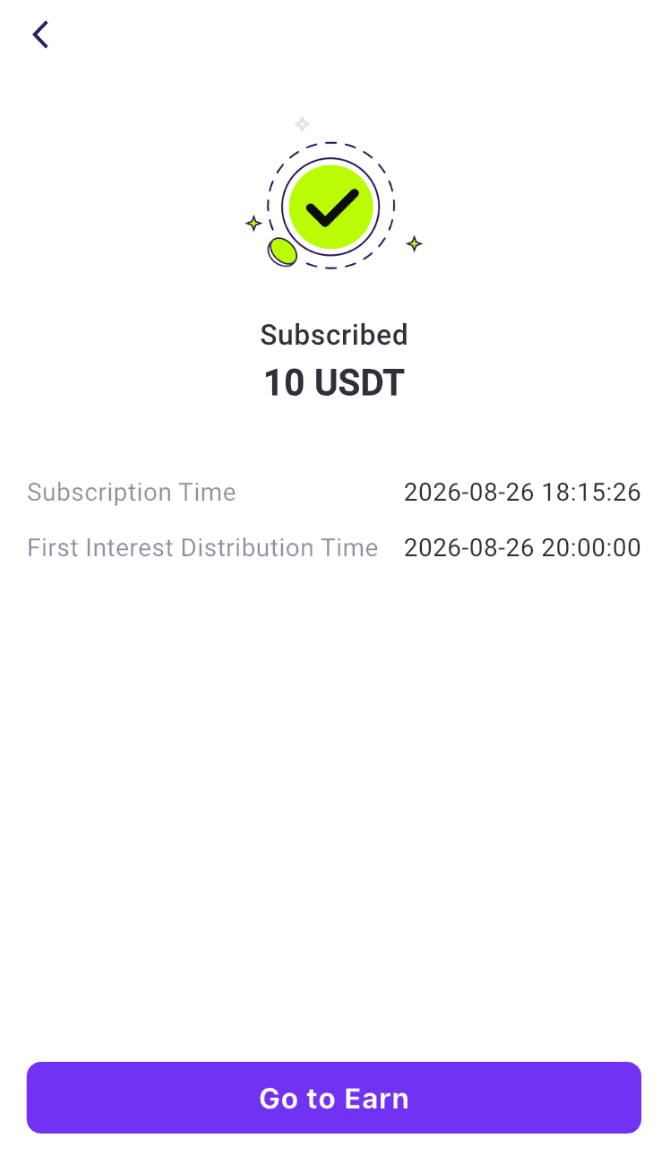
4) After the subscription is completed, the page will show the subscription amount, subscription time, and first interest distribution time. Tap [Go to Earn] Account to view more details.
2. How to View Your Earn Holdings and Earnings?
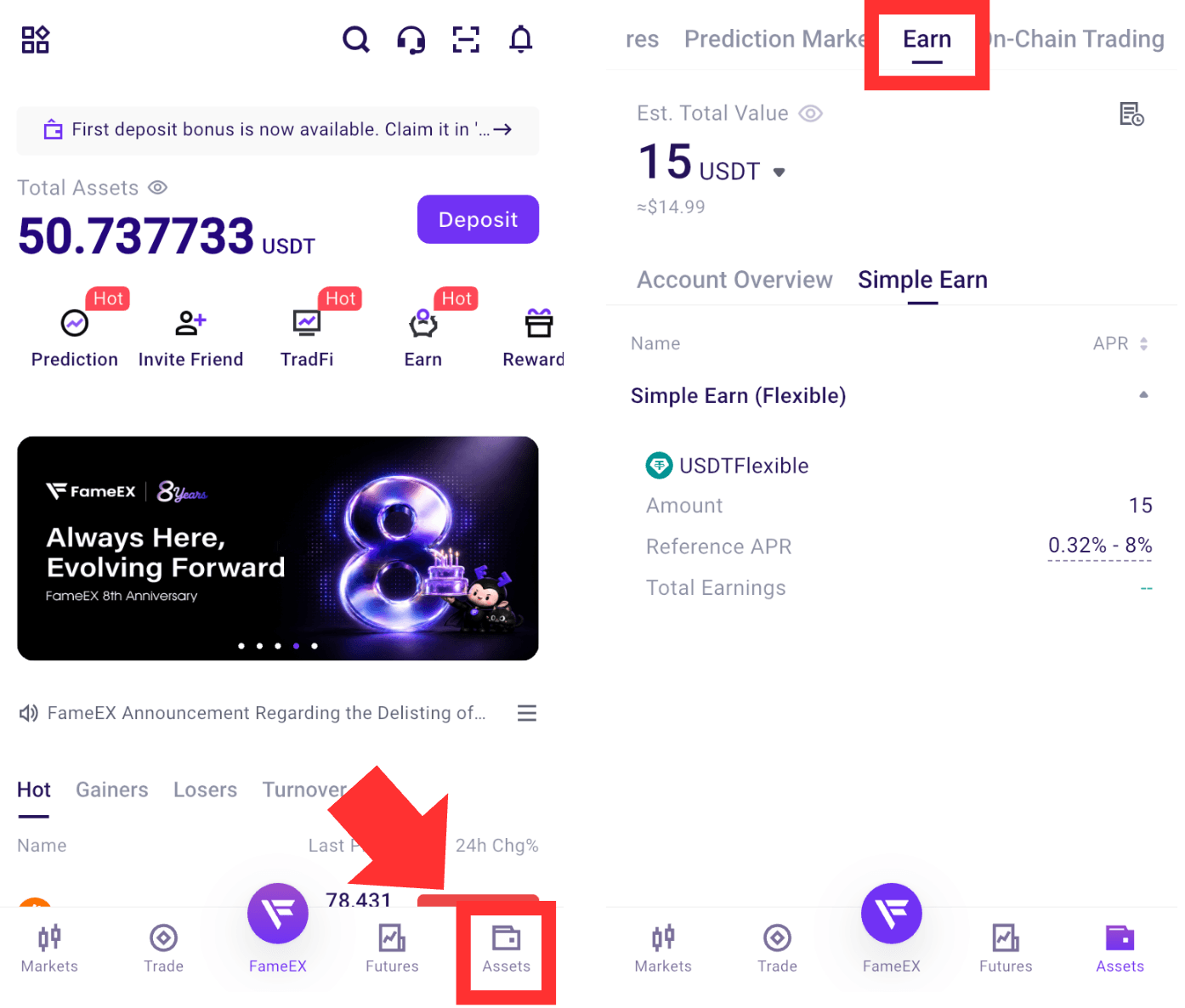
1) Open the FameEX App and tap [Assets] at the bottom. Then select [Earn] at the top. In your Earn Account, you can view your total Earn asset value, product name, holding amounts, reference APR, and total earnings.
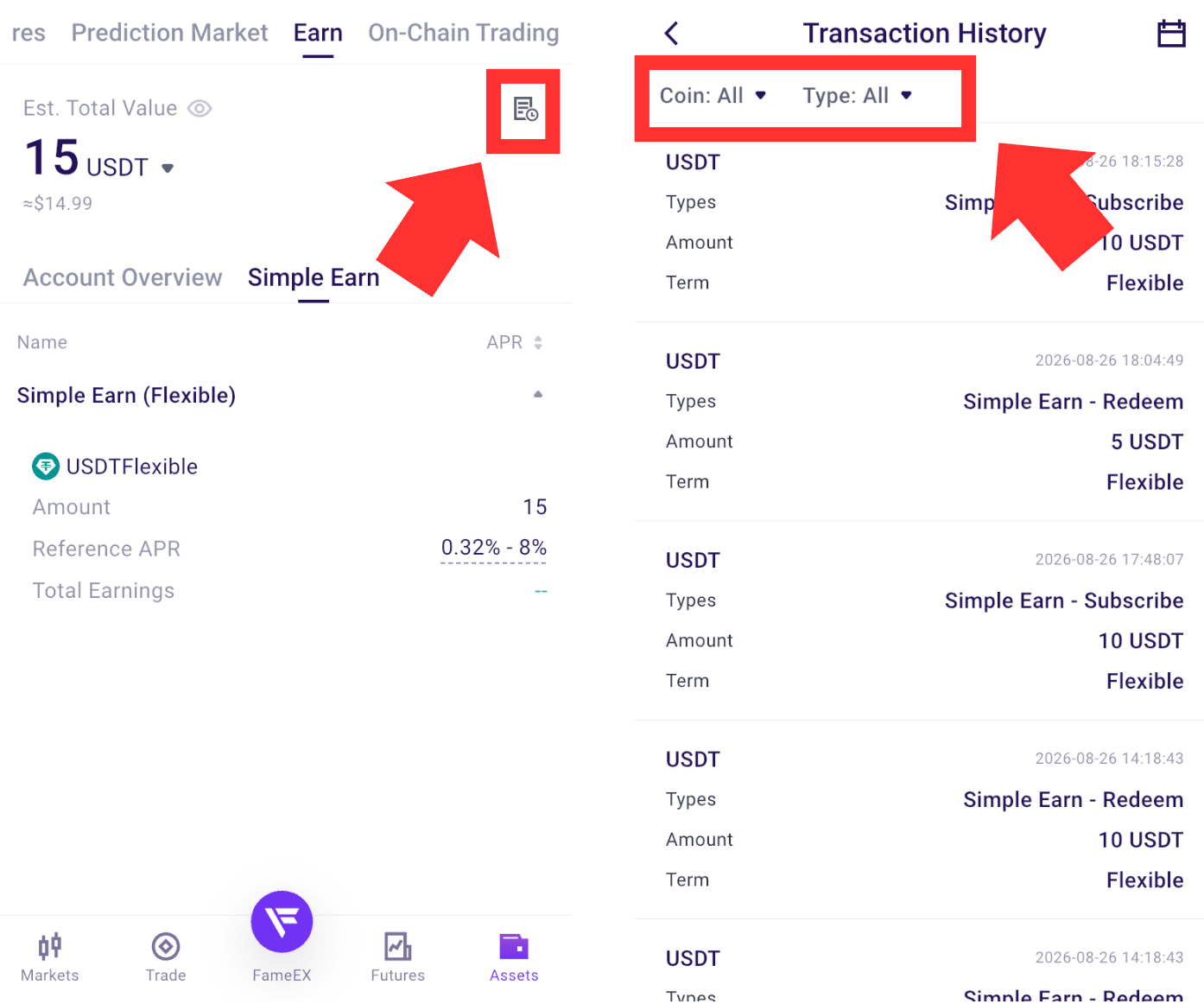
2) Tap the [Transaction History] icon in the upper-right corner to view interest and redemption records. You can also filter the records by coin, type, and date range.
*Interest Calculation and Distribution:
Flexible Products generally begin accruing interest at the next full hour after subscription. The first interest payment is expected in the following hour. Each Fixed Product subscription accrues interest separately. Please refer to the page for the actual interest start time, distribution time, and maturity time.
3. How to Redeem Simple Earn Flexible and Fixed Products?
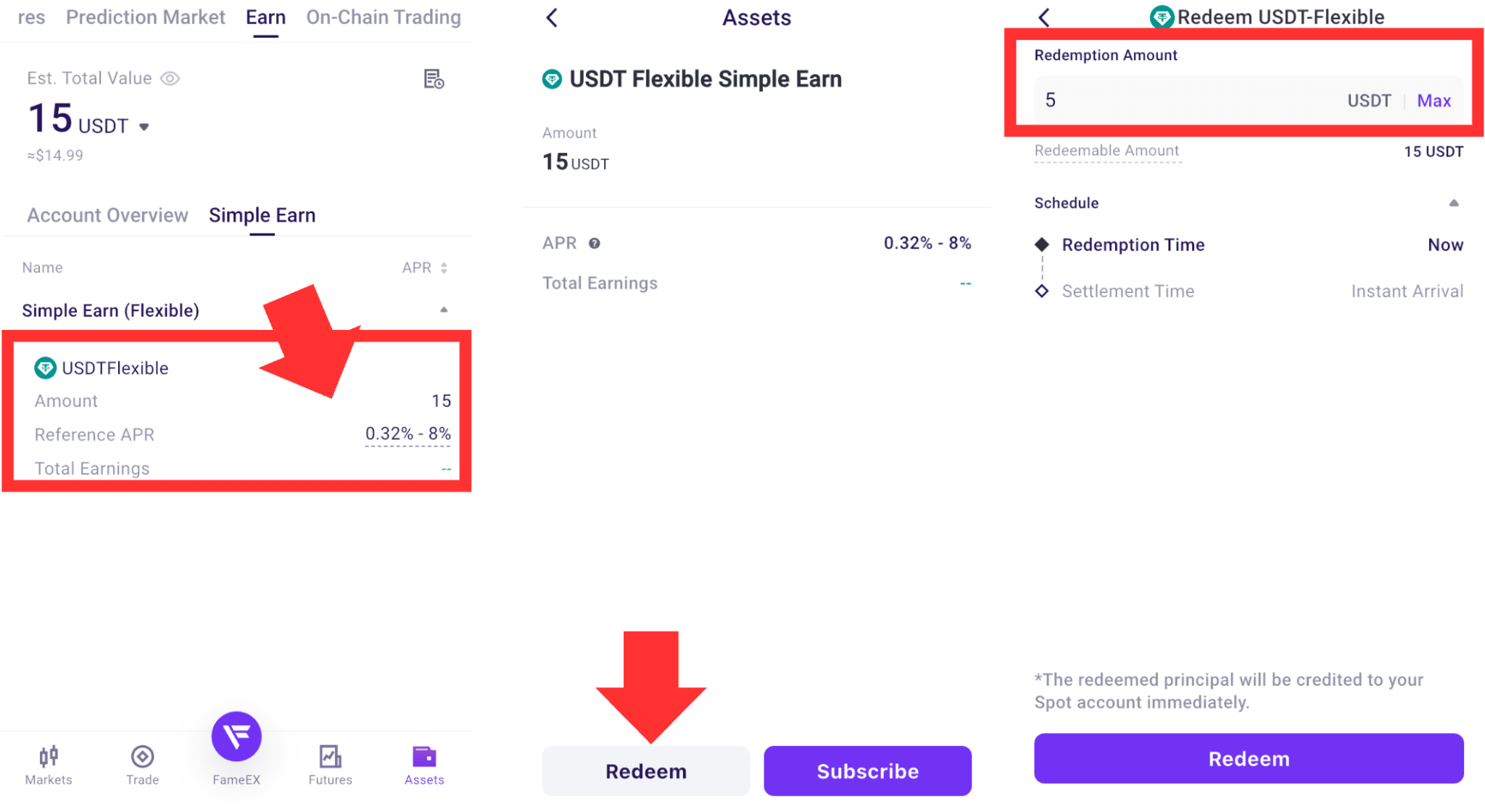
1) Enter your [Earn] account in the [Assets] page and select the Flexible product you want to redeem. On the redemption page, enter the amount you want to redeem, or tap [Max] to redeem the full redeemable amount.
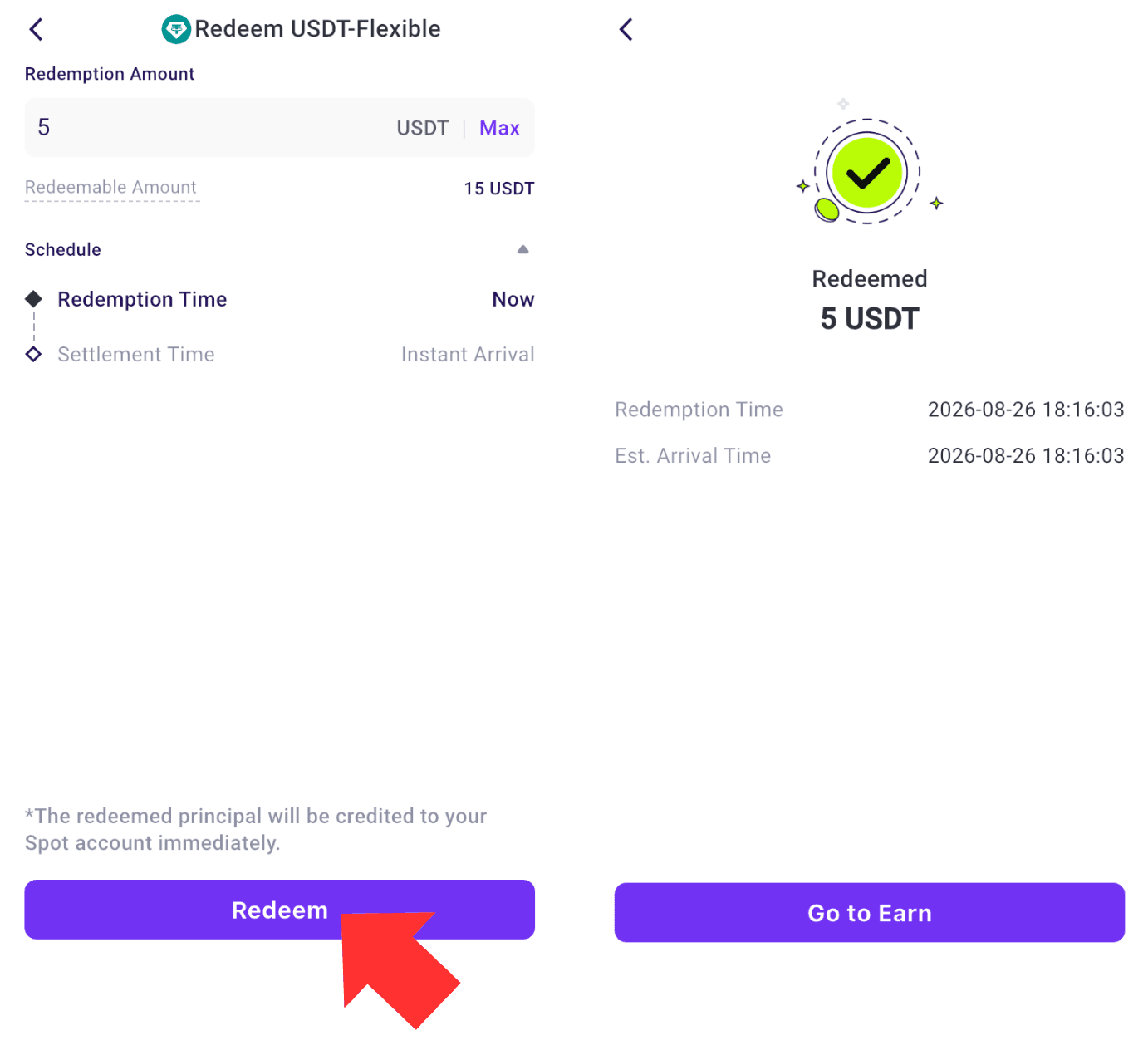
2) Review the redemption time and settlement time. Confirm the details and tap [Redeem]. After the redemption is completed, the page will show the redemption amount, redemption time, and estimated arrival time. The redeemed principal will be credited to your Spot Account according to the applicable product rules.
*Note: When redeeming a Fixed Product before maturity, the entire subscription must be redeemed. Partial early redemption is currently not supported. All interest already distributed for that subscription will be deducted from the principal. The remaining principal will then be credited to your Spot Account.
4. How to Enable or Disable Auto-Subscribe or Auto-Renewal?
Users can enable automatic features when subscribing. For Flexible Products, enable [Auto-Subscribe]. For Fixed Products, enable [Auto-Renewal]. When Auto-Renew is enabled, the system will use the returned principal to subscribe to the same Fixed Product again at maturity.
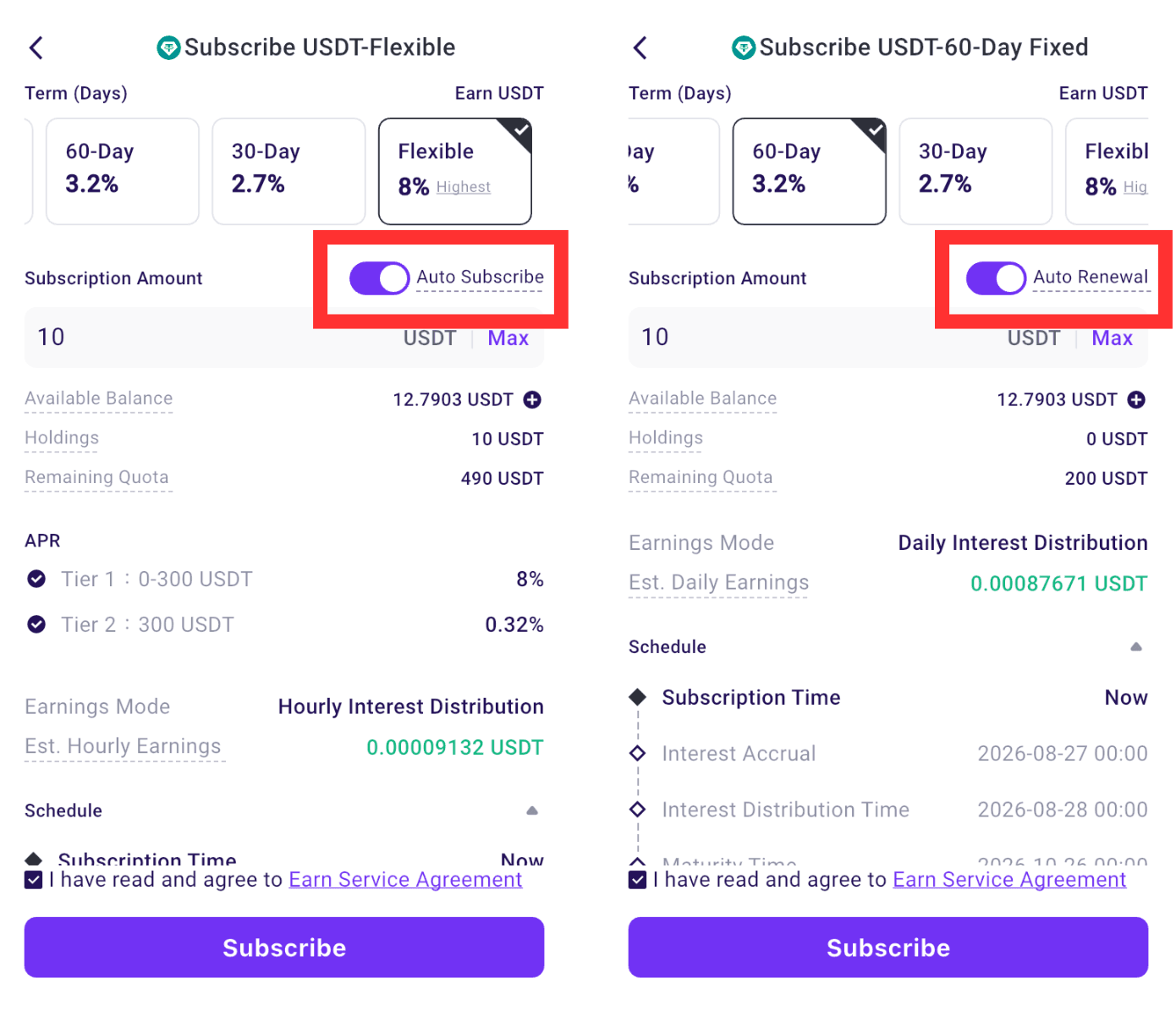
If the original Fixed Product has been delisted, the system will subscribe the principal to a Flexible Product in the same asset according to the applicable product rules. If the relevant product is unavailable or the asset has been delisted, Auto-Renewal will stop. The principal will then be credited to the Spot Account.
*Some feature names and page locations may change with platform updates. Please refer to the actual page for the latest information.