How Do I Change or Reset My Login Password? (App)
2026-10-23 08:04:42You can change your FameEX login password while signed in or reset it if you have forgotten it. This guide explains both methods and covers the verification process, password requirements, and important security precautions.
1. How to Change Your FameEX Login Password?
Before changing your login password, you must have at least two security verification methods linked to your account. If you have not met this requirement, go to [Security Center] to set up the required verification methods first.
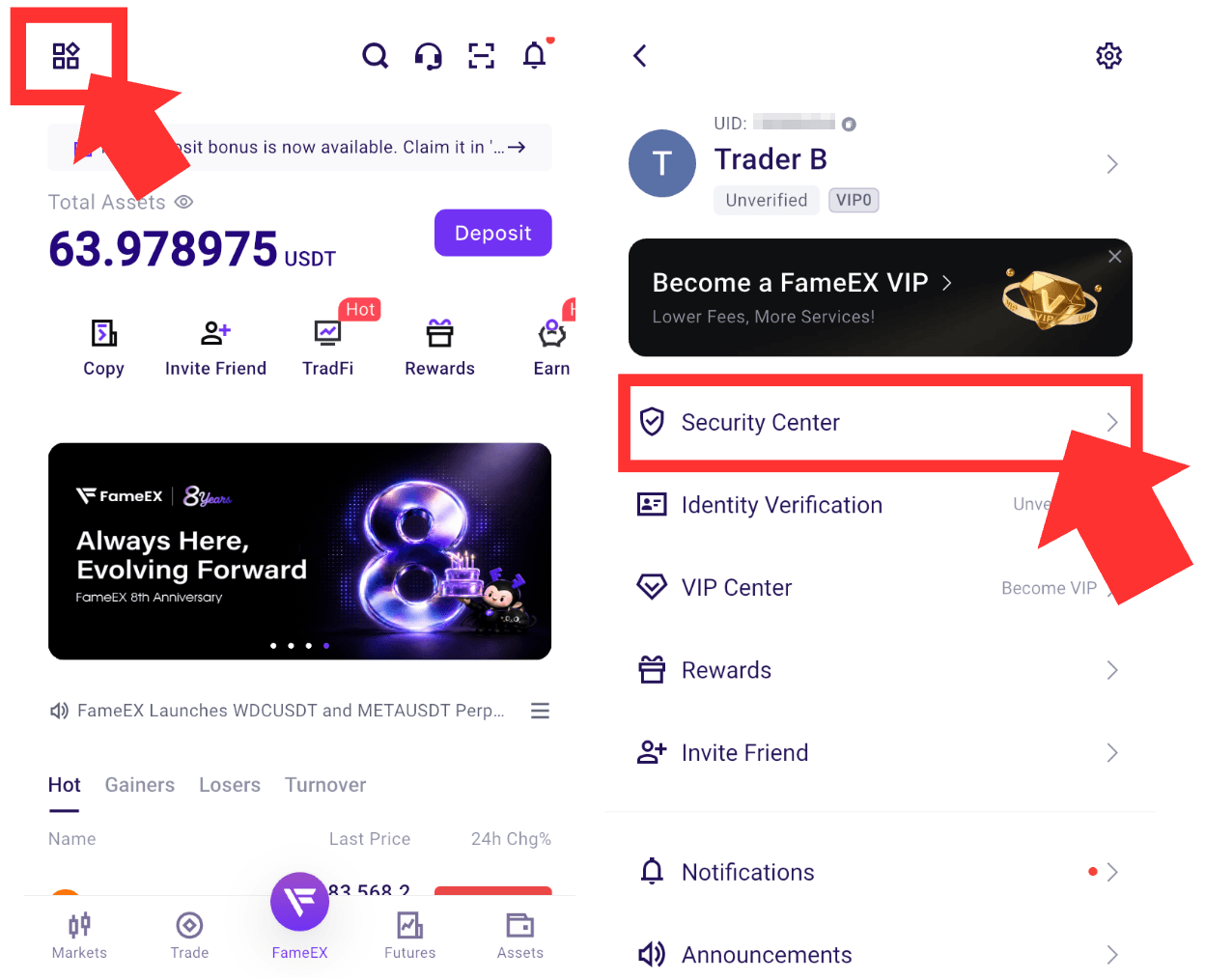
1) Open the FameEX App and log in to your account. Tap the [User Center] icon in the upper-left corner and enter [Security Center].
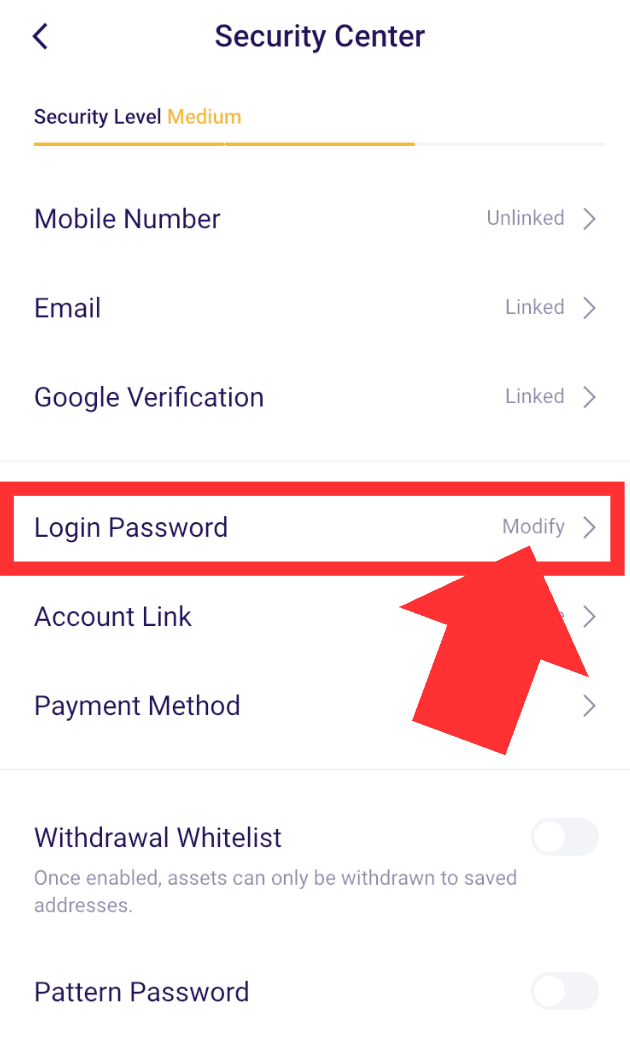
2) On the [Security Center] page, find [Login Password] and tap [Modify] on the right.
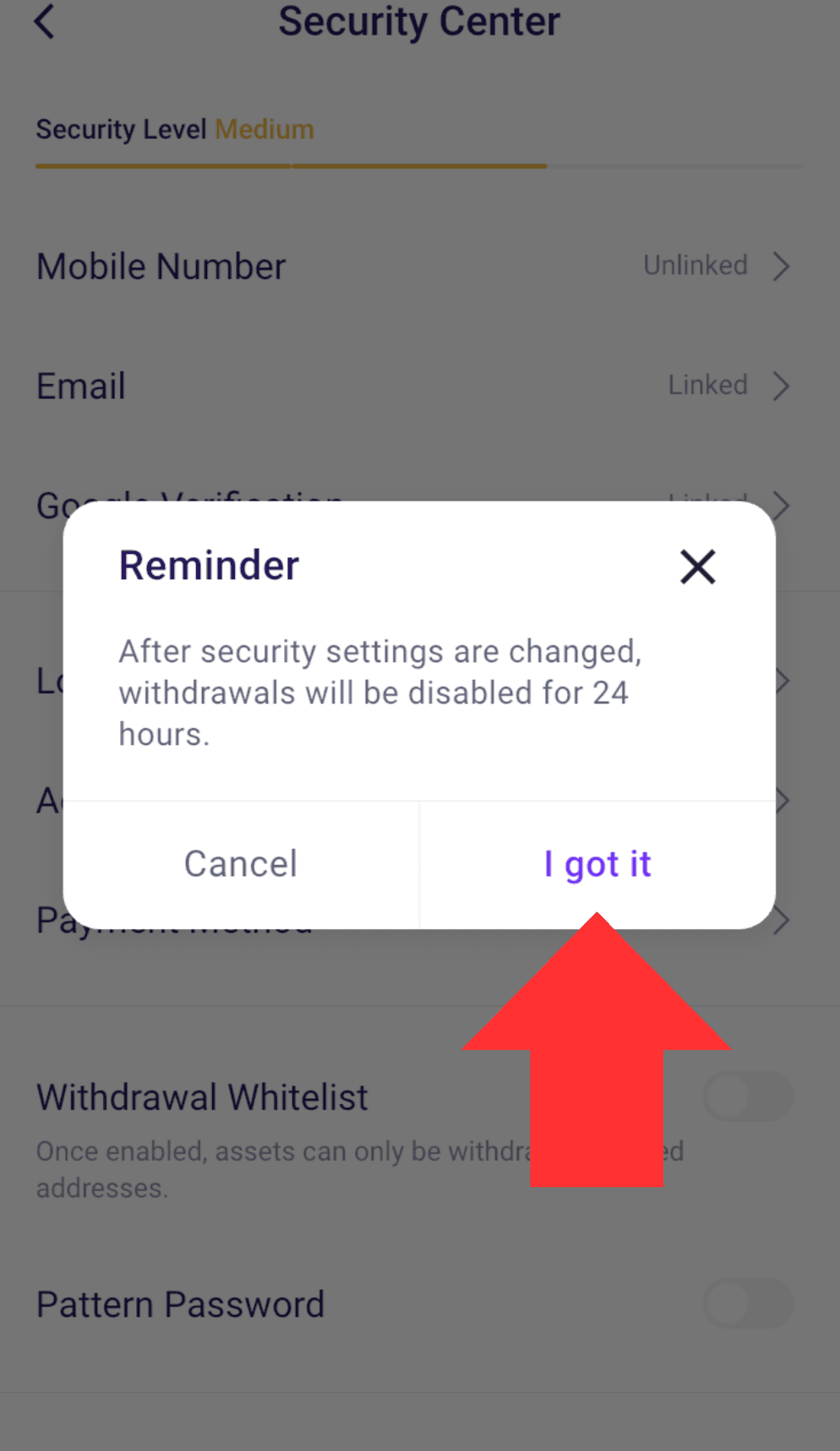
3) A security notice will appear stating that withdrawals will be disabled for 24 hours after changing your security settings. Review the notice and tap [I got it] to continue.
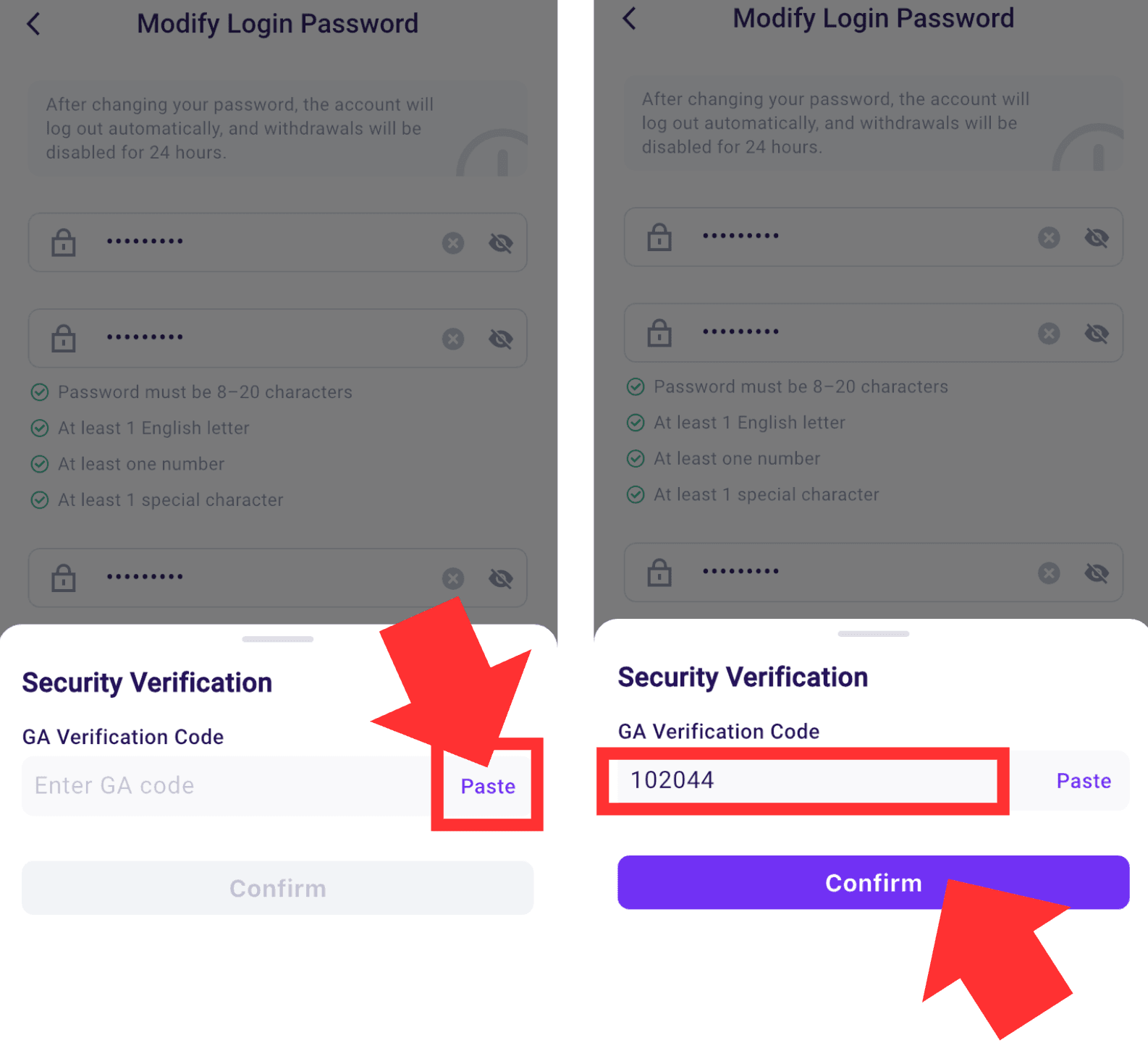
4) On the [Modify Login Password] page, enter your current password and new password in the corresponding fields. Enter your new password again to confirm it. Make sure both entries match, then tap [Modify].
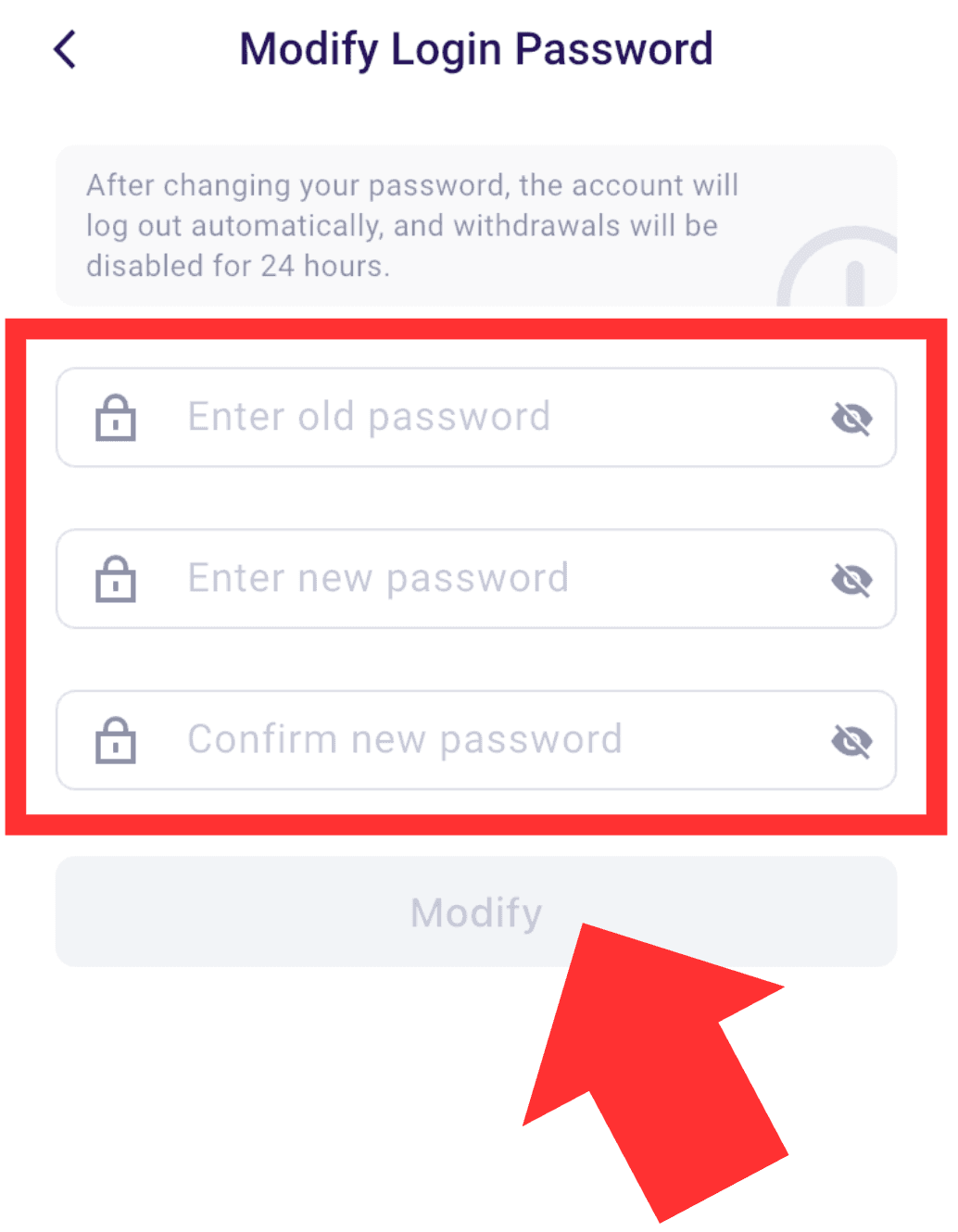
*Your new password must be 8–20 characters long and include at least one letter, one number, and one special character. For better account security, use a strong password and avoid reusing it across multiple accounts.
5) A [Security Verification] pop-up will appear. Follow the on-screen instructions to complete the required verification. Enter the verification code and tap [Confirm] to complete the password change. Once your password has been successfully changed, you will be automatically logged out and redirected to the login page. Log in to the FameEX App using your new password.
2. How to Reset Your Forgotten Login Password?
If you have forgotten your FameEX login password, you can reset it through the [Forgot Password?] option on the login page. You do not need to be logged in to complete this process.
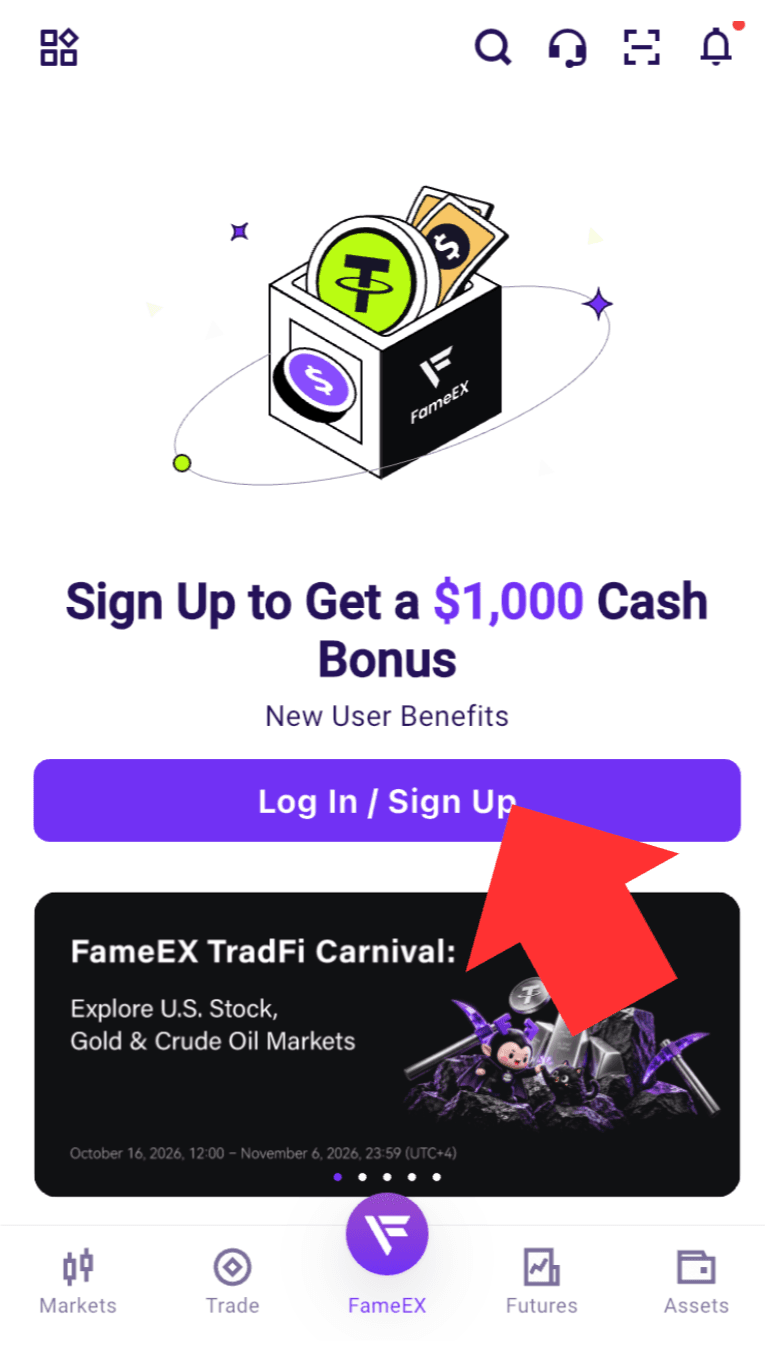
1) Open the FameEX App and tap [Log In / Sign Up] on the page to enter.
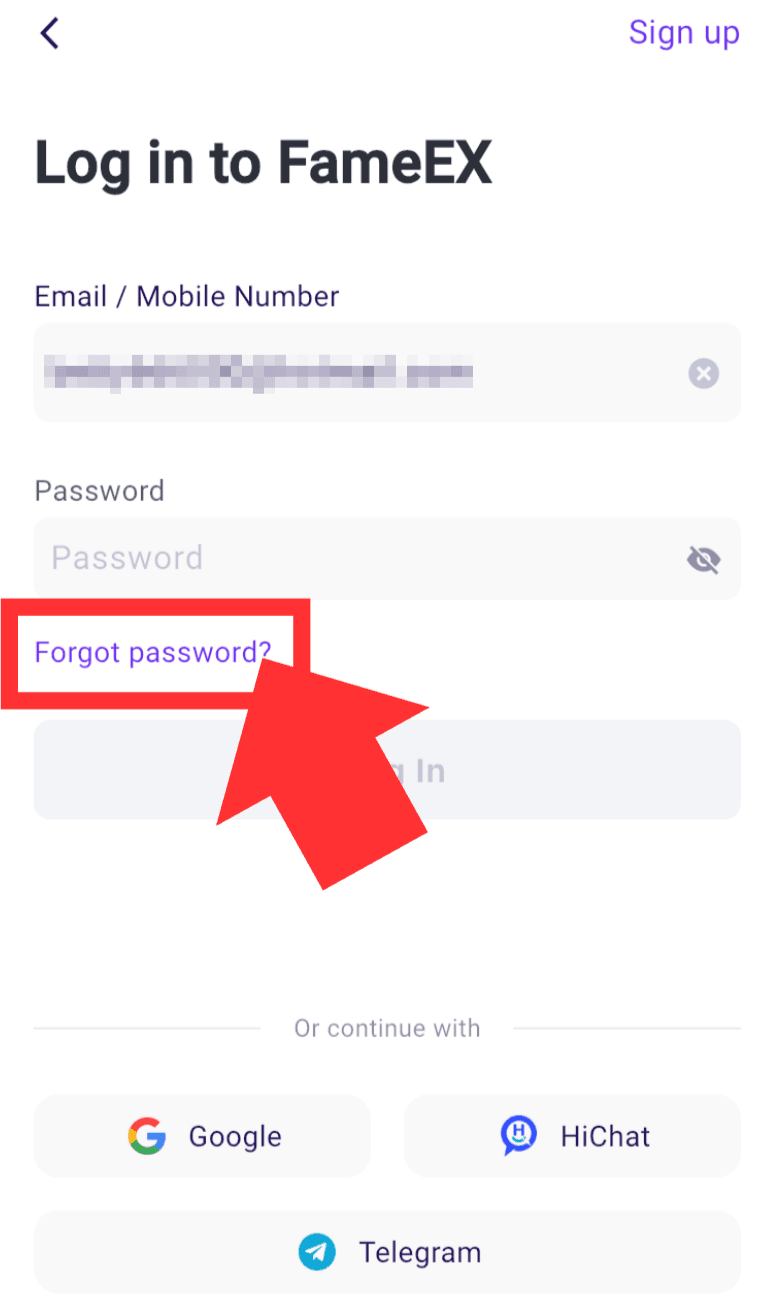
2) On the login page, tap [Forgot Password?] to start the password reset process.
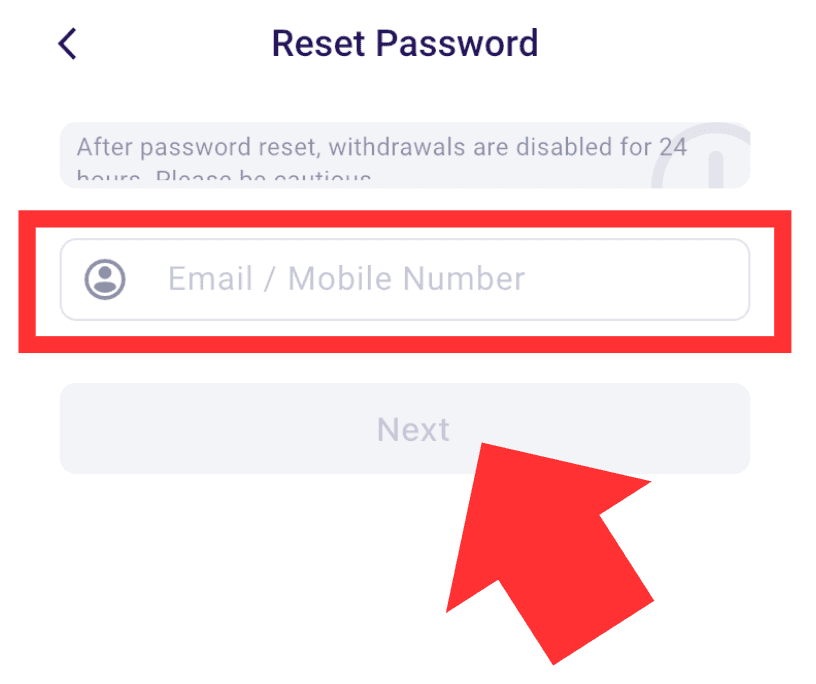
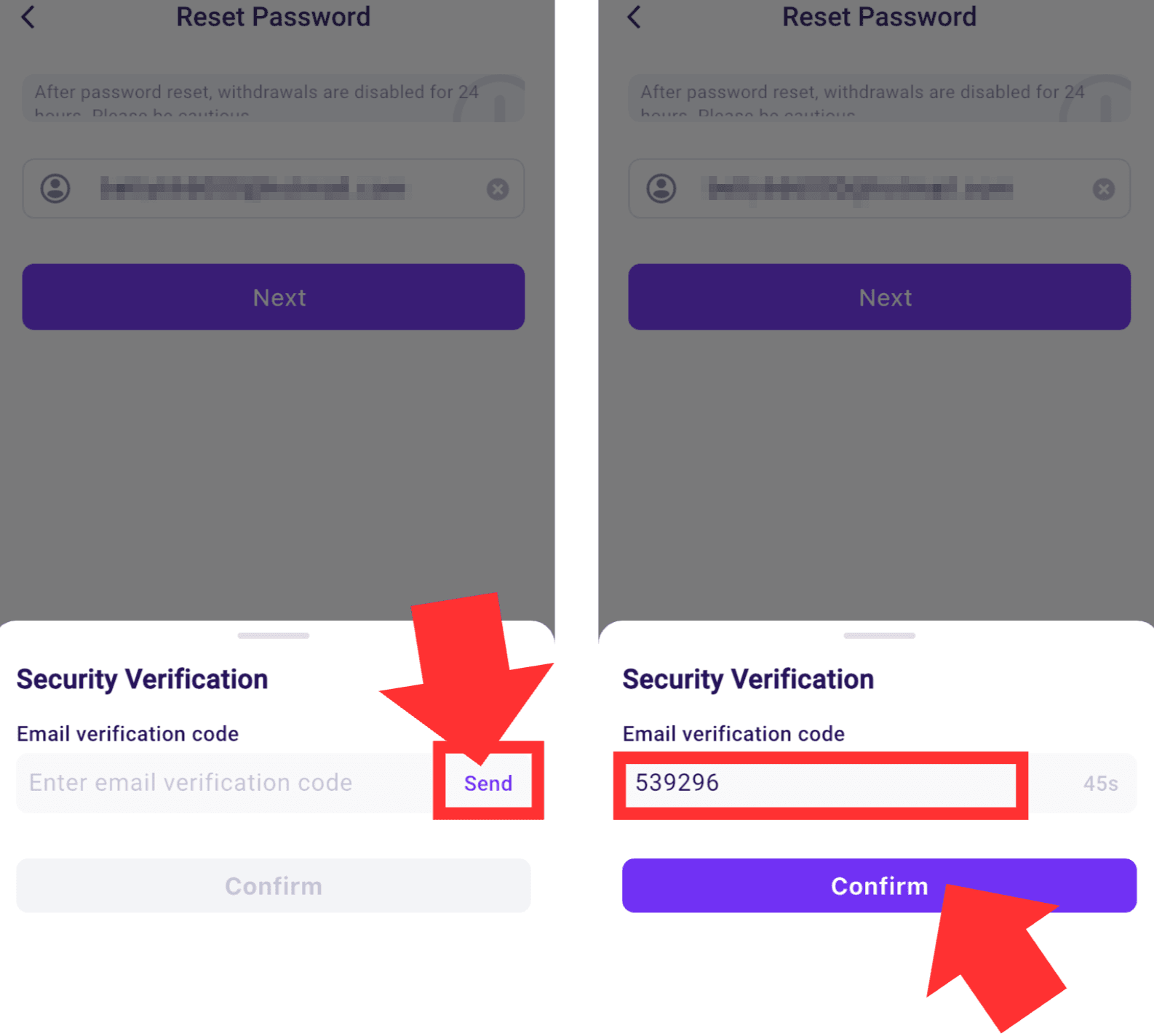
3) On the [Reset Password] page, enter the email address or mobile number linked to your FameEX account. Make sure the information is correct, then tap [Next].
4) A [Security Verification] pop-up will appear. Tap [Send] to request a verification code and follow the on-screen instructions to complete the verification. If two verification methods are required, enter both verification codes and tap [Confirm] to continue.
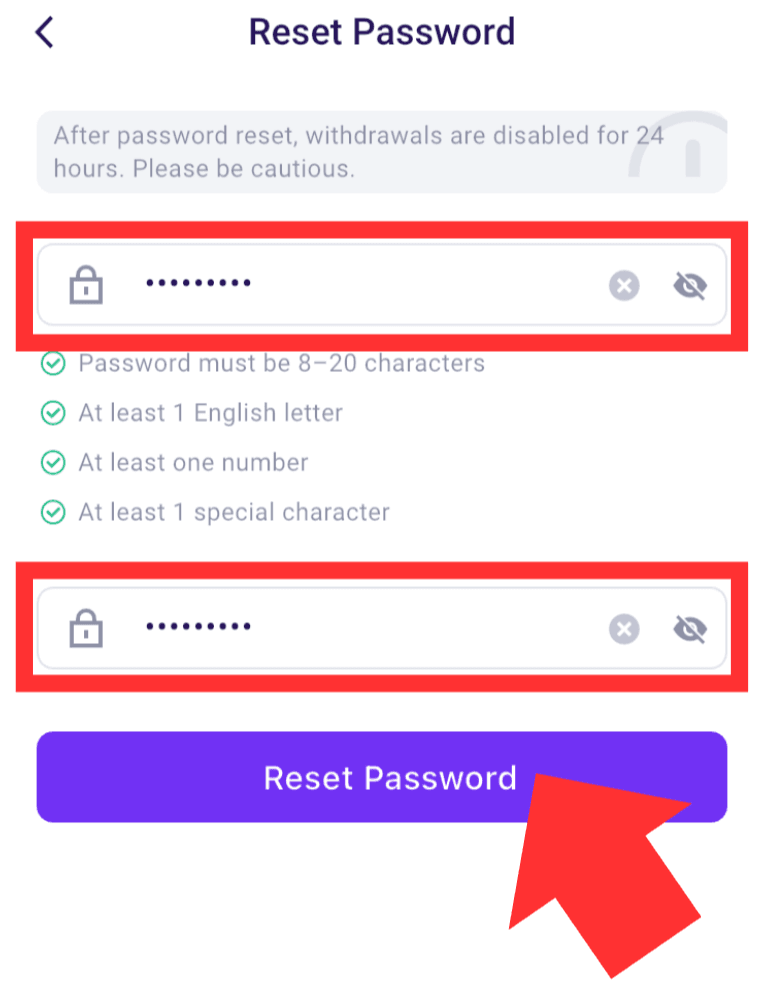
5) After completing security verification, you will be directed to the [Reset Password] page. Enter your new password and enter again in the second section to confirm your password. Your password must be 8–20 characters long and include at least one letter, one number, and one special character. Make sure both entries match, then tap [Reset Password] to complete the process.
6) Once your password has been successfully reset, you will be redirected to the FameEX App login page. Log in to your account using your new password.
3. Password Requirements and Important Notes
- Password Requirements: Your new login password must meet the platform's length and character requirements. We recommend using a combination of letters, numbers, and special characters. For better account security, use a strong password and avoid reusing it across multiple accounts.
- Security Verification: Before changing or resetting your login password, make sure your registered email address, mobile number, or Google Authenticator is available for verification. Complete the required verification steps before the codes expire.
- Withdrawal Restrictions: After your login password is successfully changed or reset, withdrawals from your account will be suspended for 24 hours to protect your account and assets.
- Account Security: Never share your login password, SMS verification codes, email verification codes, or Google Authenticator codes with anyone. For more information about account protection features, refer to the “FameEX Security Settings Overview”.
4. Frequently Asked Questions (FAQs)
Q1: What Should I Do If I Don't Receive My Verification Code When Changing or Resetting My Login Password?
A: First, make sure your registered mobile number or email address can receive verification codes. Check your mobile network, SMS blocking settings, and email spam folder. If you request multiple verification codes, always use the most recent one. Previously issued codes may no longer be valid.
Q2: Can I Reset My Login Password If I No Longer Have Access to My Registered Mobile Number or Email Address?
A: If you can no longer access your registered mobile number or email address, you may be unable to complete the standard password reset process. Please contact FameEX Online Support for assistance and follow the required security verification instructions.
If you are already logged in and need to update your registered mobile number, refer to “How to Change Your FameEX Account Mobile Number? (App)”.
Q3: What Should I Do If I Still Can't Log In After Resetting My Password?
A: Please make sure you are using your newly reset password. Check that your account information is correct and your internet connection is stable. Entering an incorrect password multiple times may trigger a temporary account lockout. If this happens, follow the instructions shown on the page and wait before trying again. If you still cannot log in, refer to the “FameEX Login FAQ” or contact FameEX Online Support for further assistance.
*Feature names and page locations may change as the platform is updated. Please refer to the latest information shown on the actual page.